
Sync Galleries From Lightroom in Under an Hour With Plugins That Update in Place
Workflow first guide to Lightroom plugins that preserve metadata, overwrite files, and power embeds. Sync a gallery in under an hour.
Sync Galleries From Lightroom in Under an Hour With Plugins That Update in Place
The best Lightroom plugins for photographers are publish-capable integrations, not one-time export tools. A publish plugin or platform preserves metadata, updates existing files instead of duplicating them, and pushes changes to your portfolio or embeds automatically. PhotoView.io delivers that full workflow, combining Lightroom publishing with live embeds and private sharing so finished galleries stay current without repeated manual uploads.
TL;DR:
- Proper publish workflows update only changed images, preserving metadata and avoiding duplicate files, which saves hours in manual uploads.
- Important features include metadata synchronization, update-in-place behavior, format control, embed support, access controls, and ongoing support.
- JPEG in sRGB is the recommended export format for web galleries, with size guidelines of around 1,600 to 2,048 pixels for galleries and smaller sizes for thumbnails.
- Setting up a reliable workflow involves creating collections, export presets, conducting test synchronizations, and routinely updating galleries to prevent stale content.
- PhotoView.io automates this process, supporting live updates, private sharing, multiple media, and seamless gallery synchronization across sites with minimal ongoing effort.
PhotoViewKeep Your Lightroom Galleries CurrentPhotoView combines Lightroom publishing, live embeds, and private sharing so your finished galleries stay organized and up to date.Explore PhotoView
Table of Contents
- How Do Lightroom Publish Services Keep Portfolios Synced?
- What Should You Look for in a Lightroom Publish Plugin?
- What Export Settings Actually Matter Before You Publish?
- A Step-by-Step Workflow to Keep Lightroom Synced With Your Portfolio
- Why PhotoView.io Is Built for This Exact Workflow
- A Realistic Look at Migration Pain and Long-Term Payoff
- Where to Learn More About Publish Workflows
- Sources
- FAQ
How Do Lightroom Publish Services Keep Portfolios Synced?
A publish service treats a Lightroom collection differently than a folder you export from once and forget. It’s a managed target. Once you create a publish collection, Lightroom tracks which photos have changed since the last upload, whether that’s a develop tweak, a new keyword, or a watermark adjustment. When you hit “publish,” only the modified files move, and they replace what’s already live instead of piling on duplicates.
This matters more than it sounds. Publish Services in Lightroom have worked this way since early versions of the app, detecting changes at the file level and updating external galleries in place rather than forcing a full re-export. That change-detection model is why photographers who adopt publish workflows stop dealing with the “which version is live” problem entirely.
The practical payoff shows up in saved time. Photographers who rely on publish services report avoiding hours of manual export-upload cycles, because the plugin or platform handles file matching and metadata sync automatically. That’s the difference between a tool built for one-time delivery and one built for an evolving portfolio.
A few things happen automatically in a well-built publish workflow:
- Lightroom flags any image in the collection that has been edited since the last publish.
- The plugin re-uploads only changed files, replacing the existing asset rather than creating a copy.
- Metadata (captions, keywords, copyright) travels with the image on every republish.
- Deleted images in the collection can be removed from the live gallery without manual cleanup.
Third-party tools have used this model for years. WP/LR Sync, a Lightroom publish plugin built for WordPress, preserves collection and folder structure while syncing metadata and handling update-in-place behavior, a good illustration of how the underlying mechanism works even outside a dedicated portfolio platform.
What Should You Look for in a Lightroom Publish Plugin?
Not every plugin marketed as a “sync tool” actually behaves like a publish service. Some still just batch-export and re-upload, which means duplicate files and broken links every time you make an edit. Before you commit to one, run it against a short list of non-negotiables.
- Metadata sync: Titles, captions, alt text, and keywords need to travel with the image, not get stripped on upload.
- Update-in-place behavior: A republish should overwrite the existing asset. If it’s creating a new file with a new URL, your embeds and shared links break.
- Format and conversion control: You need to set JPEG, WebP, or AVIF output, color space, and resizing rules once and trust them to hold.
- Embed support: Live embed snippets and responsive galleries should render correctly inside your existing site template.
- Access controls: Password-protected galleries and private client links matter if you shoot weddings or commercial work under NDA.
- Maintenance and support: A plugin that hasn’t been updated in two years is a liability the moment Lightroom or your CMS changes its API.
Pro Tip: Test a plugin’s update-in-place behavior with a throwaway collection before trusting it with a client gallery. Publish once, edit one photo, republish, then check whether the live URL changed. If it did, that plugin is exporting, not publishing.
What Export Settings Actually Matter Before You Publish?
Getting the workflow right doesn’t help if the files themselves are wrong for the web. Most portfolio and embed problems trace back to a handful of export decisions made once and never revisited.
JPEG in sRGB remains the safest default for most web portfolios, since it renders consistently across browsers and devices without extra configuration. WebP and AVIF can shrink file sizes meaningfully, but only use them if your portfolio platform and any embed targets actually support them. Test before you commit an entire catalog to a format your CMS might choke on.
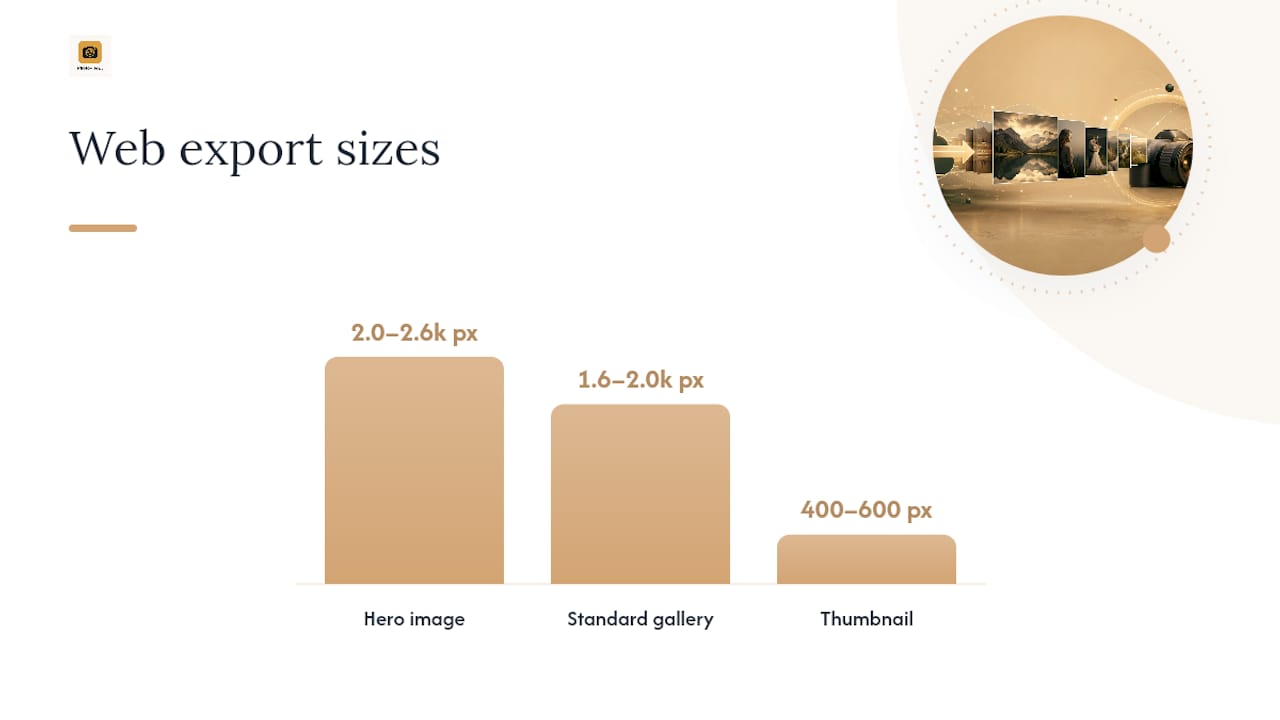
For sizing, a few practical ranges hold up across most portfolio templates:
- Hero images: long edge around 2,048 to 2,560 pixels
- Standard gallery images: long edge around 1,600 to 2,048 pixels
- Thumbnails: long edge around 400 to 600 pixels, generated automatically by most platforms
Apply screen sharpening on export, since web-sized images need a touch more sharpening than what looks right on a calibrated print.
Save these as named export presets, mapped to your publish targets, so every gallery gets consistent treatment. Practitioners who organize presets by portfolio requirement avoid the inconsistency that creeps in when settings get adjusted ad hoc for each shoot. Before trusting the system with a client gallery, run one full test cycle: publish a single collection, check the live embed, confirm metadata transferred, and verify a re-publish replaces rather than duplicates the file.
A Step-by-Step Workflow to Keep Lightroom Synced With Your Portfolio
Once you understand the mechanics, setup is mostly a matter of sequence. Follow these steps in order the first time you connect Lightroom to a portfolio or embed target.
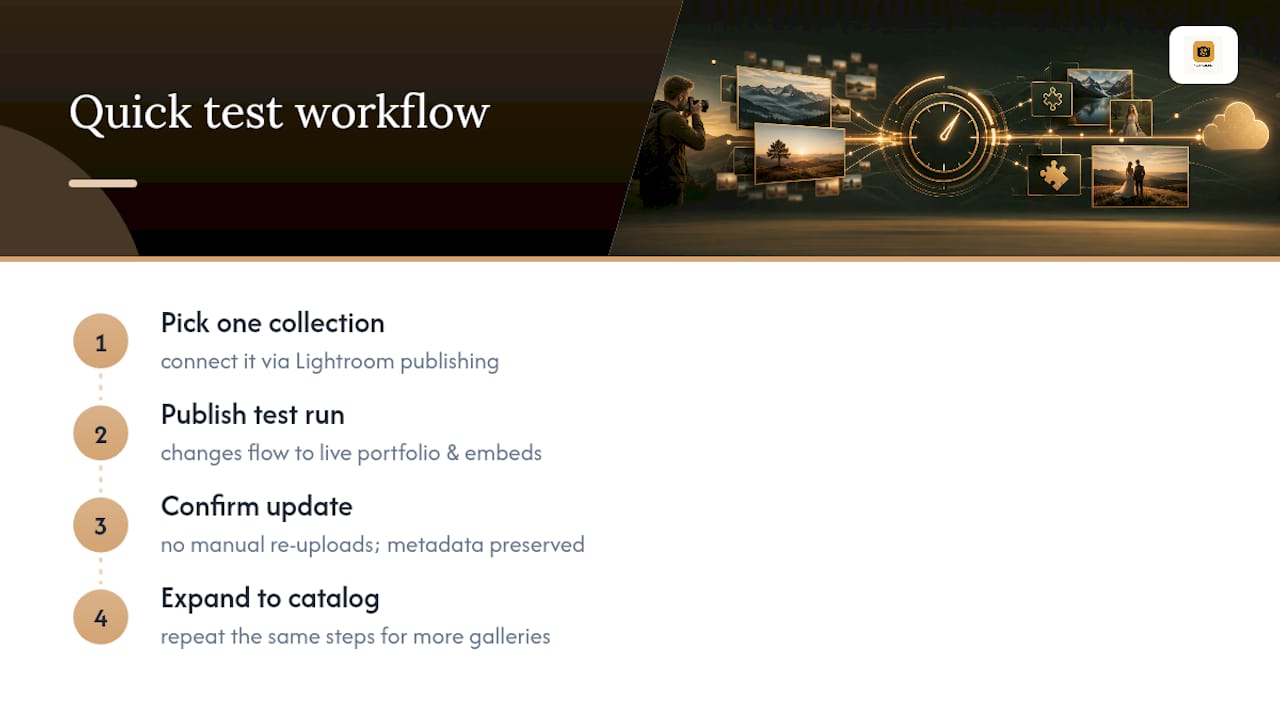
- Build your collections. Create a smart collection or regular collection for each gallery you intend to publish, named to match your portfolio’s structure.
- Set up export presets. Build presets for hero, gallery, and thumbnail sizes, then attach them to your publish service configuration.
- Run a test sync. Map one collection to a real gallery target, resolve any duplicate filenames or mismatches, and publish it as a controlled trial run.
- Establish an ongoing rhythm. Add new images to the relevant collection as you finish editing, republish to push updates, and audit galleries every few months for stale content or broken embeds.
That fourth step is where most photographers slip. A publish workflow only stays reliable if you treat republishing as routine, not a special event you remember to do before a client deadline.
Why PhotoView.io Is Built for This Exact Workflow
Everything covered above, managed collections, update-in-place syncing, metadata preservation, and embed support, is the workflow Photoview was built around from the start. You publish directly from Lightroom, and changes flow to your live portfolio and any external embeds from one dashboard, without a separate export step for every update.
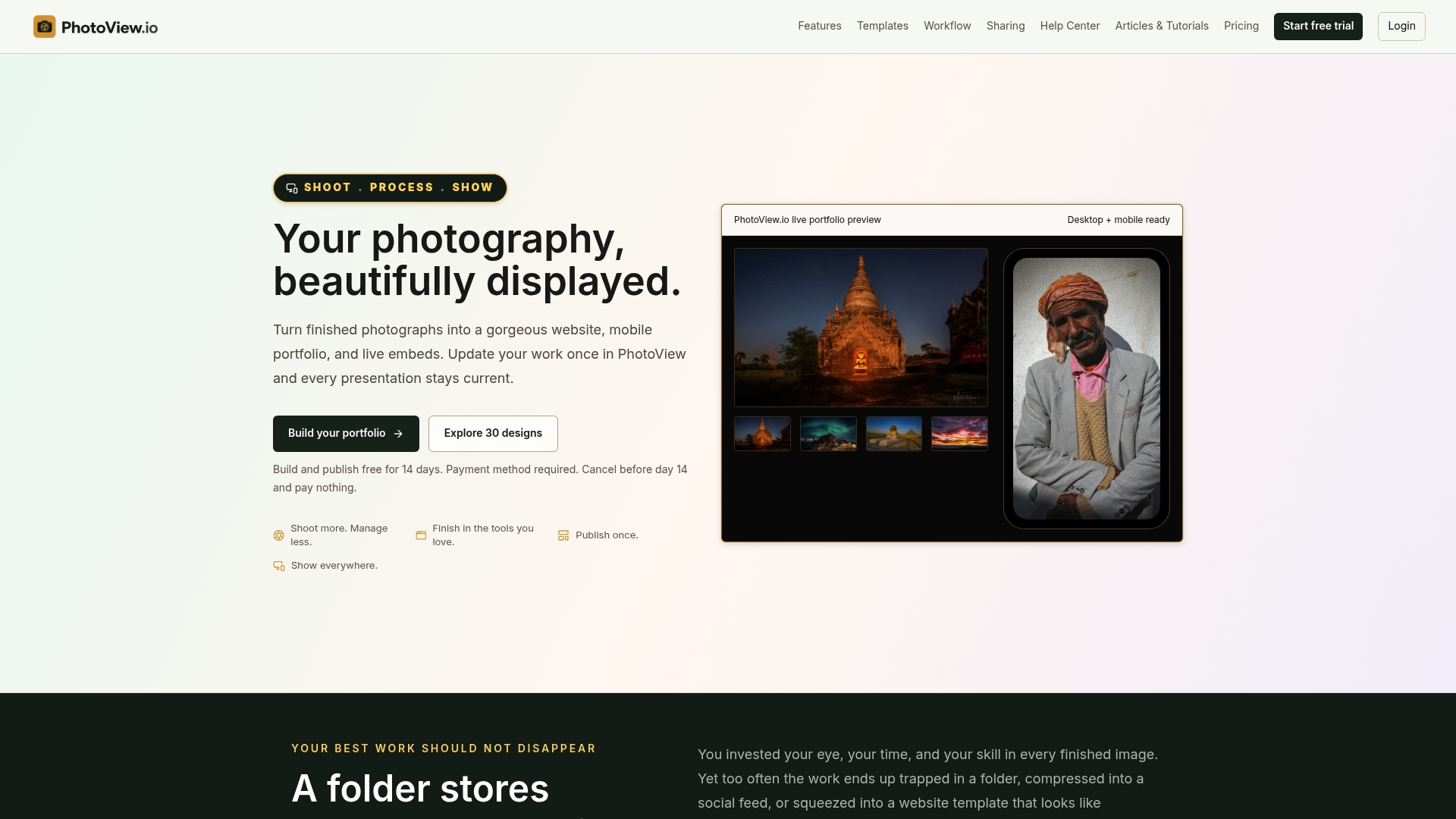
The platform backs that publish workflow with more than 30 responsive portfolio templates, Smart Folders for automated organization, private sharing for client delivery, and support for mixed media, useful if you shoot video alongside stills for travel, wedding, commercial, or fine-art work. Every plan includes all templates, so you’re not paying more to unlock a different look later.
Plans run from a low monthly and annual price on the Starter tier up to a higher monthly and annual price on Premier, scaled by storage volume, with a Custom tier available for high-volume shooters at a price available on request. If you manage galleries across multiple sites, PhotoView’s live embed support keeps external pages current the same way your main portfolio stays current, from the same Lightroom publish action.
Start small: pick one collection, connect it through the Lightroom publishing setup, and publish it as your test run. Once you see a real gallery update without a single manual re-upload, expanding to your full catalog is just a matter of repeating the same steps.
A Realistic Look at Migration Pain and Long-Term Payoff
Don’t expect a flawless first sync. Large catalogs almost always surface duplicate filenames or mapping mismatches that need manual reconciliation before everything lines up cleanly. Budget an afternoon for that cleanup, not five minutes.
The payoff arrives after that initial friction, especially when leveraging tailored Photography SEO Services | Be Discovered & Book More Shoots to promote your published galleries effectively. Once collections are mapped correctly, you get fewer duplicate files, consistent metadata across every published image, and centralized control over embeds and private galleries. A managed platform earns its keep specifically when you’re juggling mixed media, client-facing sharing, and updates across multiple sites, without wanting to maintain server infrastructure yourself.
— Mitch Russo
Where to Learn More About Publish Workflows
For deeper technical grounding, check Adobe’s own Help Center for Lightroom’s publish and export fundamentals. Practitioner writeups like Lightroom Killer Tips cover real-world publish-service habits worth adopting.
Sources
- Do You Use Publish Services? - Lightroom Killer Tips
- Lightroom 3 Publish Services - TipSquirrel
- WP/LR Sync
- The 2026 Guide to Preparing Edited Photos for Your Portfolio
- Adobe Help Center
FAQ
What’s the Difference Between Export and Publish in Lightroom?
Export creates a one-time copy of your files with no ongoing connection to Lightroom. A publish service keeps a live link between your collection and the destination, so edits and metadata changes push updates automatically instead of requiring a fresh export every time.
Do Lightroom Publish Plugins Preserve Metadata?
A properly built publish plugin preserves captions, keywords, and other metadata fields on every republish, not just the initial upload. Tools like WP/LR Sync demonstrate this by keeping folder structure and metadata intact across syncs.
How Much Does PhotoView.io Cost?
PhotoView offers multiple subscription plans that vary by storage capacity and features, with current prices available on their pricing page. A Custom plan is available for high-volume photographers at a price available on request from Photoview.
Should I Use JPEG or WebP for My Portfolio?
JPEG in sRGB is the safest default because it renders consistently across virtually every browser and portfolio platform. WebP or AVIF can reduce file size further, but only switch after confirming your platform and embed targets support them.
How Long Does It Take to Set Up a Synced Lightroom Workflow?
Initial setup, building collections, saving export presets, and running a test publish, typically takes under an hour for a single gallery. Ongoing maintenance is minimal: you add images to a collection and republish, with an occasional audit to catch stale galleries or broken embeds.