PhotoView Help Center

Build your photography website with confidence.

Follow the illustrated Website Builder series in order, or open the tutorial for the task you are working on now.

10

guided lessons

6–9 min

per lesson

Real screens

desktop + mobile

Series 1

Build your website

Start with the beginner’s tour, then work through identity, layout, content, responsive review, and publishing.

Tutorial 17 min

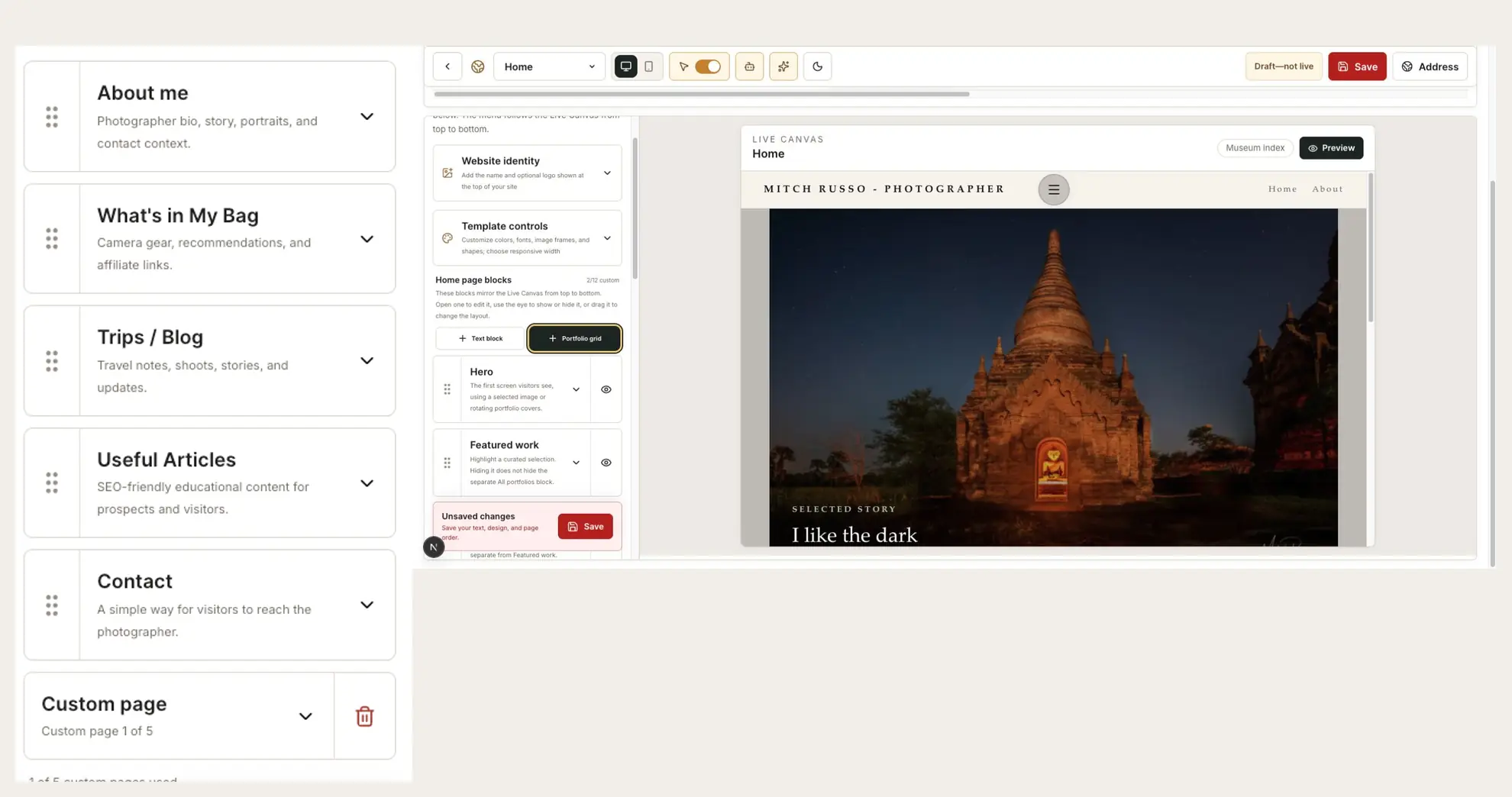
My Website: A Complete Beginner’s Tour

Learn where the main website controls live and how the editor, Live Canvas, preview, and publishing tools work together.

You will know how to move around My Website, make a safe draft change, preview it, and save it.

Start tutorial
Tutorial 28 min

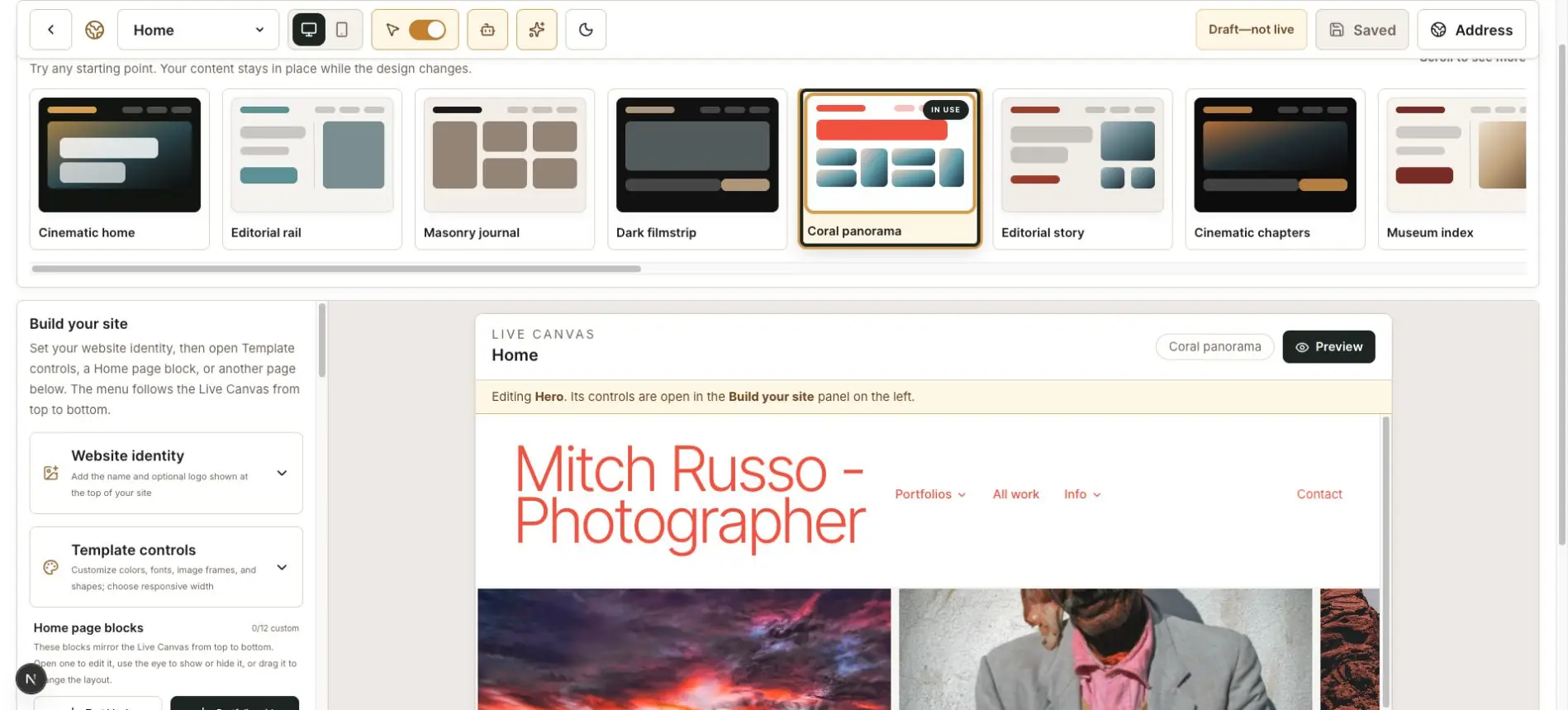
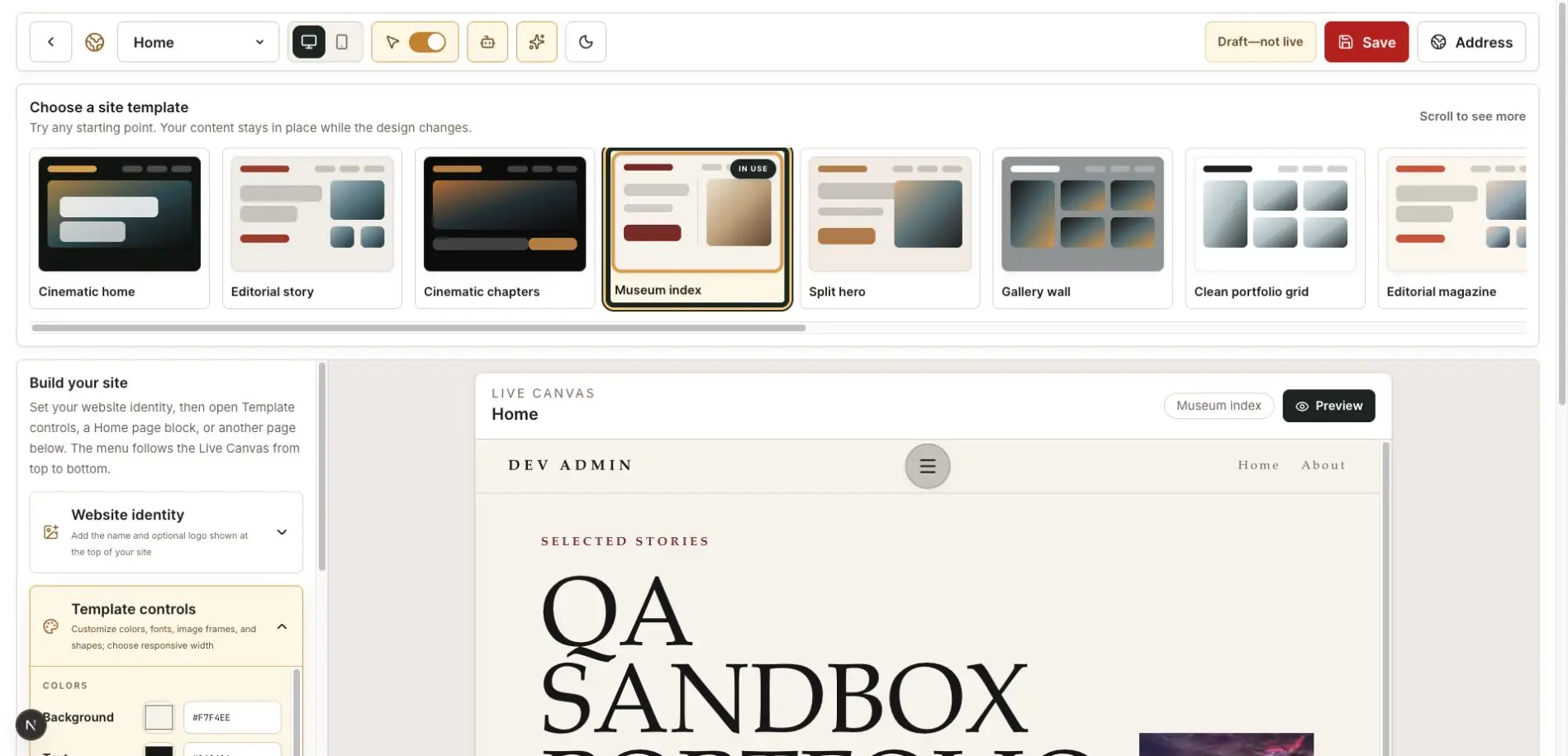
Choose the Right Website Template

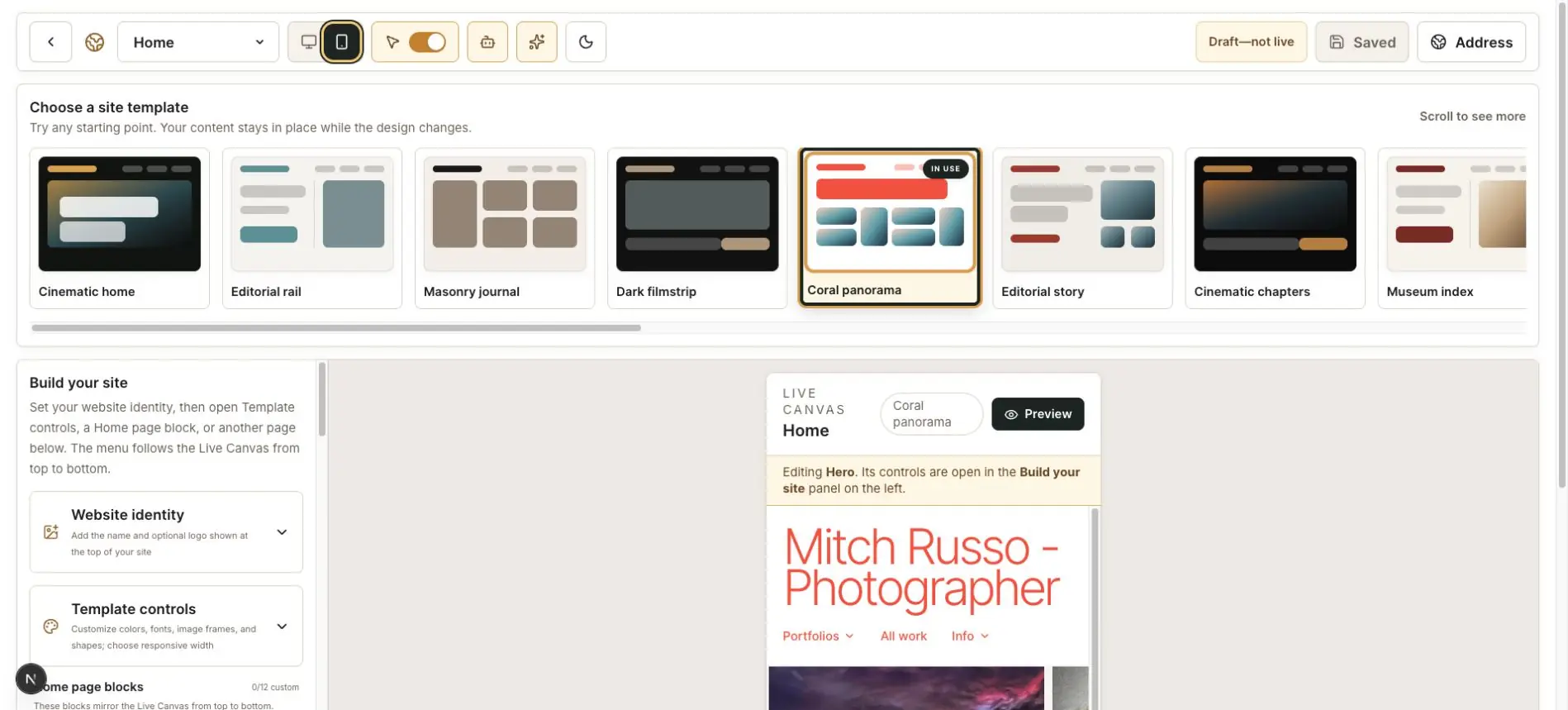
Compare PhotoView templates by presentation style, image shape, navigation, and the kind of story you want the site to tell.

You will select a template that suits your photographs and understand what changes when a new template is applied.

Start tutorial
Tutorial 37 min

Set Your Website Name, Logo, and Brand Identity

Create a clear public identity using your photographer name, optional logo, colors, typography, and navigation labels.

You will create a consistent website header that identifies you without competing with your photographs.

Start tutorial
Tutorial 49 min

Build an Effective Photography Homepage

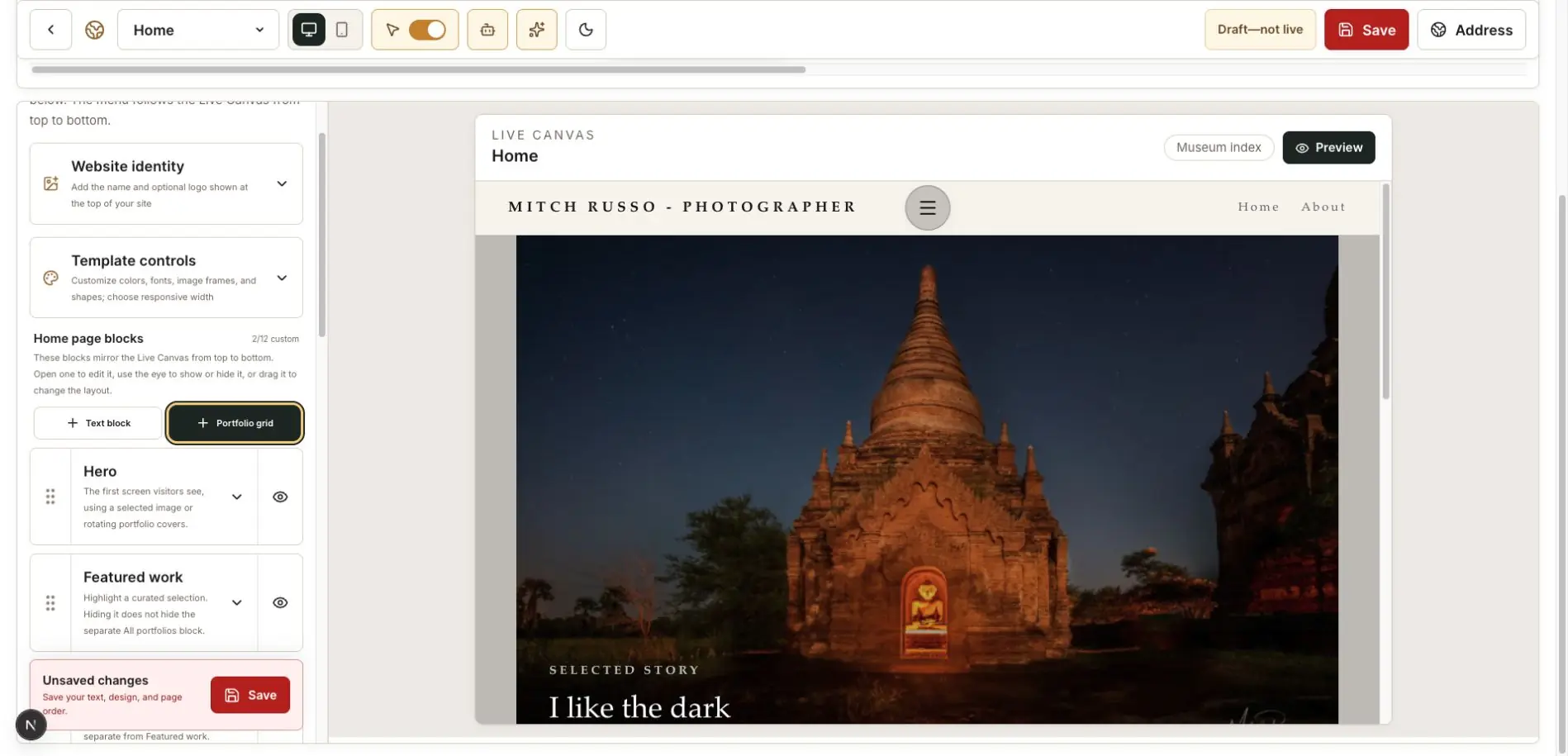
Arrange Hero, Featured Work, portfolios, film strips, and text sections into a focused introduction to your photography.

You will create a homepage with a clear opening, a strong edit, and an intentional path into the rest of your work.

Start tutorial
Tutorial 58 min

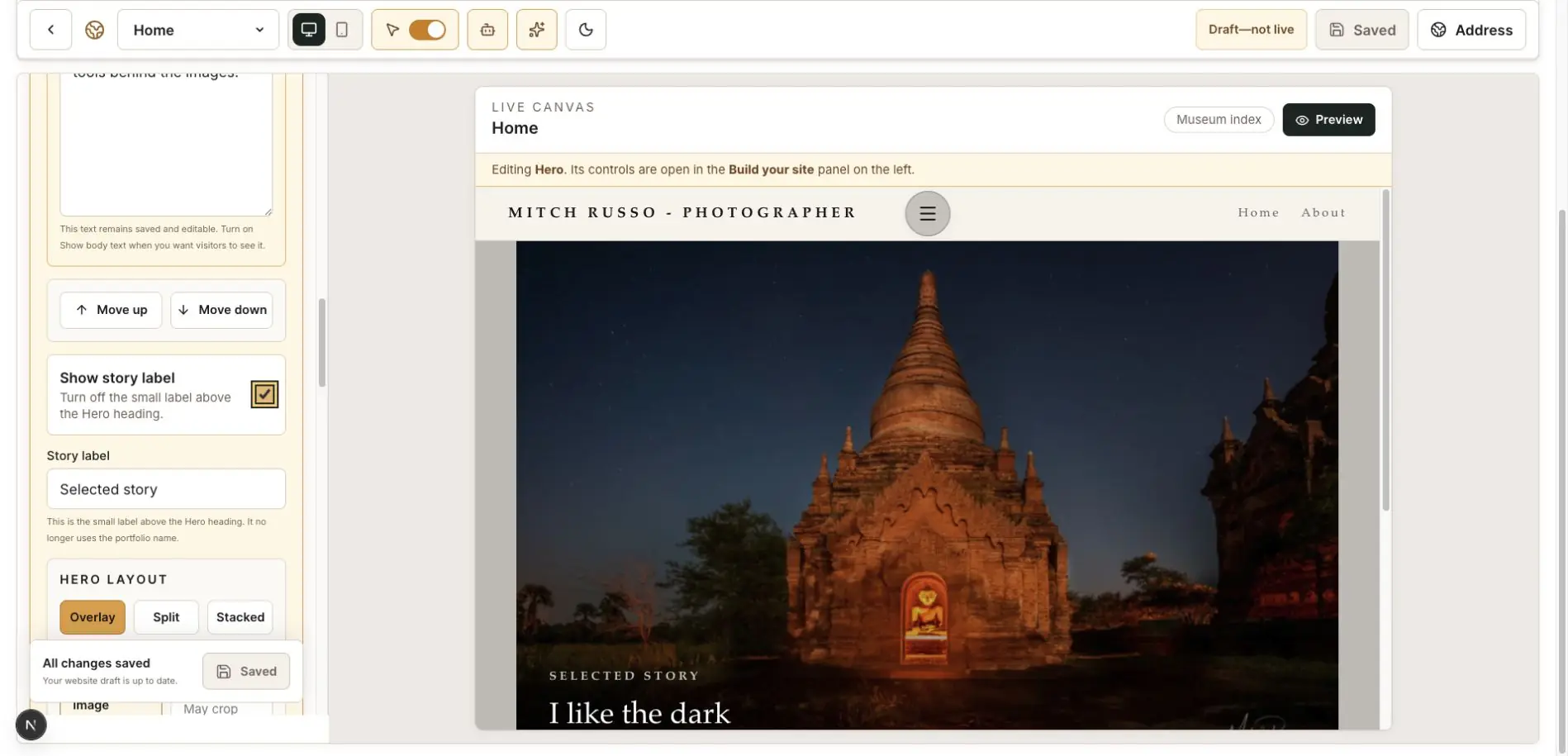
Create the Perfect Hero Section

Control the Hero photograph, framing, heading, story label, text alignment, and background treatment.

You will create a strong first screen without accidental cropping, black letterboxing, or unwanted overlay text.

Start tutorial
Tutorial 68 min

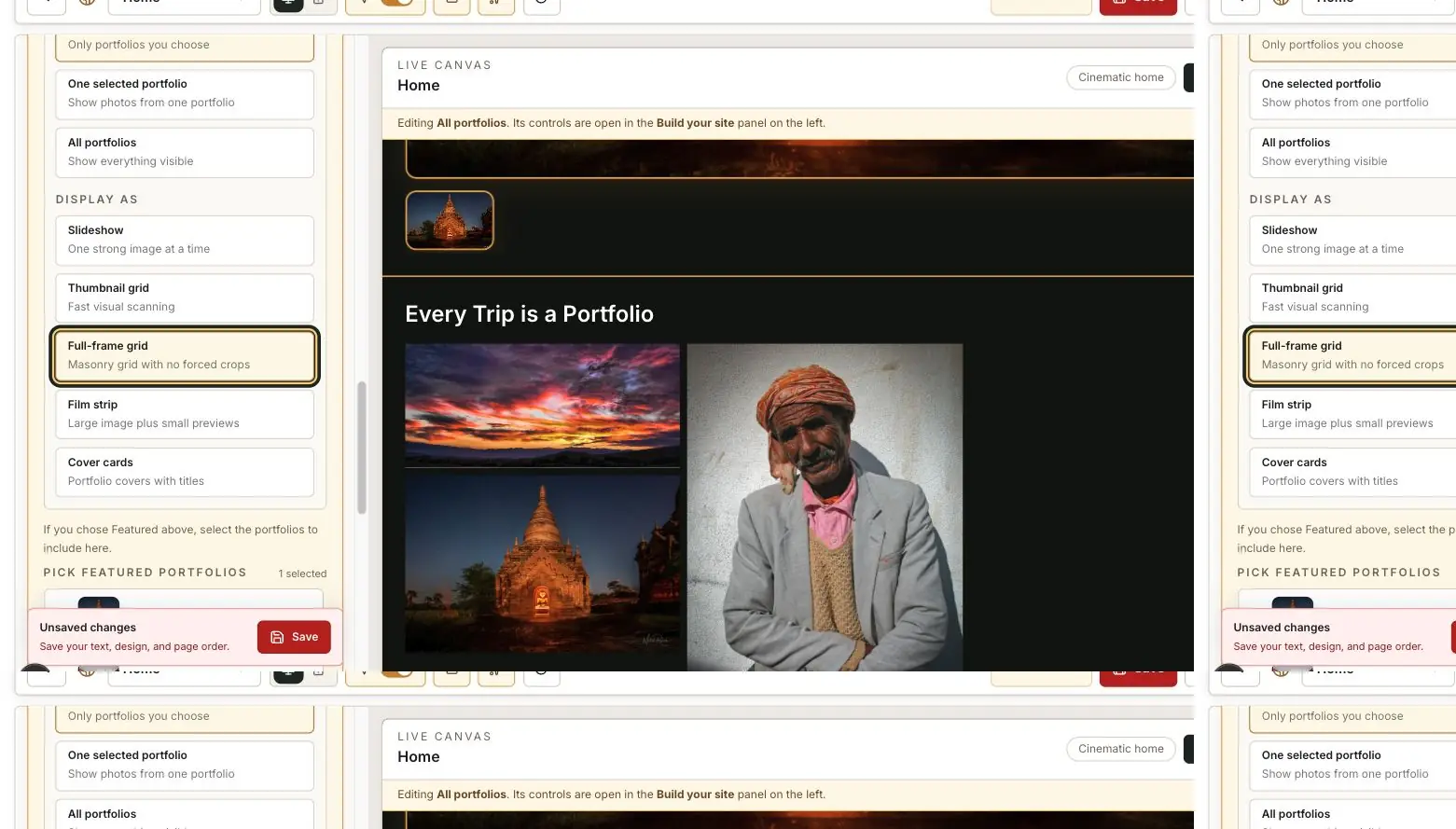
Display Your Best Work on the Homepage

Choose the right portfolio source, image order, covers, and display style for the Featured Work section.

You will present a concise selection in an arrangement that respects each photograph’s natural shape.

Start tutorial
Tutorial 77 min

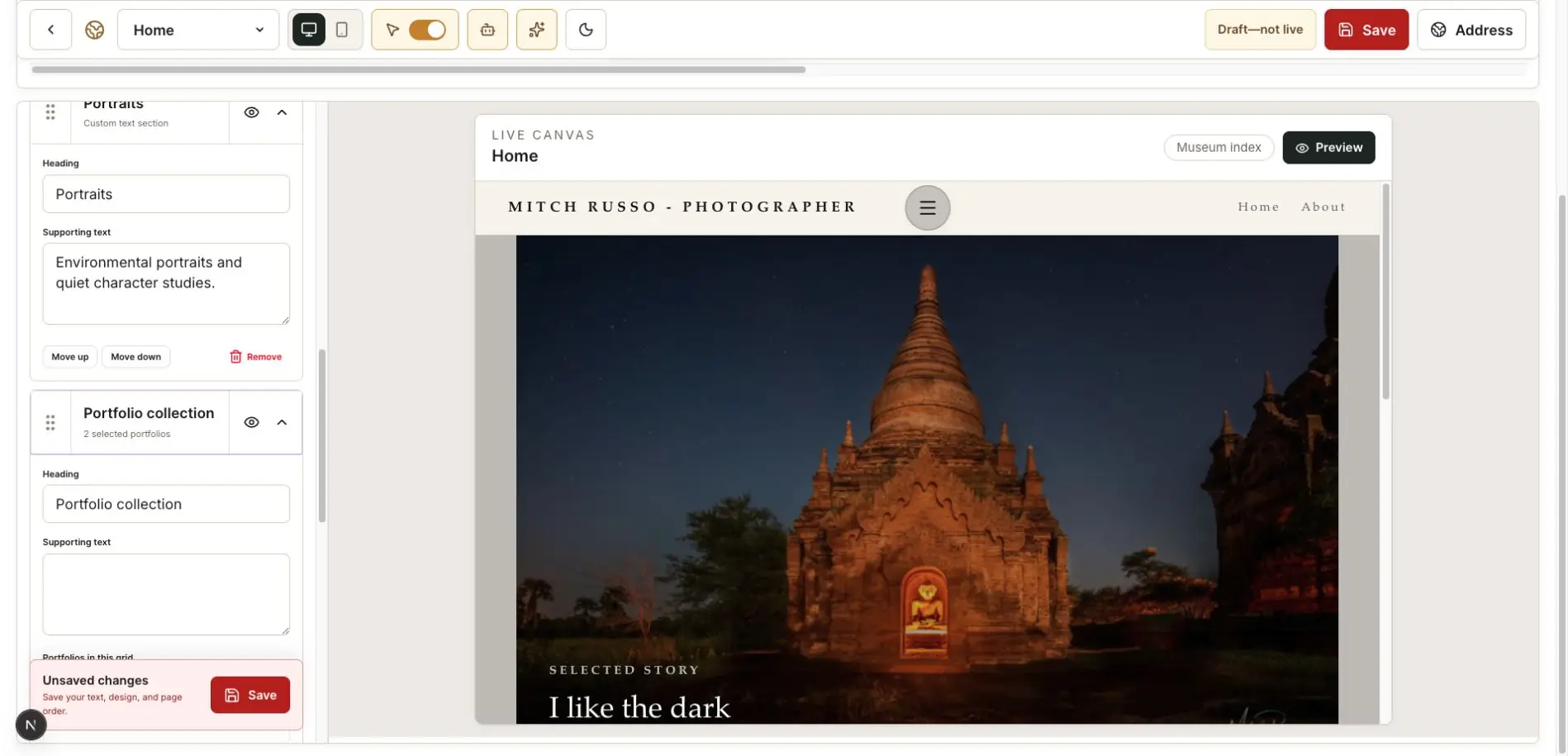
Organize Your Homepage with Custom Sections

Use Text blocks and Portfolio grids to separate your work into subjects, specialties, stories, or services.

You will break a long homepage into clear, movable sections that visitors can understand quickly.

Start tutorial
Tutorial 88 min

Build a Professional About Page

Write a concise photographer biography, choose a useful portrait, and give visitors a natural next step.

You will publish an About page that explains who you are, what you photograph, and why a visitor should continue.

Start tutorial
Tutorial 96 min

Check Your Website on Desktop and Mobile

Use the responsive canvas to catch image crops, long headings, menu issues, and spacing problems before visitors see them.

You will complete a repeatable desktop-and-mobile quality check of every important page.

Start tutorial
Tutorial 107 min

Preview, Publish, and Update Your Website

Understand the difference between editing, saving a draft, previewing, publishing, and checking the public website.

You will publish deliberately and verify that the public site matches the draft you approved.

Start tutorial

Need an answer while you work?

Subscribers can also use Ask AI How To, Edit Hints, and Tours inside My Website.

Open My Website