
Photographers: 3 Setup Paths to Launch a Live Updating Gallery Today
Photographers: Mitch Russo's workflow, reliability checklists, and three setup paths—hosted, embedded, or DIY—so you can launch a live updating gallery today.
Photographers: 3 Setup Paths to Launch a Live Updating Gallery Today
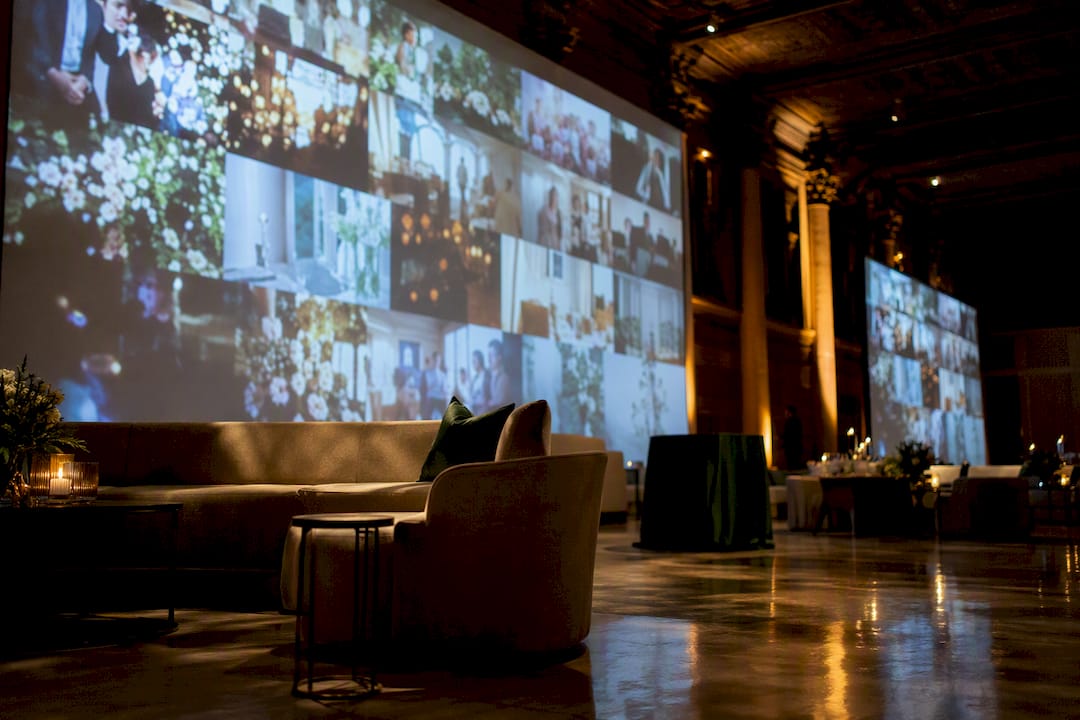
A live updating gallery is any browser-based display that refreshes automatically as new photos are uploaded, so guests see fresh shots seconds after they’re taken instead of waiting for a post-event album. For most photographers and event organizers, the fastest reliable option is a hosted live-wall link or a portfolio platform’s live embed that pushes optimized thumbnails to any screen. Get that running first; the setup and reliability steps below handle everything else.
TL;DR:
- Using WebSocket push notification systems reduces delay, making new photos appear almost instantaneously compared to polling methods.
- Separate upload paths for guests and photographers prevent flooding the moderation queue and help maintain curated content quality.
- Dedicated wired or cellular network connections significantly improve gallery reliability by preventing bandwidth issues caused by guest uploads.
- Pairing a fast hosted wall during events with an embedded, long-term gallery maximizes immediacy and post-event visibility and archiving.
- Implementing privacy controls like password protection, link expiration, and metadata filtering safeguards guest data and reduces security risks.
PhotoViewKeep Your Gallery Live EverywherePhotoView helps photographers curate photos and videos, publish responsive galleries, and keep website embeds updated from one dashboard.Explore PhotoView
Table of Contents
- How Live Updating Galleries Actually Work
- Which Upload Methods Work Best for Guests and Photographers?
- How Do You Display a Live Gallery on a TV, Projector, or Website?
- How Do You Moderate Content and Protect Guest Privacy?
- What Network Setup Keeps a Live Gallery Running All Night?
- Which Setup Path Fits Your Event: Hosted, Embedded, or DIY?
- A Working Photographer’s Take on Smart Folders and Live Embeds
- What Data Security and Compliance Should You Plan For?
- How Do You Track Engagement on a Live Gallery?
- Can a Live Gallery Integrate with Your Existing Website or Event Platform?
- How Do You Troubleshoot a Live Gallery That Stops Updating in Real Time?
- What Customization Options Do Live Galleries Typically Offer?
- How Do Live Galleries Handle Large Audiences Without Slowing Down?
- When to Choose a Hosted Live Wall vs an Embedded Live Portfolio
- Publish a Live Gallery That Keeps Updating Long After the Event Ends
- Sources
- FAQ
How Live Updating Galleries Actually Work
Every live gallery solves the same problem: get a new photo from a phone or camera onto a screen without anyone hitting refresh. There are two ways to do it. Polling has the display device check the server every few seconds for new images. It’s simple to build but introduces a lag between upload and appearance. WebSocket-based push keeps a persistent connection open, so the server notifies the display the instant a new photo lands. Push feels closer to instant and scales better once you have dozens of guests uploading at once.
Speed doesn’t come only from the connection type. Every uploaded image needs a thumbnail before it can display efficiently, and that processing step is where most of the real delay happens.
- The server resizes and compresses the original file into a lightweight thumbnail.
- The display only ever requests that optimized version, not the full-resolution original.
- A queue holds each upload until its thumbnail exists, so the wall never stalls trying to render a massive file straight off a camera.
This thumbnail-first approach is standard in modern gallery engineering, which pairs server-side processing with lazy loading to keep pages fast even with hundreds of images in play. If you add a moderation queue, add that latency on top: a photo won’t hit the wall until a human or an automated filter clears it, which is typically the biggest source of delay in the whole pipeline, bigger than the network itself.
Which Upload Methods Work Best for Guests and Photographers?
Getting images into the pipeline matters as much as displaying them. Different contributors need different paths.
- QR code or short URL uploads give guests a one-tap way to submit phone photos straight from the reception or dance floor. They’re fast to set up and easy to moderate since every upload flows through one endpoint.
- Photographer direct upload covers mobile app uploads, a tethered camera feeding a laptop, or a Lightroom publish connection to a watched folder, so your curated shots land in the gallery without manual exporting.
- MMS or phone-number uploads work as a fallback for guests without a smartphone or reliable data, though they’re slower and cap out at lower image quality than a direct upload.
- Automated cloud imports or Lightroom publishing let you separate shooting from curation entirely. Publish only the edited, selected frames to a watched folder, and keep raw captures off the public wall.
Pro Tip: Keep photographer uploads and guest uploads on separate ingestion paths. That way, a flood of guest phone photos never buries your curated shots in the queue, and you can moderate each stream with different rules.
How Do You Display a Live Gallery on a TV, Projector, or Website?
Getting the feed onto a screen is usually the easiest part, once the gallery itself is running. On a venue display, open the live wall’s URL directly in the device’s browser: a Smart TV browser app, or a laptop connected via HDMI to a projector, works without any extra software.
For websites, most platforms offer either an iframe embed or a small embed script you drop into an event page or your existing portfolio site, which keeps the live gallery embedded on your own domain rather than sending visitors elsewhere.
A few practical choices affect how the display feels:
- Slideshow mode suits smaller venues or intimate events where you want each photo to hold attention for a few seconds.
- Mosaic or grid mode suits larger rooms and busy events, since it shows many images at once and keeps the wall visually active even during upload lulls.
- Expect a brief pause, usually a second or two, between a new thumbnail being ready and its appearing on screen. That gap comes from the display’s refresh or push cycle, not a broken connection.
Libraries like LightGallery’s dynamic mode show how a gallery can update its slide list and refresh without a full page reload, which is the pattern behind most smooth-feeling live walls.
How Do You Moderate Content and Protect Guest Privacy?
Public upload links invite public behavior, including the occasional bad-faith upload. Open endpoints are a known target for trolling and inappropriate content, which is exactly why moderation isn’t optional for events open to strangers or large guest lists, as documented in general research on online content risks.
Your two main moderation options:
- Manual approval queues, where a staffer or the photographer reviews each upload before it goes live. Recommended default for public or large events.
- Automated filtering, which screens for explicit content instantly but should still be paired with spot checks for private or high-stakes events.
Privacy controls matter just as much as moderation. Private galleries with password protection, or links set to expire after the event, keep photos away from anyone outside the guest list.
For staffed events, assign one person to approvals with a two-minute turnaround target, so the wall never feels stale. And post a small sign near the QR code noting that uploaded photos may display publicly, since consent notice matters as much as the moderation itself.
Pro Tip: Set your moderation queue’s default to “hold” rather than “auto-publish” for any event where you don’t personally know every guest. It’s easier to approve a backlog of good photos than to explain why an inappropriate one made it to the projector.
What Network Setup Keeps a Live Gallery Running All Night?
Network problems cause more live-gallery failures than software bugs. Venue Wi-Fi wasn’t built for dozens of guests uploading full-size photos simultaneously, and event professionals consistently recommend giving the display device its own dedicated wired or cellular connection rather than sharing bandwidth with guest uploads.
Before the doors open, run through this checklist:
- Connect the display device to wired Ethernet where possible, or a dedicated cellular hotspot as a close second.
- Keep guest upload traffic off the same network segment as the display, so a surge of phone uploads never competes with what’s rendering on screen.
- Confirm the gallery is pulling optimized thumbnails, not full-resolution files, since that single choice determines most of your bandwidth load.
- Have a cached slideshow on a laptop, or an HDMI fallback, ready to swap in if connectivity drops mid-event.
- Assign one person to glance at the display every 15 to 20 minutes and know the reconnect steps if it freezes.
Separating the display’s network from guest uploads is the single most effective reliability step you can take for a live event wall, more effective than any software fix.
Which Setup Path Fits Your Event: Hosted, Embedded, or DIY?
Three practical paths cover almost every use case, and picking the wrong one wastes either time or control.
- Fast hosted setup. Minutes to launch, minimal configuration, and the display link works immediately after your first upload. Ideal when speed matters more than customization, such as a wedding reception booked with only a week’s notice.
- Embedded live portfolio. A balanced option for photographers who already run a portfolio site: the gallery lives on your own domain, builds an SEO-friendly archive after the event ends, and gives you more control over branding than a generic hosted wall.
- DIY WebSocket and image pipeline. Full control over behavior and appearance, but it demands real engineering time to build the upload queue, thumbnail generation, and push logic yourself, using patterns like those in Next.js gallery tutorials.
Weighed against each other, the hosted route wins on time and cost, the embedded route wins on long-term control and archive value, and the DIY route wins only if you have engineering hours to spare and a genuinely custom requirement neither of the other two covers.
A Working Photographer’s Take on Smart Folders and Live Embeds
Mitch Russo has built his own photography portfolio around automated ingestion rules rather than manual uploads, and his working setup shows what that looks like in practice. His portfolio runs on Smart Folders, which watch a designated folder and automatically push new edits into the live embed on his site without a manual re-export step.
His pre-event checklist: name files consistently before import so Smart Folders sort them correctly, define which folder is “live” before the first guest arrives, and assign one staffer to confirm the embed is actually updating within the first ten minutes of shooting. That last step catches most problems before they become a scramble.
What Data Security and Compliance Should You Plan For?
Live galleries collect more personal data than most organizers realize: guest phone numbers for MMS uploads, uploaded images that may contain identifiable faces, and location metadata embedded in photo files. Treat that data with the same care you’d give any guest list.
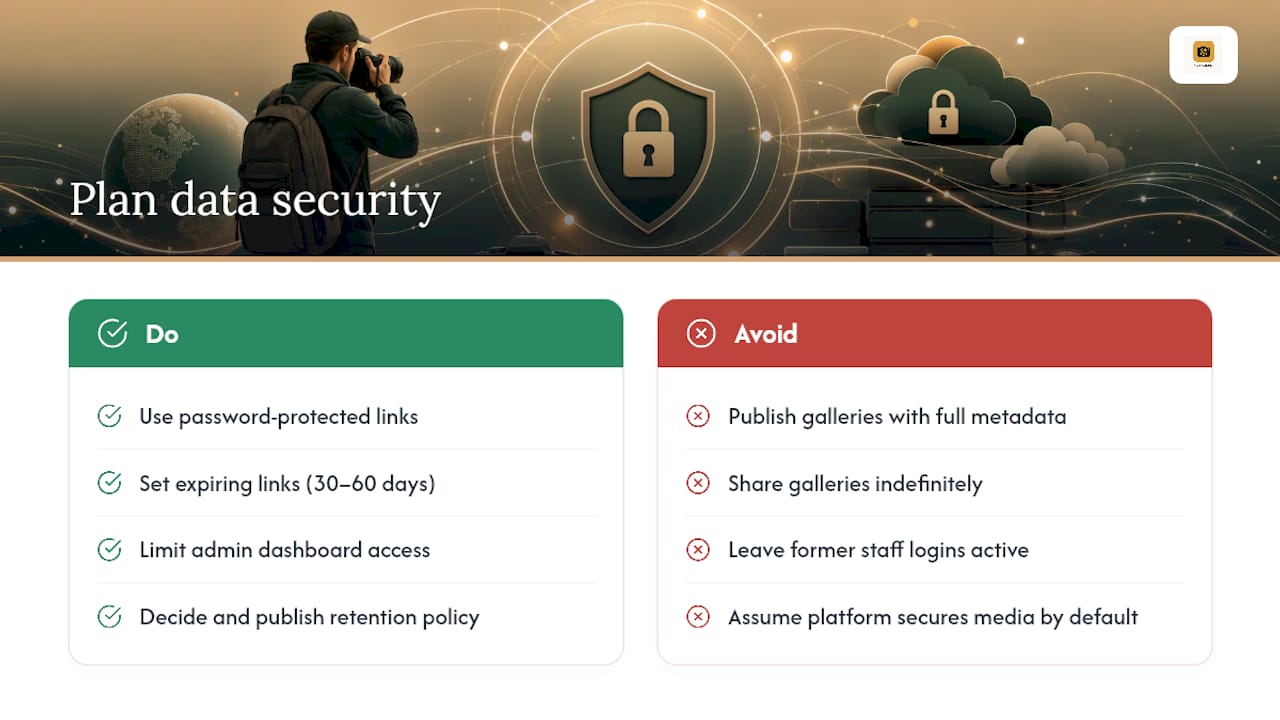
Password-protected and expiring links limit exposure automatically, since a gallery that closes itself after 30 or 60 days can’t be scraped or shared indefinitely. If you’re running a private gallery for client work, confirm who can access the admin dashboard and whether former staff still have login credentials from past events.
Strip or limit location metadata on public-facing uploads where possible, especially for events involving minors or private residences. A wedding gallery with embedded GPS coordinates tells strangers exactly where the reception happened.
Retention policy matters too. Decide upfront how long guest-uploaded images stay live and who can request deletion, and put that in your event’s terms if guests are uploading directly. For platforms handling payment or client contracts alongside galleries, confirm they follow standard data-handling practices for stored media, not just display features. None of this requires a legal team for a typical wedding or corporate event, but it does require a five-minute conversation before the QR code goes on the sign-in table.
How Do You Track Engagement on a Live Gallery?
A live gallery generates more usable data than a static album ever could, because every upload and view is a timestamped event. Basic analytics worth tracking include total uploads over the event’s duration, peak upload windows (usually right after a key moment like a first dance or keynote), and unique viewer counts on the embedded version after the event ends.
Upload volume by hour tells you when guest engagement peaked, which is useful for planning future events at the same venue. A steady trickle suggests the QR code wasn’t visible enough; a sharp spike right after a specific moment confirms guests are actively participating rather than just watching.
Post-event, an embedded gallery on your own site keeps generating view data long after the screens go dark, which a one-night hosted wall link typically can’t do once the event ends. That’s one practical argument for pairing a live wall during the event with an embedded archive afterward: you get the immediate engagement plus the long-tail traffic data.
Can a Live Gallery Integrate with Your Existing Website or Event Platform?
Most organizers already run a website, event registration platform, or CMS before they ever think about the photo wall, and a live gallery needs to sit inside that existing setup rather than replace it.
The most common integration point is a simple embed: an iframe or short script tag dropped into a page on WordPress, Squarespace, or a custom-built site, which is exactly how embedding a live portfolio works without touching the rest of the site’s code. For event platforms handling RSVPs or ticketing, the gallery typically lives on a separate URL that gets linked from the event page rather than fully merged into the platform’s own interface, since most ticketing tools aren’t built to host live media.
If you’re publishing content across multiple channels, whether that’s a client portal, a wedding website, or a corporate intranet, treating the gallery embed as one piece of a broader content publishing workflow keeps updates consistent everywhere the gallery appears instead of managing separate copies on each platform.
How Do You Troubleshoot a Live Gallery That Stops Updating in Real Time?
Most live gallery failures trace back to one of three causes: a dropped network connection, a stalled thumbnail queue, or a moderation backlog nobody noticed.
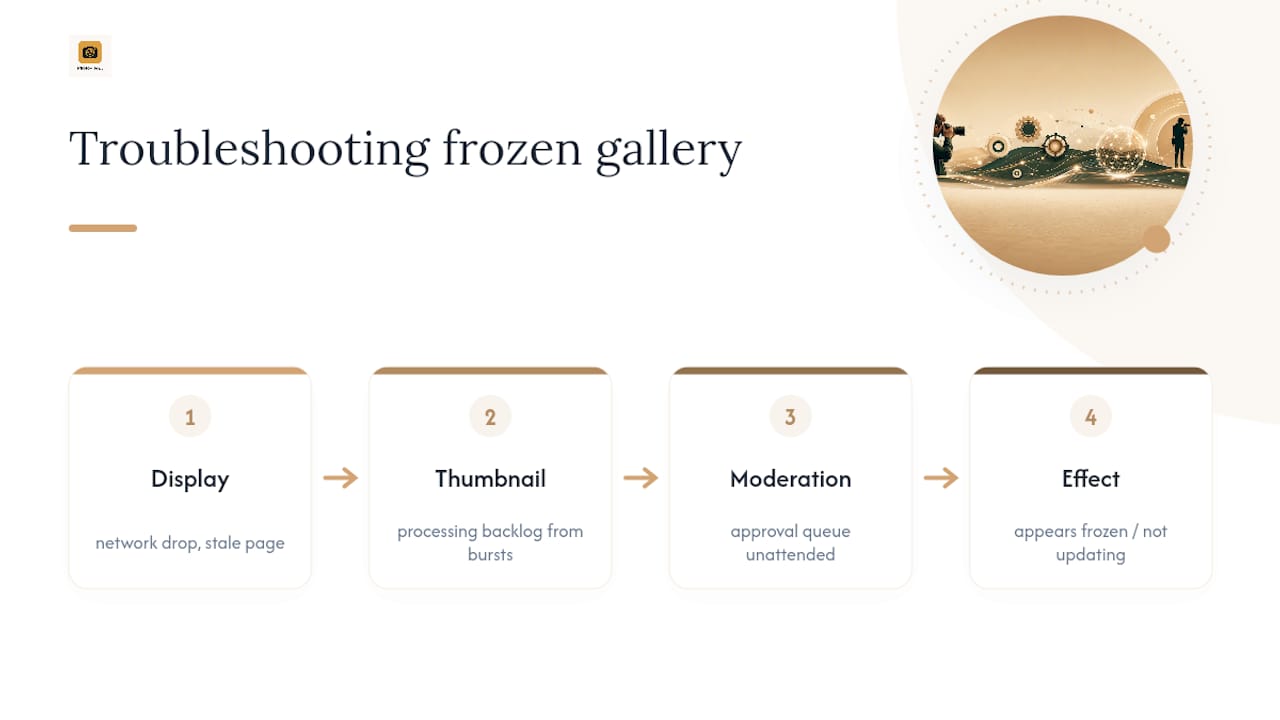
Start with the display device itself. If the screen has frozen on an old image, check whether it’s still connected to its network; a brief drop can leave a stale page rendered until the connection resumes. A well-built display client should attempt an automatic reconnect with increasing wait times between tries, and pull any photos it missed once it’s back online, rather than requiring a manual refresh.
If uploads are succeeding but nothing appears, the thumbnail queue is the likely culprit. A burst of simultaneous uploads can back up processing, especially if the pipeline waits to generate a thumbnail before marking a photo ready, which is the correct order of operations but means a sudden flood of guest photos will show up in a wave rather than one by one.
Finally, check the moderation queue. A gallery that “isn’t updating” is often just waiting on approval, and a five-minute unattended queue can look identical to a technical failure from the audience’s side. Assigning someone to actively watch the queue during peak upload windows, rather than checking it occasionally, solves this faster than any technical fix.
What Customization Options Do Live Galleries Typically Offer?
Branding matters more for live galleries than people expect, since the wall is often the most visible screen in the room for hours at a time. Most platforms let you adjust the color scheme, logo placement, and font to match event branding or a photographer’s existing portfolio look.
Layout choice affects the feel as much as color does. A slideshow theme with generous white space suits a formal gala, while a dense mosaic grid suits a music festival or trade show where constant visual movement holds attention better than a slow single-image rotation.
Some platforms also let you customize the caption style, showing guest names, timestamps, or hashtags beneath each photo, which adds a social layer without requiring guests to leave the room to check their phones. If your gallery is embedded on an existing site, matching its theme to your site’s existing template keeps the transition between your portfolio and the live wall from feeling like two different products glued together.
How Do Live Galleries Handle Large Audiences Without Slowing Down?
A gallery that works fine for 50 guests can choke at 500 if the underlying pipeline wasn’t built for scale. The biggest lever is thumbnail-first delivery: displays and embedded viewers should never request full-resolution files, only the compressed versions generated at upload time, which keeps bandwidth flat regardless of how many people are viewing.
Large audience events also generate upload bursts rather than a steady trickle, particularly around scheduled moments like a keynote or a ceremony. A queue-based thumbnail pipeline absorbs that burst gracefully, processing images in order rather than trying to render everything the instant it lands. Platforms built around lazy loading and CDN-delivered thumbnails, the same approach used in high-volume gallery implementations, handle this load without requiring the organizer to do anything special.
For genuinely large events, conferences in the thousands, festivals with tens of thousands, separating guest upload traffic from display traffic on the network side, as covered earlier, becomes even more important, since a single shared connection is far more likely to saturate under high concurrency.
When to Choose a Hosted Live Wall vs an Embedded Live Portfolio
If you’re shooting a one-off event with a tight timeline, a hosted live wall gets you running in minutes and that’s the right call almost every time. If you already run a portfolio site and want the gallery to keep earning views and building your archive after the last guest leaves, the embedded approach with Smart Folders pays off. My honest recommendation for most working photographers: run both. Use a fast hosted wall during the event itself, then let an embedded, Smart Folders powered version become the permanent home for those images afterward.
— Mitch Russo
Publish a Live Gallery That Keeps Updating Long After the Event Ends
A hosted wall link is fast, but it usually disappears once the event’s over. Some platforms give photographers a way to run that same live experience during the event and keep it working as a permanent, SEO-friendly gallery on their own site afterward, without rebuilding anything.
Here’s what that looks like in practice:
- Smart Folders watch your designated folder and push new edits into your live embed automatically, no manual re-uploading during a shoot.
- Lightroom publishing lets you publish directly from Lightroom to a watched collection, keeping culling and curation in one familiar workflow.
- Live embeds drop your gallery straight onto an existing website with a simple embed, so the wall you ran at the venue becomes the archive visitors browse for months.
Getting started takes three steps: create a gallery and connect a Smart Folder, publish your first batch from Lightroom or a mobile upload, then embed the live gallery on your site or event page. From there, every new edit you publish updates automatically, at the venue and online. Start a trial and have your first live gallery running before your next shoot.
Sources
For photographers who want to look under the hood, a few technical references are worth bookmarking. The Next.js image gallery tutorial walks through thumbnail generation and lazy loading for large image sets. LightGallery’s documentation shows how to update a gallery’s content dynamically without reloading the page. For event-day connectivity, the Wi-Fi best-practices guide covers the network setup decisions that keep uploads flowing under real event conditions.
- Building a fast animated image gallery with Next.js
- LightGallery dynamic mode demo
- Using WiFi effectively at an event
FAQ
How do I find my live photos?
Live Photos captured on a phone typically appear in the same camera roll as regular images, marked with a small icon indicating motion. If you uploaded them to an event gallery, check the gallery’s upload confirmation or your account’s upload history for the exact timestamp.
How do I get my photos out of live mode?
On most phones, open the photo, tap the Live Photos icon, and select the option to turn it off or convert it to a still image before uploading, since some gallery platforms display only the static frame regardless of the original format.
Where can I find live photos on a shared event gallery?
They’ll appear directly on the gallery’s live wall URL or embedded page as soon as they clear any moderation queue in place, typically within seconds to a couple of minutes of upload depending on thumbnail processing time.
How do I update the gallery app?
Check your phone’s app store for pending updates on the specific upload or gallery app you’re using; most live gallery platforms, including embedded ones like PhotoView, update automatically in the browser with no app download required at all.
What’s the difference between a hosted live wall and an embedded live gallery?
A hosted live wall is typically a temporary link built for the event itself, while an embedded live gallery lives permanently on your own website and keeps generating traffic and views after the event ends.