
Stop Links Leaking: Password Protected Galleries for Photographers
For photographers: prevent shared links from exposing client photos. Use per gallery passwords, test access, add watermarking and expiring links, and...
Stop Links Leaking: Password Protected Galleries for Photographers
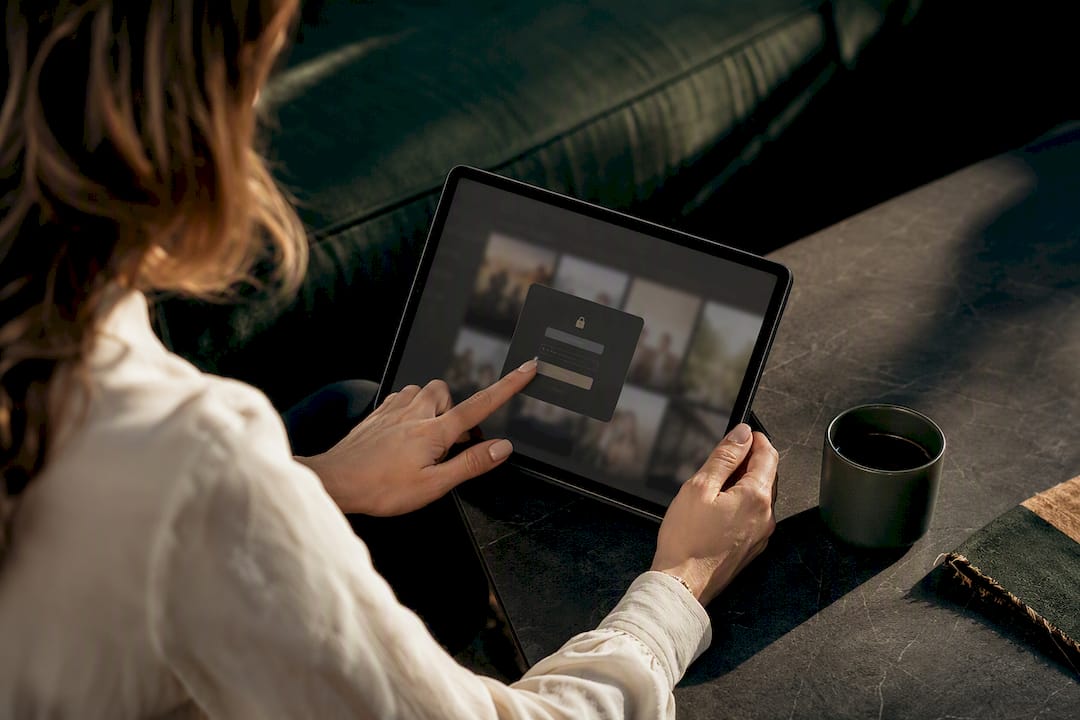
A password protected gallery hides every image behind a login screen until the correct password unlocks it, keeping client photos out of search results and off the radar of anyone without the link. It’s the standard tool for private client delivery and proofing. If you haven’t set one up yet, do this first: create a per-gallery password (not one shared site-wide), test it in an incognito window, then send the client the private link directly.
TL;DR:
- Use a unique, strong password for each gallery and test it in an incognito window before sharing with clients.
- Set the gallery to password protected and disable public indexing to prevent search engines from crawling images.
- Add additional security measures like watermarking, download restrictions, and expiring or one-time links for sensitive content.
- Regularly review access logs and rotate passwords immediately if leaks occur or suspicious activity is detected.
- Choose a platform that loads images only after authentication, supports secure cookies, and hashes passwords for maximum security.
PhotoViewPresent Private Galleries BeautifullyPhotoView helps photographers securely store, curate, and privately share finished photos and videos from one presentation platform.Explore PhotoView
Table of Contents
- How Do You Set Up a Password Protected Gallery?
- What Extra Security Should You Add Beyond a Password?
- Which Platform Should You Use for a Protected Gallery?
- How Do You Change, Remove, or Troubleshoot a Gallery Password?
- Why PhotoView.io Fits Photographers Who Need Secure Delivery
- What Makes a Gallery Password Actually Secure?
- Are Password Protected Galleries Accessible to Every Client?
- When Is a Password Enough, and When Do You Need More?
- Get Your Private Client Galleries Running Today
- Sources
- FAQ
How Do You Set Up a Password Protected Gallery?
Setting up a secure gallery takes minutes once you know the order of operations. Skip a step and you either lock yourself out or leave the door wide open.
- Create the gallery or album and set its visibility to password protected rather than public or unlisted-only. Unlisted alone just hides it from navigation menus. It doesn’t stop anyone with the link from viewing it.
- Choose a password that isn’t guessable from the client’s name, wedding date, or business name. If your platform allows a hint, write one that jogs memory without handing the answer to a stranger scrolling past a shared screen.
- Set the password at the gallery level, not the account level. A single site-wide password defeats the purpose the moment you deliver a second client’s work, since anyone with the first password now has access to everything.
- Test the lock in a private or incognito browser window. Your regular browser may have a saved session or cookie that lets you straight through, making a broken lock look like it’s working.
- Share the private URL directly with the client rather than posting it anywhere public. Explain that some platforms remember an authorized session for convenience, so they won’t be re-prompted every single visit.
- Set an expiration date or one-time access link if your platform supports it, especially for a gallery tied to a single event or delivery window.
Miss step four and you might not find out your gallery is actually open to anyone until a client mentions their cousin saw the photos before they did.
What Extra Security Should You Add Beyond a Password?
A password is the baseline, not the finish line. Layer these controls on top and a leaked link stops being a disaster.
- Keep galleries unindexed with private URLs. Search engines can’t crawl a page they were never pointed to, and a properly built password gate keeps images out of the page’s underlying code until someone authenticates, which means there’s nothing in the markup for a crawler or scraper to grab.
- Turn on watermarking and disable right-click or download options for proofing galleries where you don’t want casual screenshots turning into unauthorized prints.
- Require an email or a linked contact before granting download access. It builds accountability into the workflow and gives you a paper trail if a file turns up somewhere it shouldn’t.
- Use expiring links and one-time access codes for anything time-sensitive, like a same-day event delivery, so the door closes automatically once the job is done.
- Turn on rate limiting and failed-login alerts. Security-minded gallery software commonly throttles repeated guesses, and a widely cited benchmark for this kind of protection is capping attempts around 10 failed tries per 15 minutes before locking out the source.
- Check your access logs regularly. A spike of failed attempts from one IP address, or a login from a country your client has never mentioned traveling to, is worth a second look.
Pro Tip: Set a calendar reminder to review access logs the week after a major delivery. That’s when curious relatives, vendors, and “just checking” clicks tend to spike.
Platforms with folder-level passwords also let you protect a batch of related galleries under one login, which is handy for a wedding with a ceremony gallery, a reception gallery, and a getting-ready gallery all delivered at once.
Which Platform Should You Use for a Protected Gallery?
The right technical approach depends on how much time you want to spend maintaining infrastructure versus shooting.
- WordPress plus a gallery plugin works well if you already run your site there. WordPress core supports password protection on posts and pages, but not every gallery plugin implementing it actually withholds images from the page’s source code. Confirm the plugin blocks image delivery until authentication, not just visual display, before you trust it with client work.
- Hosted SaaS platforms hand you private sharing, expirations, and per-gallery passwords without any server management on your end. This is the practical choice for photographers who want reliable access control without becoming a part-time systems administrator.
- Self-hosted or open-source gallery software gives you the most control, including options like AES encryption and hardened cookie handling. Projects on GitHub demonstrate what’s technically possible, but they also demand you handle TLS certificates, server patching, and backups yourself.
Whichever route you pick, run it against this checklist:
- No image data loads until the visitor authenticates.
- Cookies use secure flags (HttpOnly, SameSite).
- Passwords are hashed, never stored in plain text.
- Rate limiting blocks repeated guessing.
- Download controls and watermarking are available.
- The platform supports your existing workflow, including Lightroom publishing if you rely on it.
How Do You Change, Remove, or Troubleshoot a Gallery Password?
Password problems are almost always workflow issues, not security failures. Here’s how to handle the common ones.
- To change or remove a password, go to the specific gallery’s settings, not your account-wide settings, and update or clear the password field there.
- If a visitor isn’t prompted for a password at all, they likely have a remembered session cookie from a previous visit. Confirm the lock is actually working by testing the link in an incognito window.
- If a password leaks, rotate it immediately, expire the old link, and check your access log for any suspicious activity during the exposure window. Notify the client if sensitive images were accessible.
- If a client forgets their password, resend it directly to them rather than posting a universal hint anywhere public, and never reuse that same password on a different client’s gallery.
Why PhotoView.io Fits Photographers Who Need Secure Delivery
PhotoView.io builds private sharing and per-gallery access controls into the same dashboard where you already manage your portfolio, so client delivery doesn’t require a separate tool or workaround. You publish directly from Lightroom, and the private sharing features carry the same access controls across every gallery you create.
A few features photographers lean on most:
- Smart Folders that auto-organize incoming work by shoot or client without manual sorting.
- Custom domains so a client’s private gallery still feels like part of your brand, not a third-party tool.
- Mixed media support for photographers delivering both stills and video from the same event.
- Per-gallery privacy controls that keep one client’s password from ever touching another client’s delivery.
If you’re weighing whether you need a full portfolio site or just a proofing gallery for this particular job, that distinction is worth sorting out before you commit to a workflow.
What Makes a Gallery Password Actually Secure?
Most weak gallery passwords fail for the same reason: they’re built from information anyone at the wedding already knows. A couple’s names, the venue, or the event date are the first three guesses any curious guest will try.
Build passwords from unrelated words or a short phrase instead of predictable personal details. A password like “amber-kayak-cliffside-19” is both easy to communicate over text and hard to guess, since it has no obvious connection to the shoot. Length matters more than complexity here. A longer phrase beats a short string of symbols that’s hard to type correctly on a phone.
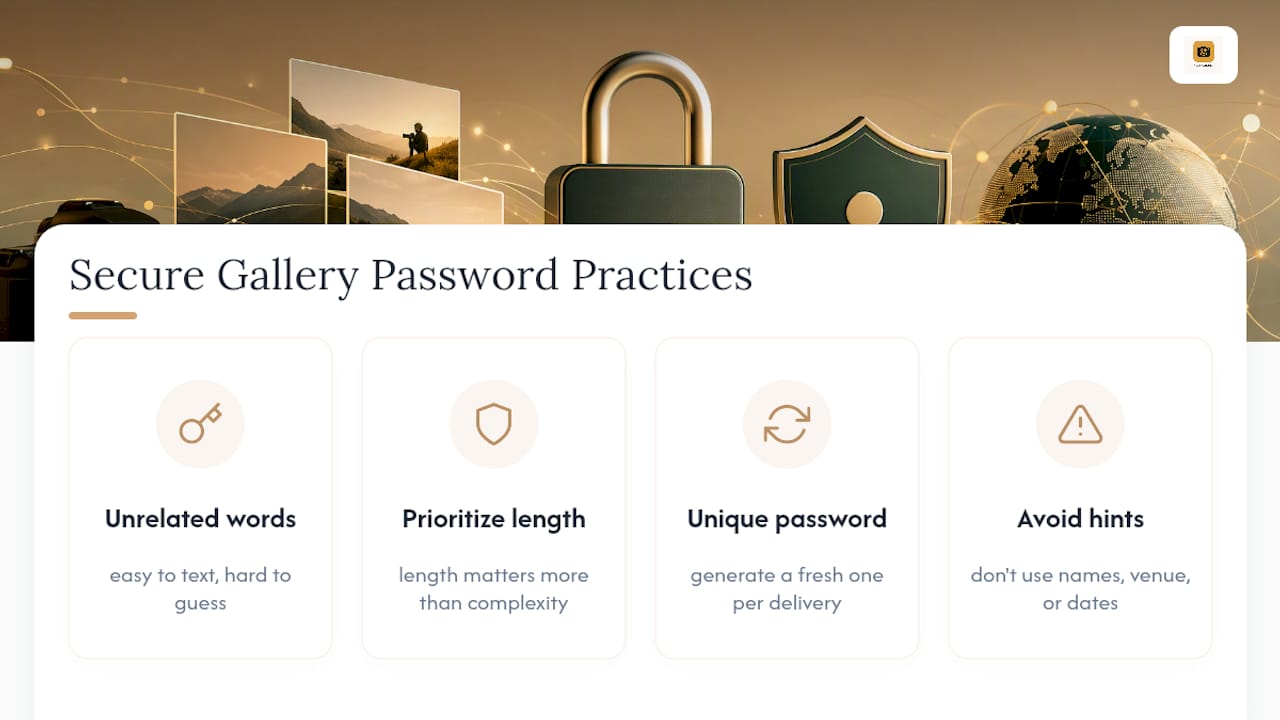
Never reuse one password across multiple clients. It feels efficient, but the moment one client shares their password with a family member who shares it further, every other gallery using that same password is exposed too. Generate a fresh one per delivery, even if that means keeping a simple log of which password belongs to which job.
Avoid sending the password and the gallery link in the same message when the delivery is unusually sensitive, like a boudoir session or an early product reveal under NDA. Splitting them across two channels (a text for the link, an email for the password) adds a small but real hurdle for anyone who isn’t the intended recipient.
Finally, treat password hints with suspicion. A hint that says “our first pet’s name” is often easier to find on someone’s public social media than the password itself would be to guess outright.
Are Password Protected Galleries Accessible to Every Client?
A password gate that’s secure but unusable just becomes a support ticket. Accessibility here means thinking about who’s actually opening that link.
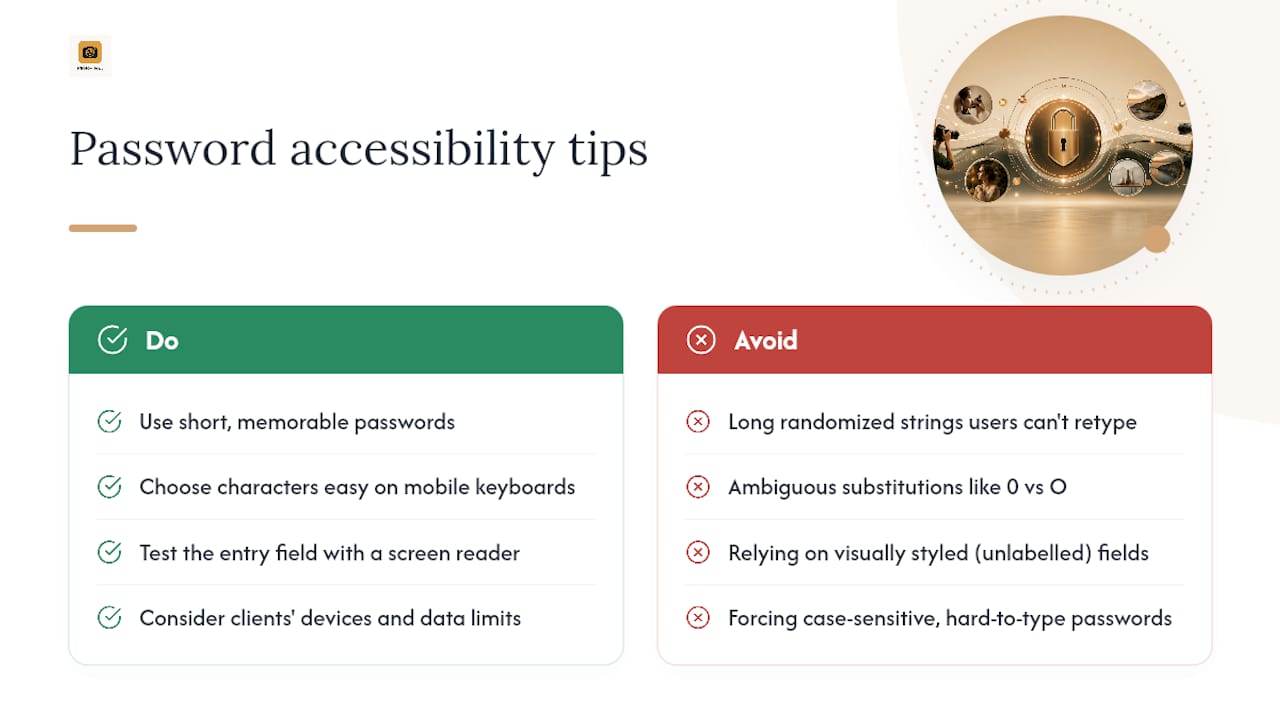
Older clients or less tech-comfortable relatives sometimes struggle with case-sensitive passwords typed on a phone keyboard. Avoid characters that are easy to mistype on mobile, and skip ambiguous substitutions like a zero for the letter O.
Screen reader compatibility matters too. If a visually impaired client or family member needs to access the gallery, the password entry field and any error messaging should be properly labeled, not just styled to look like a form. Most reputable gallery platforms handle this by default, but it’s worth testing with a screen reader if you have a client who has mentioned using one.
Consider how the password gets delivered. A client juggling multiple devices, shared family email, or limited data access appreciates a short, memorable password over a long randomized string that’s a pain to retype on a shared tablet. Balance security against real-world friction: a 20-character random password nobody can accurately transcribe from a text message doesn’t protect anyone if the client just gives up and asks you to resend the photos as email attachments instead, defeating the entire point of the gallery.
When Is a Password Enough, and When Do You Need More?
A password protected gallery covers the vast majority of client delivery and proofing work. It’s proportionate, simple, and clients understand it.
For genuinely sensitive shoots, add stricter measures: NDAs, disabled downloads, or platforms offering end-to-end encryption. Weigh convenience against risk. Ask yourself who would actually be hurt if this specific gallery leaked, and let that answer set your security level.
— Mitch Russo
Get Your Private Client Galleries Running Today
Everything in this guide, per-gallery passwords, private links, Lightroom publishing without extra export steps, is built into the platform from the start, so you’re not stitching together a plugin here and a workaround there. Photographers running client delivery through it get private photo sharing with per-gallery controls, Smart Folders for automatic organization, and custom domains that keep the experience branded instead of generic.
If you’re currently juggling a WordPress plugin for one client and a separate hosted tool for another, consolidating onto one photography portfolio and solutions platform cuts that maintenance down to a single dashboard. Start a trial and set up your first password protected gallery today to see how it fits your delivery workflow.
Sources
- rhamdeew/go_gal
- Using Password Protection — WordPress Codex
- Password-Protect a WordPress Gallery — Modula
- Gallery, Page, and Folder privacy settings – SmugMug Support
FAQ
Can I Set a Password for My Gallery?
Yes. Most gallery platforms, including WordPress with the right plugin and hosted services like PhotoView.io, let you set a password at the individual gallery level rather than across your whole site.
How Do I Remove the Password on a Gallery?
Open that specific gallery’s settings and clear or disable the password field there. This is typically separate from your account or site-wide privacy settings.
Can I Put a Password on My Photo Gallery?
Yes, and it’s the standard approach for private client delivery. Set a unique password per gallery, share the link directly rather than publicly, and test it in an incognito window to confirm it’s actually working.
How Do I Keep My Gallery Photos Private?
Combine a password with an unlisted URL, disabled downloads, and watermarking. A properly implemented lock keeps images out of the page’s source code until someone enters the correct password, so search engines and casual scrapers have nothing to find.