
Portfolio First Photography Templates That Publish From Lightroom
Find portfolio first photography templates with Lightroom publishing, live embeds, and private client proofing so galleries stay current.

Portfolio First Photography Templates That Publish From Lightroom
PhotoView’s own templates are the strongest overall pick for photographers who want portfolio-first design with Lightroom publishing and live embeds built in. For niche-specific styling, Sun (Format) suits wedding photographers, Fabric (Format) fits editorial work, Panorama (Format) works for landscape shooters, and Monstera (Showit) gives drag-and-drop control without code. The comparison below breaks down the tradeoffs.
TL;DR:
- PhotoView’s templates support automatic gallery updates across all embedded instances without needing to republish each time you shoot.
- They include Lightroom publishing, Smart Folders, and private sharing features that directly address commonly faced workflow challenges.
- Testing with your own files, not stock images, reveals cropping, load times, and caption issues more accurately before choosing a template.
- Customization potential varies depending on the platform: Format templates offer similar flexibility, while Showit templates prioritize drag-and-drop design control.
- Ensure templates support private proofing with password protection and
noindextags to keep client galleries out of search engines.
PhotoViewphotoview.ioKeep Your Portfolio CurrentPublish from Lightroom, organize finished work, and update live website embeds from one dashboard as your photography evolves.Explore PhotoView
Table of Contents
- Which Photography Website Templates Are Worth Your Time?
- How Do You Choose the Right Template for Your Business?
- What Technical Details Actually Predict Real-World Performance?
- Why PhotoView Fits the Portfolio-First Job
- Design Trends Come and Go, Workflow Doesn’t
- Start Building Your Portfolio the Way You Actually Work
- Where to Verify These Details Yourself
- Sources
- FAQ
Which Photography Website Templates Are Worth Your Time?
You don’t need forty options. You need the right five or six, evaluated on what actually matters: does the gallery hold up on mobile, can you swap fonts without touching code, and does client proofing work without exposing private shoots to Google. That’s the filter behind this shortlist.
PhotoView templates lead the list because they solve a problem most template marketplaces ignore: keeping a portfolio current without republishing it every time you shoot. PhotoView bundles more than 30 responsive portfolio templates with Lightroom publishing, Smart Folders, and live embeds, so an updated gallery on your dashboard updates everywhere it’s displayed, including on an existing website through an embed.
Beyond PhotoView, the field breaks down by specialty. Here’s how the rest of the shortlist stacks up.
A few things worth knowing before you click into any demo:
- Format-based templates (Order, Fabric, Sun, Panorama, Amazon, Mica, Post, Industry, Peak, Obsidian, Beacon, Ora, Spruce, Exposure, Still) share the same underlying platform, so customization ceilings are similar across the family, even when the visual style differs sharply.
- Showit templates (Monstera, Athena, Luna Rae, San Sebastian, Love & Vows, North, Josephine) trade some setup speed for genuine drag-and-drop layout freedom, which matters if you have strong opinions about spacing and type.
- PhotoView is the outlier in that it isn’t just a static template. It’s built around a publishing workflow, so the template question and the “how do I keep this updated” question get solved at the same time.
For photographers choosing between Fabric, Obsidian, Exposure, Mica, Post, Industry, Peak, Beacon, Ora, Spruce, and Still, the differences are mostly cosmetic. Pick the one whose default type and spacing feel closest to your final brand, then customize from there. The same logic applies to Athena, San Sebastian, Love & Vows, North, and Josephine on the Showit side. All are capable frames. The workflow behind the frame is what separates a portfolio you maintain from one you dread updating.
How Do You Choose the Right Template for Your Business?
Start with the job the site actually needs to do. A wedding photographer selling albums needs proofing and print sales built in. A commercial photographer chasing agency work needs a fast-loading, distraction-free grid. A travel photographer with 40,000 images needs organization more than decoration.
Run every finalist through this checklist:
- Can you swap fonts and colors without touching code? If a template locks you into its default type, you’ll end up looking like every other photographer who picked it.
- Does it integrate client proofing? Password-protected or code-gated galleries matter the moment you shoot a wedding or a commercial job with a private client.
- Can you publish directly from Lightroom? Manual re-uploads eat hours you should spend shooting or editing.
- Does it support live embeds? If you already have a business site, embedding a gallery beats rebuilding your whole presence around one template.
Watch for red flags: templates bundled with heavy stock demo images that mask real load times, non-responsive grids that crop badly on phones, and gallery pages with no private-sharing controls at all. Design-community sources consistently point to customizable layouts as the real differentiator between a template that looks good in a demo and one that holds up as a business tool.
Pro Tip: Before you commit to any template, load one of your own hero images and one full gallery into the demo. Stock photos hide cropping problems, slow load times, and awkward caption placement that only show up with your actual files.
What Technical Details Actually Predict Real-World Performance?
Demo galleries almost always run on lightweight stock images optimized for the platform, not your 15MB raw exports. The open-source Lumen template ships with zero demo images specifically so photographers add their own optimized photos instead of testing against a fake baseline. That’s the right instinct to bring to any template evaluation: test with your real files, not the marketing demo.
Check these behaviors directly:
- Keyboard navigation through the lightbox, not just mouse clicks
- Caption handling when a caption runs longer than one line
- Aspect-ratio control across mixed portrait and landscape shots in the same gallery
- Lazy loading on mobile, since a 60-image gallery that loads all at once will stall on a phone connection
For client proofing, confirm the platform actually applies noindex or nofollow meta tags to private gallery pages. A password screen means nothing if the underlying page still gets indexed and shows up in a client’s own Google search before you’ve delivered final edits.
Why PhotoView Fits the Portfolio-First Job
PhotoView was built around one specific problem: photographers spending more time managing a website than shooting. The platform includes:
- More than 30 responsive templates, all included across plans
- Lightroom publishing that pushes edited galleries live without manual re-uploads
- Smart Folders for organizing large shoots without renaming files by hand
- Live embeds that keep an existing website’s gallery synced to your PhotoView dashboard
- Private sharing for client proofing without exposing shoots publicly
That feature set maps directly onto the two workflows photographers ask about most: publishing once and having it appear everywhere, and sharing a private gallery with a client without worrying about search visibility.
Design Trends Come and Go, Workflow Doesn’t
Trendy layouts age fast. A gallery style that looks fresh this year reads as dated in three, and rebuilding a site every time a layout trend shifts costs you real shooting time. Prioritize customization depth and publishing workflow over whatever grid style is popular right now.
If you’re previewing templates, don’t judge them on stock demo photos. Load your own hero image and one full gallery before deciding anything. That single test reveals more about cropping, load speed, and caption behavior than a week of scrolling demo sites.
— Mitch Russo
Start Building Your Portfolio the Way You Actually Work
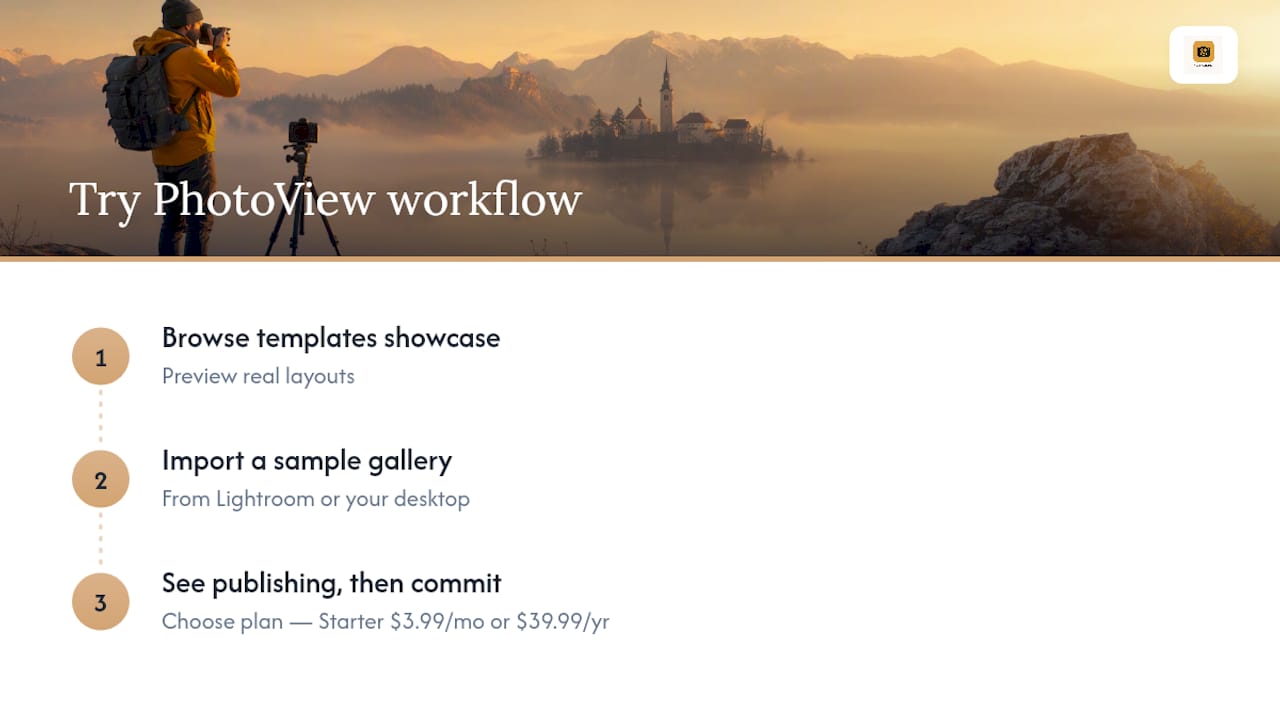
PhotoView is the direct route for photographers who don’t want to choose between a good-looking template and a workflow that keeps up with their shoots. Every plan, starting at $3.99 a month or $39.99 a year on the Starter tier, includes the full library of more than 30 responsive templates, so you’re never paying extra to unlock a better layout later.
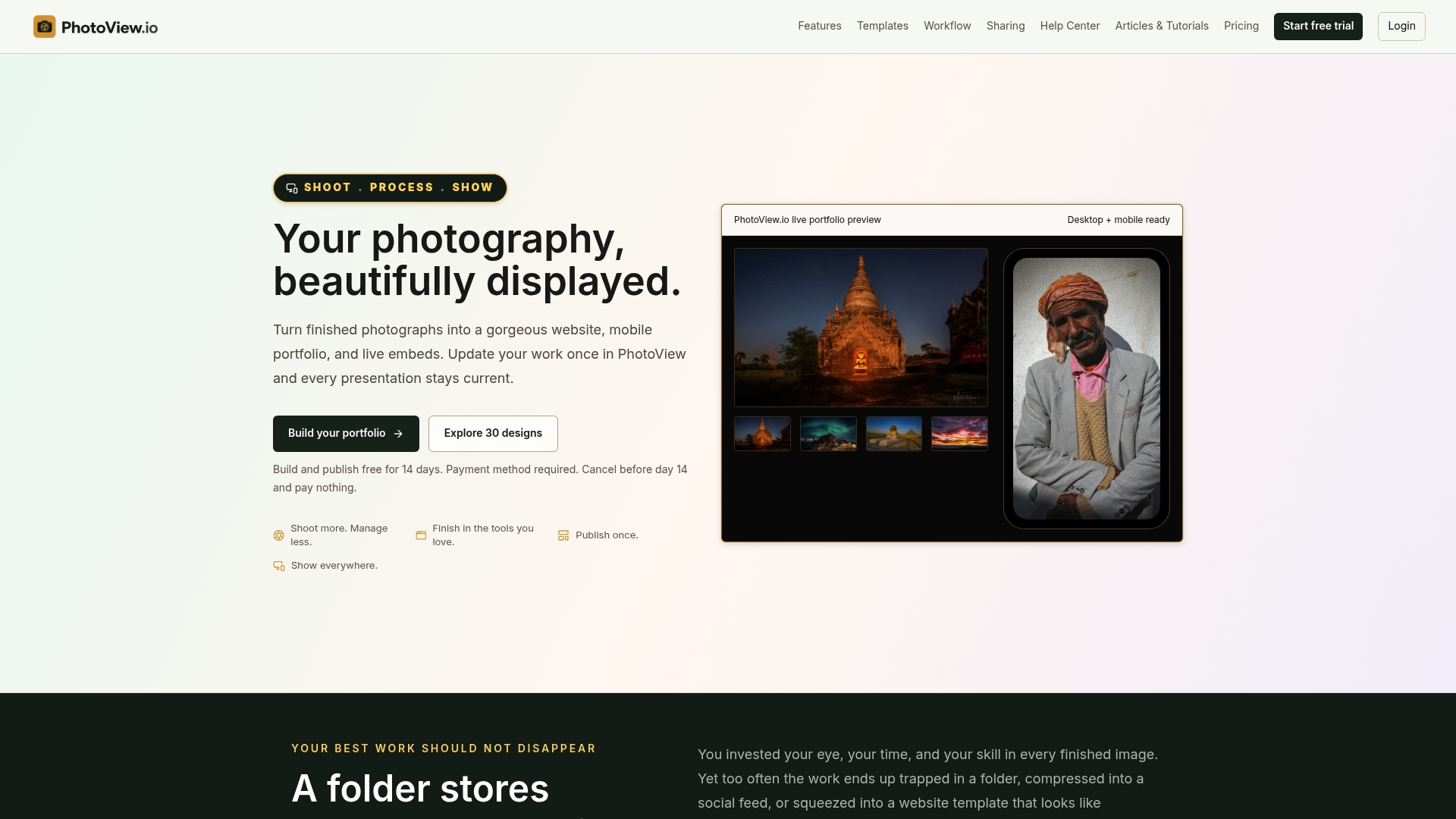
If you shoot in Lightroom, publishing goes straight from your catalog to your live site with no manual export step. If you already run a business website, you can embed a PhotoView gallery directly into it and update the source once instead of maintaining two places. And if client proofing is part of your business, private sharing keeps unreleased work off public search entirely.
Start by browsing the templates showcase to preview real layouts, then import a sample gallery from Lightroom or your desktop to see how publishing actually feels before committing to a plan.
Where to Verify These Details Yourself
For a firsthand look at how a zero-demo-image template handles real photos, review the Lumen README on GitHub. For design starting points across niches, browse the Figma photography template community. For live template demos and workflow details, visit PhotoView’s templates page. Photographers focused on discoverability once the site is live can also review SEO services built for photographers.
Sources
- README.md — Lumen — Free Photography Portfolio Website Template
- Free Photography Website Design Templates | Figma
FAQ
What Is the Best Photography Website Template Overall?
PhotoView’s templates rank highest for photographers who need portfolio-first design paired with Lightroom publishing and live embeds, since the workflow updates every published instance from one dashboard.
Are Free Photography Website Templates Worth Using?
Free templates like Monstera (Showit) offer real drag-and-drop flexibility, but most free options lack built-in client proofing or automated publishing, so you’ll likely add other tools as your business grows.
How Much Do PhotoView’s Templates Cost?
PhotoView’s Starter plan runs $3.99 per month or $39.99 per year, with Growth, Studio, and Premier tiers scaling storage and features; all plans include the full template library.
Do Photography Templates Support Client Proofing?
Proper client proofing requires password or code-gated galleries with noindex meta tags so private shoots stay out of search results; not every marketplace template handles this correctly by default.
Can I Use a Photography Template With My Existing Website?
Yes, if the template or platform supports live embeds. PhotoView, for example, lets you embed a synced gallery into an existing site without rebuilding it around a new template.