
4 Security Priorities for Photographers' Cloud Storage
Secure client files and archives by prioritizing encryption, automated backups, a working vs archive split, and Lightroom integration.

4 Security Priorities for Photographers’ Cloud Storage
For professional photographers, the safest and most practical approach is a photographer-focused cloud platform that pairs strong encryption with automated backup and a clear archival plan. Prioritize four things: the encryption model, automated backups with version history, a working-storage-versus-archive split, and direct integration with Lightroom or your editing workflow. Get those right, and you have a system built for how photographers actually work, not a generic file drawer in the sky.
TL;DR:
- Providers offering zero-knowledge encryption prevent the storage provider from viewing any client files, ensuring maximum privacy for sensitive work.
- For active workflows, use a two-tier storage system with fast, syncable working storage and slower, immutable archive storage to improve both accessibility and security.
- Uploading a sufficient sample of RAW files and timing the sync process is critical to assess a cloud platform’s real speed and suitability for a photographer’s schedule.
- Review storage provider terms carefully to confirm whether they scan content, operate under jurisdictions that match your needs, and if they have independent security audits.
- Integrated platforms like PhotoView combine storage, Lightroom publishing, and private client sharing into one dashboard, reducing manual steps and potential security gaps.
PhotoViewKeep Your Photo Workflow OrganizedPhotoView brings secure storage, Lightroom publishing, private sharing, and portfolio presentation together in one dashboard.Explore PhotoView
Table of Contents
- Why Photographers Need Secure Cloud Storage in the First Place
- The Photographer-Specific Feature Checklist
- What Encryption Choices Mean for Client Work
- A Backup Workflow That Actually Survives a Bad Day
- Preserving a Photo Library for Decades, Not Just Years
- What to Check in Privacy Terms and Data Jurisdiction
- A One-Page Checklist for Choosing a Provider
- PhotoView Perspective: How a Photographer-First Platform Meets the Checklist
- PhotoView Plans Built Around How Photographers Actually Shoot
- Sources
- FAQ
Why Photographers Need Secure Cloud Storage in the First Place
You already know the failure modes. A hard drive clicks and dies mid-import. A memory card gets left in a rental car. A laptop gets stolen from a hotel room the night before a delivery deadline. Ransomware locks a desktop and every mounted drive attached to it, including the RAID array you thought was your safety net.
Local backups solve some of this. They do nothing for theft, fire, flood, or a ransomware strain that encrypts every drive letter it can reach. Cloud storage solves the “all my eggs are in one building” problem by putting a copy somewhere physically separate from your studio, your camera bag, and your desk drawer.
That said, “in the cloud” is not automatically “safe.” Security in this context breaks into three distinct layers, and photographers evaluating a provider need to understand each one before comparing storage tiers or pricing.
- Encryption in transit protects your files while they travel from your computer to the provider’s servers, typically through TLS, the same protocol that secures your bank’s website.
- Encryption at rest protects files sitting on the provider’s servers, usually with AES-256, a standard strong enough that breaking it through brute force is not a realistic threat.
- End-to-end encryption (E2EE), also called zero-knowledge encryption, encrypts files on your device before upload, so the provider only ever stores unreadable ciphertext. Privacy-first providers built around this model design their entire architecture so they cannot open your files even if compelled to.
The distinction between “at rest” and “zero-knowledge” matters more than most photographers realize. Encryption at rest protects your files from someone who steals a hard drive out of a data center. It does nothing to stop the provider itself from scanning your images, whether for content moderation, ad targeting, or training an internal AI model. Zero-knowledge architecture removes that possibility entirely because the provider never holds the keys.
There is a trade-off here, and it is worth naming honestly. Providers that scan content can offer features like automatic face grouping, keyword search, and content moderation that flags illegal material before it spreads. Zero-knowledge providers generally cannot offer those conveniences, because scanning requires readable files. For a wedding or commercial photographer holding sensitive client work, that trade favors privacy. For someone organizing a personal snapshot library, the calculus might tilt the other way.
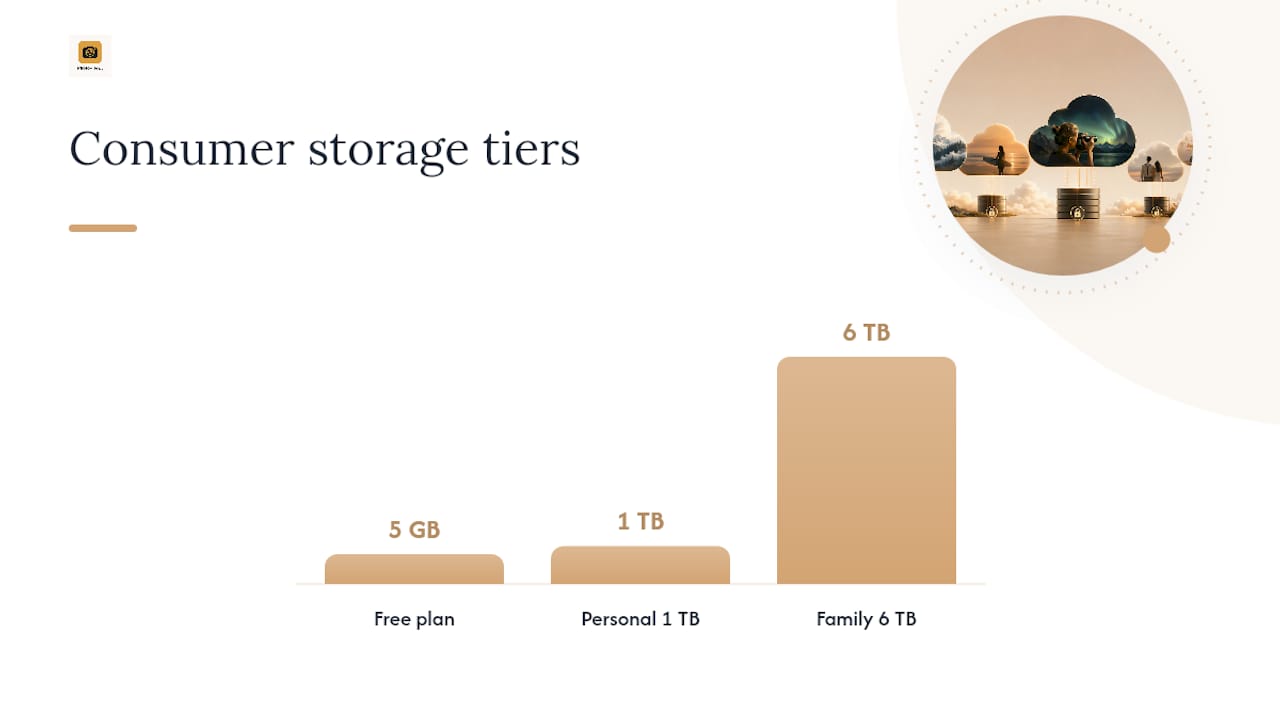
Mainstream consumer platforms illustrate the middle ground. OneDrive, for example, bundles automatic device backup with built-in ransomware protection across tiers from a 5 GB free plan up to 1 TB and 6 TB family options. Those are genuinely useful recovery features. They are not zero-knowledge, and that is the trade you are making when you choose convenience-first storage over privacy-first storage.
The Photographer-Specific Feature Checklist
Generic cloud storage was built for spreadsheets and PDFs, not 45-megabyte RAW files shot in bursts of hundreds. Before you commit to any platform, run it through this checklist.
- RAW and large-file support. Confirm the platform handles your camera’s native RAW format without forced conversion, and check upload behavior on files in the 30 to 100 MB range, not just JPEGs.
- Metadata preservation. Uploads should retain EXIF and IPTC data (camera settings, copyright, keywords) rather than stripping it during processing.
- Storage pricing shape. Decide whether per-gigabyte pricing, a flat “unlimited” tier, or a one-time lifetime plan actually fits your shooting volume. Wedding and event photographers generating terabytes per season need a very different plan than a fine art photographer archiving a few hundred final files a year.
- Client sharing controls. Look for private galleries, password protection, and expiring links, since a permanent public URL to unreleased client work is a liability, not a feature.
- Editing software integration. Direct publishing from Lightroom saves the export, rename, and re-upload cycle that eats an evening after every shoot.
- Versioning and restore speed. Ask how many prior versions are kept, how long deleted files stay recoverable, and what the provider’s actual uptime commitment looks like.
- Security fundamentals. Confirm whether encryption is zero-knowledge or provider-managed, whether two-factor authentication is available, and whether the company has published any independent security audit.
Pro Tip: Before you sign up for any paid plan, upload a folder of 200 to 300 real RAW files and time the sync. Marketing pages rarely mention that upload speed, not storage price, is what determines whether a platform fits into a real shooting schedule.
Independent testing helps here more than vendor marketing ever will. PCMag’s tested roundup of online photo storage services is a useful sanity check against any single provider’s claims, since it evaluates trade-offs across speed, pricing, and feature depth rather than repeating a sales page.
What Encryption Choices Mean for Client Work
The decision between client-held keys and provider-held keys is not abstract. It determines who can technically access a bride’s unreleased gallery, a commercial client’s unreleased product shots, or a celebrity portrait sitting in your queue before a magazine embargo lifts.
With provider-held keys, the company can decrypt your files on its own servers. That enables conveniences like browser-based previews and password-reset recovery, but it also means the provider (and, by extension, anyone who legally compels the provider) can technically view the content. With zero-knowledge encryption, only you hold the keys, so even a court order served on the provider produces nothing but unreadable data. Zero-knowledge architecture protects against provider-side data access, though it does complicate one thing: convenient browser-based sharing usually requires a secure link-and-password exchange rather than a simple “click to view.”
Jurisdiction adds another layer. A provider based in one country operates under that country’s data-access laws, and lawful requests from government agencies follow that framework, not the client’s home country. This rarely matters for typical portrait or event work. It matters considerably for photojournalists, documentary photographers working in sensitive regions, or commercial photographers under strict non-disclosure agreements.
A few practical patterns preserve confidentiality without sacrificing usability:
- Deliver through password-protected galleries with expiration dates rather than open links.
- Reserve zero-knowledge storage for the small subset of shoots that are genuinely sensitive, and use faster provider-managed storage for routine delivery work.
- Read the terms of service for any clause permitting content scanning, since a terms-of-service clause allowing content analysis or AI training means the provider can technically inspect files that a zero-knowledge design would never expose.
Most photographers do not need full zero-knowledge encryption for every frame they shoot. They need to know which shoots warrant it and build that distinction into their workflow instead of treating all files the same way.
A Backup Workflow That Actually Survives a Bad Day
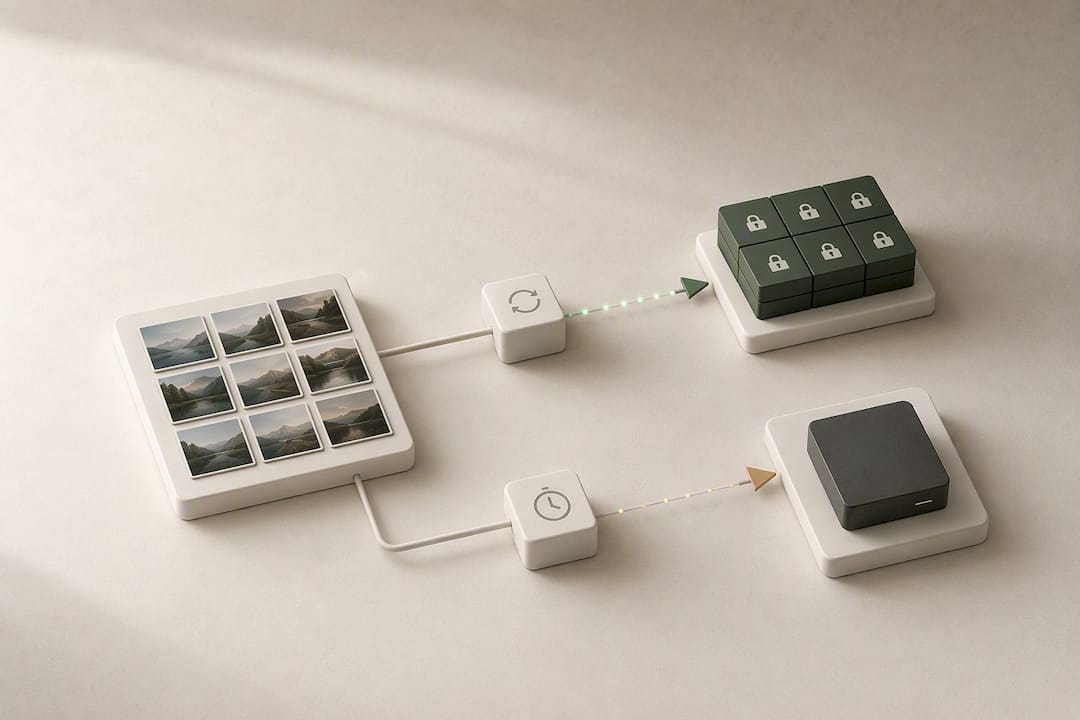
The workflow that holds up under pressure separates two jobs cloud storage is often asked to do at once: fast daily access and long-term safekeeping. A two-tier design handles both without compromising either.
Working storage is the fast, synced tier where you import, cull, and edit. It needs speed and responsiveness, and some version history in case you overwrite something mid-edit. Archive storage is the slower, cheaper, immutable tier where finished work lands once a project closes. It needs durability and verification far more than speed.
- Import cards immediately after a shoot, generating a checksum for each file so you have a fingerprint to verify against later.
- Cull and edit in working storage, letting automatic sync push copies to the cloud as you go rather than waiting until the end of a project.
- Deliver client galleries through private, password-protected shares with expiring links, never through a permanent public folder.
- Once a project is finalized, move the finished files into cold archive storage and re-verify the checksum against the original.
- Test a restore from archive at least once a quarter on an active project, and at least annually on older archived work.
That last step is the one nearly everyone skips, and it is the one that matters most. A backup you have never tried to restore is a hope, not a plan, particularly against ransomware, which specifically targets connected drives and can propagate into poorly isolated cloud sync folders.
Pro Tip: Keep at least one backup tier that does not sync automatically and in real time. Ransomware spreads through live sync connections; a delayed or manually triggered backup gives you a clean version to restore from even if your working copies get encrypted by an attacker.
Preserving a Photo Library for Decades, Not Just Years
A photo library built to last 20 or 30 years needs different habits than one built to survive next month. The gap between “backed up” and “archived correctly” shows up only when you actually need the files back, often a decade after you stopped thinking about them.
- Generate checksums (SHA-256 is the standard choice) at the moment of ingest, and store them separately from the files’ own metadata so a corrupted file cannot also corrupt its own verification record.
- Keep at least one offline or air-gapped copy in addition to cloud redundancy, since a single point of failure, even a highly reliable one, is still a single point of failure.
- Preserve XMP sidecar files and embedded metadata alongside your RAW files, and consider maintaining derivative copies in a widely supported, non-proprietary format as an extra layer of future-proofing against format obsolescence.
- Set a migration schedule, roughly every five to seven years, to move archives onto current storage media and confirm the provider or format you rely on is still actively maintained.
- Run periodic integrity checks against your stored checksums, more frequently for active projects and at least yearly for anything fully archived.
None of this is exciting work. It is the difference between a client calling you in 2036 for a reprint of their wedding album and you actually being able to deliver it.
What to Check in Privacy Terms and Data Jurisdiction
Read the terms of service before you upload a single client file, not after. Look specifically for clauses that grant the provider rights to scan, analyze, or use your content to train other systems. That language tells you exactly how much the provider can technically see, regardless of what its marketing pages promise.
- Confirm where the provider’s servers are located and what data-residency commitments it makes in writing.
- Check how the provider describes its process for responding to law enforcement or legal requests, and whether encryption design limits what it can hand over even if compelled.
- Look for a clear statement on whether human staff or automated systems can access your files during normal operation, not just during a breach.
- If you shoot for clients under strict non-disclosure agreements, embargoed press work, or sensitive documentary subjects, involve legal counsel before choosing a storage provider rather than after a dispute arises.
A One-Page Checklist for Choosing a Provider
Score any provider you are seriously considering against these categories before you commit a season’s worth of shoots to it.
- Encryption model: Is it zero-knowledge, provider-managed, or a mix you can choose per folder?
- Backup and restore: How many versions are retained, and how fast is an actual restore, not just an upload?
- Integration: Does it publish directly from Lightroom, or does it require manual export and re-upload every time?
- Pricing shape: Does the cost scale sensibly with your real shooting volume, including RAW files and video?
- Sharing controls: Are private galleries, password protection, and link expiration built in, or bolted on?
- Support and audits: Has the provider published any independent security audit, and how fast does support actually respond?
Weight these differently depending on your work. A wedding photographer should weight sharing controls and storage volume heavily, since a single season can generate terabytes across dozens of client deliveries. A commercial photographer under NDA should weight the encryption model above almost everything else. An archive-focused photographer preserving a 30-year body of work should weight versioning, restore speed, and long-term pricing stability over flashy sharing features.
Pro Tip: Treat “no published security audit” and “vague answers about data location” as immediate red flags, not minor gaps. A provider serious about protecting professional client work will have straightforward answers to both questions ready before you even ask.
PhotoView Perspective: How a Photographer-First Platform Meets the Checklist
Most of the checklist above exists because generic cloud storage was never built with photographers in mind. PhotoView combines storage, Lightroom publishing, Smart Folders, and private client sharing into one dashboard specifically because splitting those functions across separate tools is where security gaps and wasted hours both creep in.
That integration matters more than it sounds. Every time you export from Lightroom, upload to a separate storage service, then copy links into a third gallery tool, you create another point where a file can be misplaced, mislabeled, or shared with the wrong access settings. A platform that publishes directly from Lightroom removes several of those handoffs entirely, and private sharing built specifically for photographer client delivery keeps gallery access controlled instead of improvised. Fewer manual steps means fewer chances for a client gallery to end up somewhere it should not.
— Mitch Russo
PhotoView Plans Built Around How Photographers Actually Shoot
You do not need to bolt together separate tools for storage, editing handoff, and client delivery. PhotoView keeps them under one dashboard, so updating your work once means it stays current everywhere it is shown.
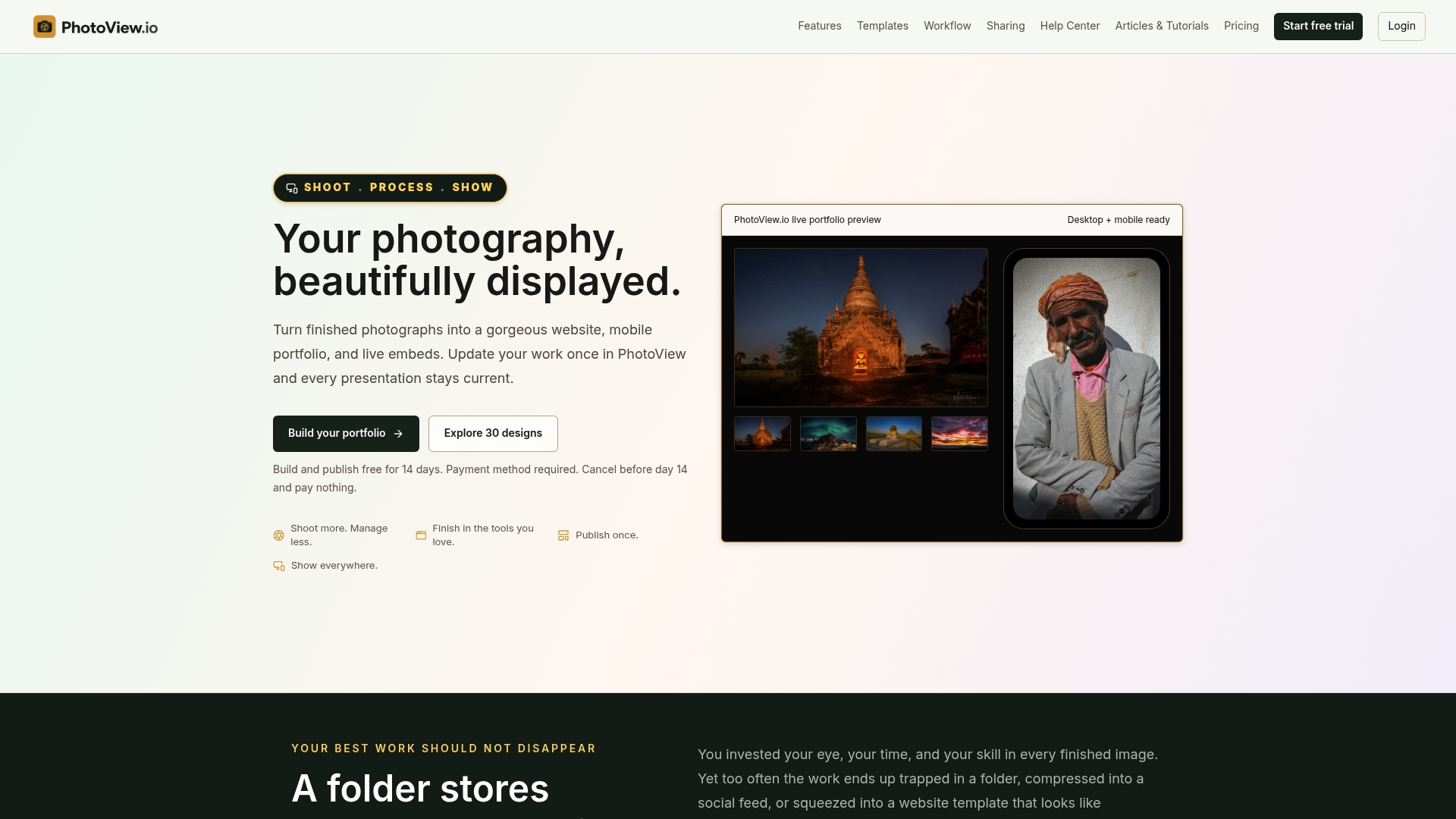
PhotoView offers five storage-based plans, each covering portfolio publishing and templates so you are not paying extra to unlock the features that matter. Plans are designed to fit photographers at different stages of workflow needs, from those just building a client base to full-time professionals managing multiple client galleries and high-volume shooters generating large seasonal archives. Custom plans are also available for studios with specific storage needs beyond standard tiers, with pricing details provided by the company.
Every tier includes the features this article has walked through:
- Secure storage and organization for RAW files and video, without the manual export cycle
- Direct Lightroom publishing so finished edits move straight into your live portfolio
- Private, password-protected client galleries with controlled sharing
- Smart Folders and custom domains that keep a growing archive organized as it scales
If you manage a large RAW library and want storage, publishing, and client delivery working together instead of fighting each other, start with PhotoView’s plans or look closer at how it handles photo and video storage built for photographers.
Sources
For ongoing verification beyond this guide, PCMag’s tested roundup of online photo storage services tracks how mainstream providers stack up on speed and features. Microsoft’s OneDrive photo storage page documents ransomware protection and backup tiers relevant to any provider comparison. For photographers weighing marketing alongside storage, Baby Love Growth’s photography SEO resources cover the business side of getting client work seen once it is safely stored.
- OneDrive — online photo storage | Microsoft
- The Best Online Photo Storage Services for 2026 | PCMag
- Cloudstorageinfo
FAQ
What is the safest storage for photos?
The safest approach combines encrypted cloud storage with an offline or air-gapped backup copy, rather than relying on any single location. Zero-knowledge encryption, where the provider never holds decryption keys, offers the strongest protection against both outside attackers and provider-side access for sensitive client work.
What is the best type of storage for a photographer’s work?
A two-tier system works best: fast, synced working storage for active edits, paired with immutable archive storage for finished projects. Platforms like PhotoView combine that structure with Lightroom publishing and private client galleries so storage and delivery stay in one dashboard.
How should I store 30 years of photos?
Generate checksums at ingest, keep at least one offline copy alongside cloud redundancy, and preserve metadata like XMP sidecars rather than relying on embedded data alone. Plan to migrate to current storage formats roughly every five to seven years and test full restores periodically to confirm the archive is actually recoverable.
What is the most secure app for storing photos?
Security depends more on the encryption model than the app name. Look for zero-knowledge or client-side encryption, two-factor authentication, and a published security audit; among photographer-focused platforms, PhotoView pairs secure private sharing with integrated storage so client work stays controlled from import through delivery.
How much does PhotoView cost?
PhotoView offers five plans: Starter, Growth, Studio, and Premier, each billed monthly or annually, plus a Custom plan for high-volume studios with pricing available on request. Current pricing details for each tier are listed on PhotoView’s site.