
My Website: A Complete Beginner’s Tour
Learn where the main website controls live and how the editor, Live Canvas, preview, and publishing tools work together.
What you’ll accomplish
You will know how to move around My Website, make a safe draft change, preview it, and save it.
Before you begin
- Sign in on a desktop or laptop for the most comfortable editing workspace.
- Choose one small change to practice with. Nothing becomes public until you publish.
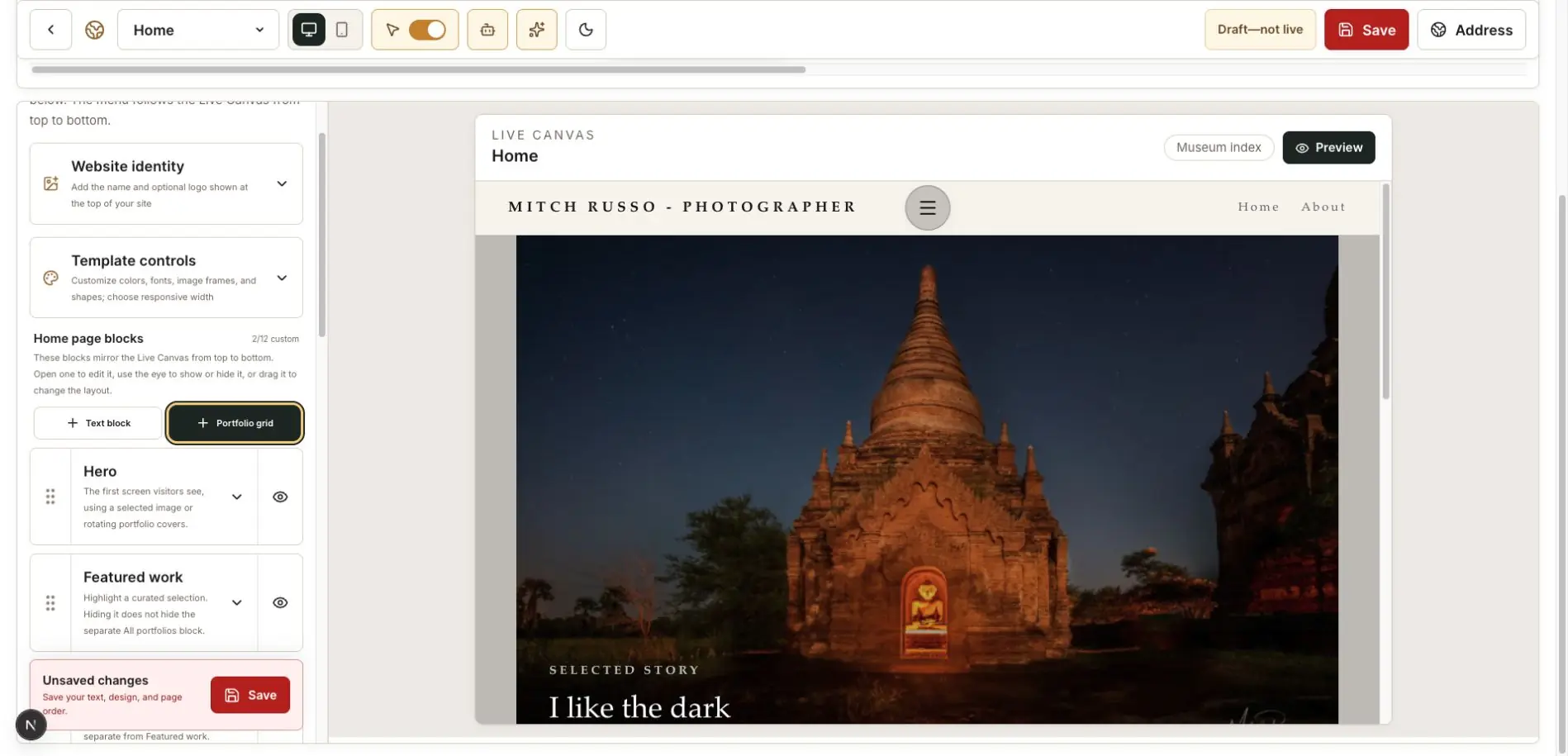
Open My Website
Sign in to PhotoView and select My Website from the dashboard. The editor opens on the Home page.
The page selector in the top toolbar lets you move among Home, About, Contact, and the other pages you have enabled.
Understand the two working areas
Use the left panel to edit identity, template styling, page blocks, text, images, and visibility. Use the Live Canvas to see the result.
Open a card in the left panel to reveal its controls. The eye button shows or hides a block. The dotted handle lets you drag movable Home-page blocks into a new order.
Use the top toolbar
Switch between desktop and mobile canvas sizes to check responsive behavior. Edit Hints explains the controls on the current page, Ask AI How To answers a specific PhotoView question, and Tours walks you through a complete task.
Every top control also has a short hover label, even when Edit Hints is off. The selection-arrow control lets you select editable canvas sections directly; turn it off when you only want to interact with the preview.
The status near Save tells you whether you are editing an unpublished draft.
Make and save one draft change
Open a text field, make a small change, and check the Live Canvas. Select Save when the result is correct.
Saving preserves the draft. It does not make the change public.
Preview before publishing
Select Preview in the Live Canvas header to inspect the website without the editing controls.
Publishing is a separate action. Nothing in this beginner exercise needs to go live until you are ready.
Finish with this checklist
- You can open and close cards in the left editing panel.
- You know the difference between Live Canvas, Preview, Save, and Publish.
- You checked the draft at desktop and mobile canvas sizes.
- The unsaved-changes warning cleared after you saved.