
Choose the Right Website Template
Compare PhotoView templates by presentation style, image shape, navigation, and the kind of story you want the site to tell.
What you’ll accomplish
You will select a template that suits your photographs and understand what changes when a new template is applied.
Before you begin
- Prepare at least one portfolio containing portrait, landscape, panoramic, and square photographs when possible.
- Decide whether visitors should experience one image at a time, scan a collection, or move through a story.
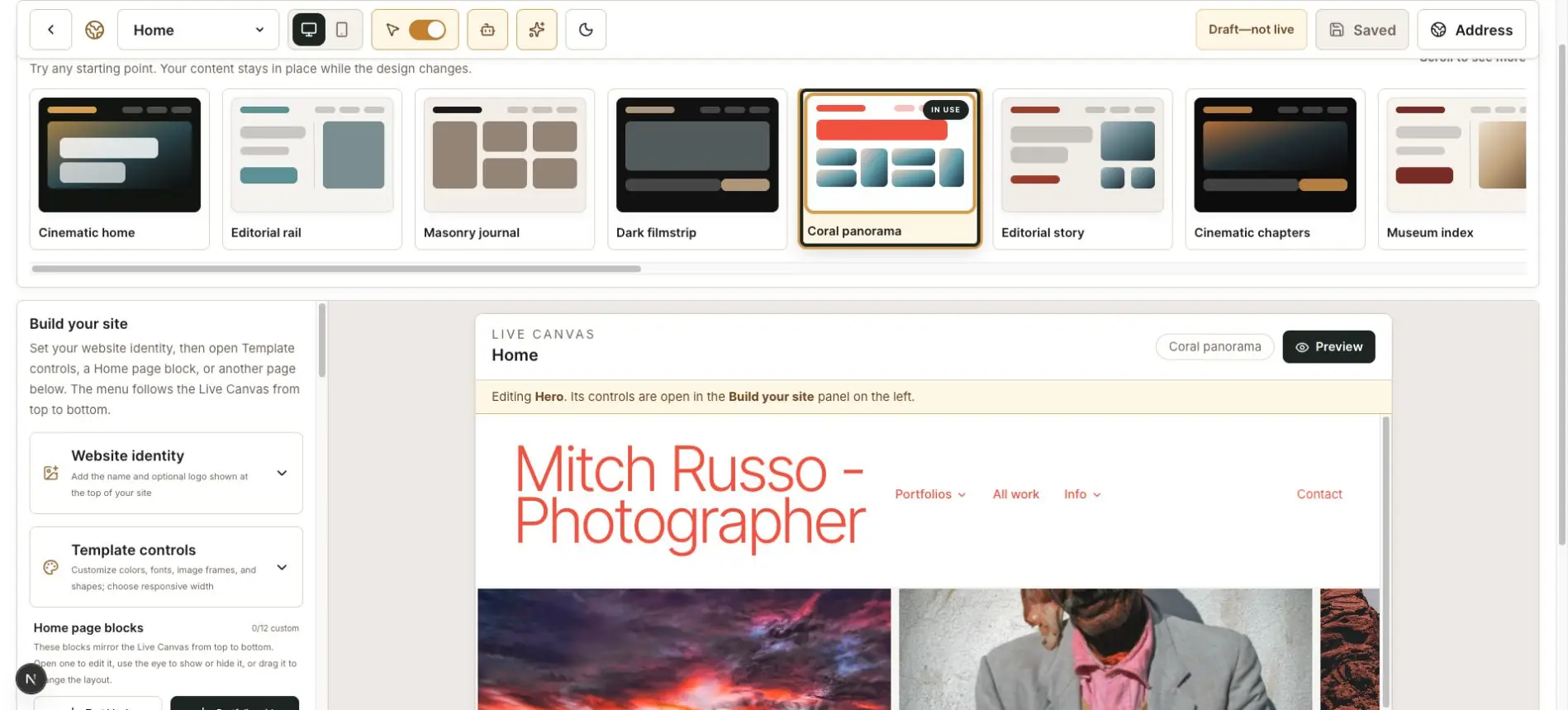
Decide how visitors should experience the work
Choose a quiet editorial template when captions and projects should lead. Choose a cinematic template when one photograph at a time should dominate. Choose a masonry or panorama template when visitors should scan many differently shaped photographs.
Do not choose only by color. Colors, type, spacing, and image treatments can be adjusted after the overall presentation is right.
Open the template chooser
In My Website, open Home and find Template controls. Open the template chooser and review the miniature previews.
Select a template to apply its recommended starting layout to the draft.
Test with your real photographs
Look at portrait, landscape, square, and panoramic images in the Live Canvas. A template that looks striking with one photograph may not suit the range of your portfolio.
Try the navigation and any template-specific grid, viewer, film-strip, contact-sheet, split-screen, or scrolling-headline controls. PhotoView shows headline size, color, font, speed, slowdown, alignment, and vertical-position controls only on templates that use them.
Outside explicit thumbnail treatments, templates should preserve the complete photograph. If a display crops important content or adds an unexplained gray panel, change the image-fit control or choose a more appropriate template.
Choose whether the website shows file names
In My Website, expand Template controls. Turn on Hide photo file names when you want one universal rule that removes filename labels from every website portfolio and template on both desktop and mobile.
This setting hides only filename-based labels. Captions and portfolio titles remain visible, and PhotoView does not rename or delete the original files stored in your dashboard.
Save the draft and publish the website after changing this control. Standalone public portfolios continue to use their individual Photo display text settings.
Discourage right-click image saving
In My Website, expand Template controls. Turn on Prevent right click to copy image to block the image context menu across every portfolio on that website.
Save the draft and publish the website after changing the control. The protection applies to desktop and mobile presentations without changing the stored originals.
This is a deterrent, not digital-rights enforcement. Visitors can still take screenshots, and images displayed by a browser can ultimately be retrieved. Add a watermark and use display-sized public images when stronger protection is appropriate.
Check desktop and mobile
Use both canvas buttons in the toolbar. Pay special attention to long photographer names, menu labels, captions, and portrait-oriented photographs.
If the structure works in both sizes, refine it with Template controls instead of changing templates repeatedly.
Save the selected template
Select Save to keep the template in your website draft. Then open Preview and review the complete page from top to bottom.
Finish with this checklist
- The template supports the natural shapes of your photographs without unwanted cropping.
- Long names, headings, and navigation labels remain readable.
- Photo filename labels are shown or hidden consistently across the complete website.
- Template-specific controls such as headline size, color, font, speed, and position behave as expected.
- The complete template works on both desktop and mobile.