
How to Upload Photos to Your Portfolio the Smart Way
Learn how to upload photos to an online portfolio: edit first, bulk upload into galleries, check how it looks on phones, and keep everything updated.

How to Upload Photos to Your Portfolio the Smart Way
The fastest way to upload photos to a portfolio is to edit your selection down first, upload finished images in one batch (from your desktop, your phone or Lightroom), and sort them into galleries as they arrive. Then check the result on a phone before you share the link. Do it in that order and you only handle each image once, and the portfolio stays easy to update later.
This guide walks through the whole process: what to upload, how to bring in many files at once, how to organize them, and what to check before and after you publish.
PhotoViewPresent Your Portfolio in One PlacePhotoView helps you curate finished photos, publish responsive portfolio galleries, and keep website embeds updated from one dashboard.Explore PhotoViewTL;DR
- Edit before you upload. A tight, varied set of finished images beats a full shoot dumped into a gallery.
- Bulk upload by theme or project, then arrange galleries and sequence. Do not upload one frame at a time.
- Publish from Lightroom or import from your phone so your portfolio does not depend on one computer.
- Test on a phone, because many visitors will first see your work there.
- Before you commit to a platform, check storage limits, privacy controls and how updates reach your live site.
Table of Contents
- Start with the edit, not the upload button
- Prepare your files before uploading
- Three ways to get photos into your portfolio
- How to bulk upload and organize into galleries
- Our perspective: upload once, present everywhere
- Publish and check it on a phone
- What to check about limits, privacy and updates
- Putting it together with PhotoView
- FAQ
- Sources
Start with the edit, not the upload button
Most upload problems are really selection problems. If you upload everything, you spend your time dragging, tagging and deleting. If you upload a considered edit, the upload is the easy part.
Unsplash’s contributor guidance on curating a submission gives a practical filter. Remove images that are blurry, too dark, too bright or otherwise technically unusable. Then remove near-duplicates and keep a varied set of unique images that tells a story. Even though that advice is written for a stock library, the logic holds for a portfolio: every frame should earn its place.
The American Photographic Artists guide to editing and sequencing images suggests working in phases. Make an open first cut, step away, then review thumbnails and sequencing critically. Finally reduce the set to an essential, cohesive selection. That break between passes matters. Frames you loved on shoot day often look different a week later.

How many images should you aim for?
Fewer than you think. A portfolio is a reference frame for a client or an editor, not an archive. We cover the numbers in detail in our guide on how many photos belong in a photography portfolio, and our walkthrough on curating 15 to 30 images from Lightroom to the web shows a workable process from catalog to published page.
A useful habit: decide who the portfolio is for before you choose a single image. A wedding planner, a travel magazine and a gallery curator each want a different edit. If you work in more than one field, plan separate galleries rather than mixing everything into one stream.
Cut the similar shots
Series of near-identical frames are the most common portfolio weakness. Photographer Gian-Reto Bissig makes the same point in his portfolio tips: a concise portfolio built from distinct images does more for you than a long one with repetition. Pick the strongest frame from each moment and let it stand alone.
Prepare your files before uploading
A few minutes of prep saves a lot of cleanup inside the portfolio.
- Work from finished files. Upload edited, exported or published images, not raw captures. Keep your originals in your own archive.
- Group by project on your drive. One folder per series, such as “Iceland coast” or “Studio product, spring”, makes it obvious which gallery each batch belongs in.
- Name files meaningfully. Names like
iceland-coast-01.jpgsort predictably and survive a re-upload. Camera-generated numbers do not tell you anything six months later. - Write titles and captions where they help. A short caption on a fine art series or a location line on a travel image gives context a thumbnail cannot.
- Separate private from public. Client proofs, unfinished edits and personal work should not sit in the same place as your public portfolio. Decide now what is public, what is shared by private link, and what stays off the platform.
- Gather video too. If you shoot motion, collect the finished clips beside the stills so they can sit in the same gallery. Our guide to building a portfolio with photos and video shows how to mix them without breaking the flow.
Three ways to get photos into your portfolio
Your best route depends on where your finished images live.
Upload from your desktop
This is the classic method. Open your portfolio dashboard, create or choose a gallery, and drag a folder of exported images into it. It suits photographers who export to a folder after editing, or who work in other editing tools.
Import from your phone
If you shoot or edit on a phone, or travel with only a phone and a tablet, you do not want to wait until you are back at a desk. PhotoView supports importing from mobile as well as desktop, so a finished image can go into your portfolio from wherever you are. Travel photographers in particular benefit: you can add a strong frame from the road instead of letting it sit in your camera roll for weeks.
Publish straight from Lightroom
If Lightroom is where your finished work lives, publishing from it removes the export step entirely. You select the images in your catalog, and they go to your portfolio. When you change an edit and republish, the portfolio can reflect it without you re-exporting and re-uploading by hand. We describe the workflow on our page about publishing a portfolio directly from Lightroom, and in a step-by-step article on publishing from Lightroom in minutes.
Whichever route you choose, aim to keep one source of truth. If the same image lives in three folders and two apps, updating it becomes a chore.
How to bulk upload and organize into galleries
Bulk uploading is simple when you have done the prep. The sorting is where the real work happens.
A workable bulk upload routine
- Create the gallery first. Name it after the project or theme, so the batch has a destination.
- Upload one gallery’s worth at a time. Dropping 400 images from five projects into one place creates a sorting job. Dropping 20 from one project does not.
- Let the upload finish before you rearrange. Reordering a half-loaded gallery is how images end up duplicated or missed.
- Scan for gaps. Look for missing files, wrong orientation and any image that slipped in without being edited.
- Set the cover image. The cover is the first thing a visitor sees for that gallery. Choose your strongest, clearest frame.
Use multiple galleries, not one long scroll
Visitors decide quickly whether to keep looking. A single gallery of 150 mixed images makes that decision easy for them, and not in your favor. Separate galleries by subject, client type or style so someone looking for weddings does not have to wade through product work. PhotoView supports multiple galleries and mixed media in the same portfolio, and our page on photo and video storage for an organized portfolio explains how storage and structure work together.
Let folders do some of the sorting
If you manage a lot of material, rule-based organization saves time. PhotoView’s Smart Folders are designed for exactly this: instead of moving each image by hand, you set up a folder that gathers matching work for you. That is especially useful if you add new images often and want galleries to stay current.
Sequence the gallery like a story
The order of images shapes how the whole gallery feels. The APA guide says the first image sets the tone and the last can act as a visual bookend, and that sequencing turns a collection into a story guided by a clear message and audience. In practice:
- Open strong. Your first image should be the one you would show if the visitor only saw one.
- Vary the rhythm. Alternate wide and tight, quiet and busy, horizontal and vertical. Three similar frames in a row blur together.
- Pair neighbors on purpose. Colors, shapes or subjects in adjacent frames should either echo or contrast, not collide accidentally.
- End with intent. Close on an image that gives the set a sense of finish, not on whatever was left over.
The same idea applies beyond photography. A piece on visual storytelling for brands covers how a deliberate sequence shapes what viewers take away, which is a useful way to think about how you order a gallery.
Our perspective: upload once, present everywhere
We built PhotoView around a simple frustration. Photographers finish an edit, and then the real admin starts: export, resize, upload to a website, rebuild the same set for a mobile view, re-upload it for an embed on another site, then do it all again when one image changes.
Our position is that the finished work should live in one place. You curate it once, and it is presented across your website, mobile presentations and live embeds, without rebuilding the content each time. That is why every one of our 30+ responsive templates is included in every plan: changing the look of your portfolio should be a design decision, not a migration project.
We also think uploading should follow the way you already work. Some photographers live in Lightroom, some edit on a phone, some export to folders. Your portfolio should accept all three, and it should keep your public galleries, private sharing and storage in one dashboard so you spend your time shooting instead of managing websites.
The best portfolio is rarely the biggest. It is the one where the edit is deliberate, the sequencing is clear and updating it takes minutes. Tools should make that easy.
Mitch Russo
Publish and check it on a phone
Uploading is not the finish line. A portfolio only works if it looks right where people open it.
Pick a template that suits the work
Match the layout to the images. A clean grid suits commercial and product work where clients want to scan quickly. Larger, slower layouts suit fine art and travel, where each image needs room. Because all templates are included in every PhotoView plan, you can try a different look without paying more or re-uploading anything. For ideas, see our collection of photography portfolio examples and presentation ideas.
Run a phone check
Before sharing the link, open it on an actual phone, not just a narrowed browser window. Go through this list:
- Does the first screen show your best work, or a blank area or a menu?
- Do portrait and landscape images both display fully, without awkward cropping?
- Do galleries load without long waits on a mobile connection?
- Can you move through images with a thumb, without fighting the interface?
- Are video clips playable, and do they sit sensibly among the stills?
- Is any caption or title readable without zooming?
Ask a friend to open it on a different device too. You are too familiar with your own portfolio to see its snags.
Connect your domain and your existing site
A custom domain makes your portfolio look like a professional business, and it is easier to put on a business card. If you already have a website you like, you do not have to abandon it. You can embed a live portfolio on your existing website, so updates in your dashboard appear on the page without you re-uploading anything.
What to check about limits, privacy and updates
This is the part people skip, then regret. Before you upload a large library to any platform, check these points.
Storage and upload limits
Storage is the number that decides which plan you need. Look at how much space the plan includes, whether videos count toward it, and what happens when you reach it. A portfolio of 30 images does not need much. A photographer who keeps full galleries, video and several projects will need more headroom. Estimate by multiplying your typical exported file size by the number of images you plan to keep, then add room to grow.
Also check practical limits on file formats, individual file sizes and how many files can go in per batch, since those differ between platforms and can change. The provider’s help pages are the place to confirm current rules.
Privacy and sharing
Decide which galleries are public and which are not. Client work, pre-release campaigns and personal projects often need private links rather than a place in your open portfolio. Look for password or private-link options and for a way to switch a gallery between public and private without deleting it. We describe our approach on the page about private photo sharing built for photographers.
Ownership matters too. Only upload images you made or have the right to show. A thread on using online photos in a portfolio in r/photography frames the issue as two separate barriers: the terms of use on the photos, and the honesty of presenting someone else’s work as yours. Your portfolio is a statement of what you can do, so keep it to your own work.
Updating without starting over
A portfolio is a living document. Plan for three kinds of updates:
- Swapping an image. Replace a weaker frame with a stronger one without disturbing the order.
- Adding a project. Create a new gallery and place it where it belongs in your navigation.
- Retiring old work. Remove or archive galleries that no longer reflect the work you want to be hired for.
Set a reminder every quarter to review your portfolio. A short review, with a few swaps, keeps it from drifting out of date.
Putting it together with PhotoView
PhotoView is built for photographers who want one place for finished photos and videos, a portfolio website built from 30+ responsive templates, mobile-ready presentations and live embeds. You can import from desktop and mobile, publish from Lightroom, organize with multiple galleries and Smart Folders, and set up custom branding and a custom domain.
Plans are tiered by storage, and every plan includes the portfolio and website features. Pricing as published on our site: Starter is $3.99 per month or $39.99 per year, Growth is $5.99 per month or $59.99 per year, Studio is $7.99 per month or $79.99 per year, and Premier is $11.99 per month or $119.99 per year. A Custom plan is available for high-volume users. A free trial comes first, so you can upload your first gallery and see it on your phone before you decide.
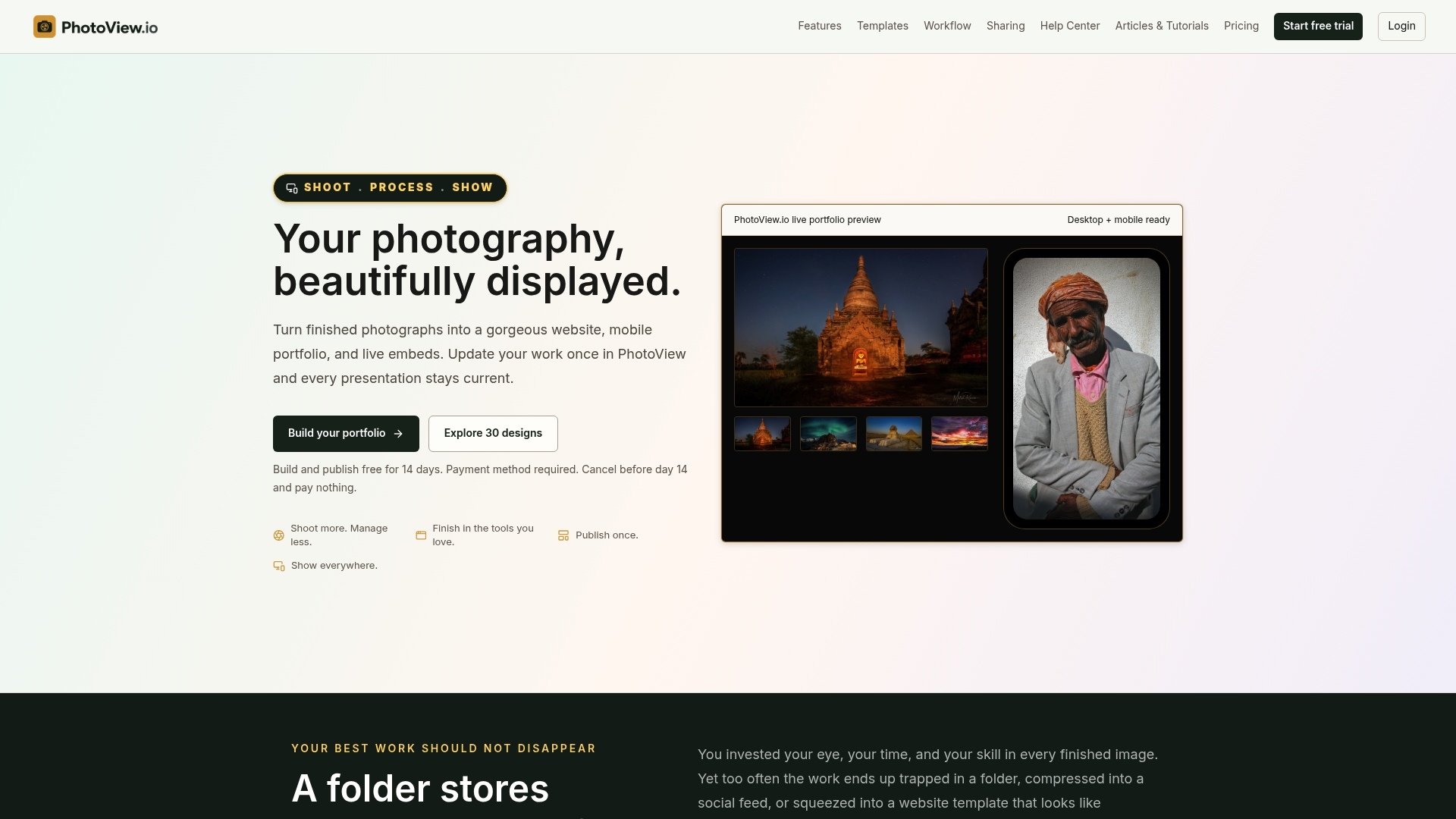
Ready to upload your first edit? Compare the plans and start your trial at PhotoView, or browse our portfolio publishing solutions to see which workflow fits how you work.
If you are still choosing a platform, our guide to the best photo gallery platform for portfolio-first photographers lays out what to look for.

FAQ
What is the best way to upload many photos to a portfolio at once?
Create the gallery first, then drag in one project’s finished images as a single batch. Wait for the upload to complete before you reorder anything. If your work lives in Lightroom, publishing from the catalog avoids exporting and uploading by hand.
Should I upload every photo from a shoot?
No. Remove technically weak frames and near-duplicates, and keep a varied set that tells a story. A short, deliberate gallery is stronger than a full shoot, and it loads faster for visitors on phones too.
Can I update my portfolio after it is published?
Yes. Swap images, add galleries and retire old work whenever you like. With a live embed, changes you make in your dashboard show up on the page that carries it, so you do not need to rebuild the content on another site.
How do I know my portfolio looks right on a phone?
Open the published link on a real phone and go through each gallery. Check the first screen, image cropping, loading speed, video playback and caption readability. Then ask someone else to test it on a different device.
Can I keep some galleries private?
Yes. Use private sharing for client proofs and unreleased work, and keep only your best finished work in the public portfolio. Decide this before you upload so images land in the right place the first time.
Sources
- How to curate your submission, Unsplash Help Center
- How to Edit and Sequence Your Images, American Photographic Artists
- Photography Portfolio Tips: Book More Clients
- Visual storytelling tips: boost your brand’s impact
- Can I use online photos for my portfolio? r/photography