
Create the Perfect Hero Section
Control the Hero photograph, framing, heading, story label, text alignment, and background treatment.
What you’ll accomplish
You will create a strong first screen without accidental cropping, black letterboxing, or unwanted overlay text.
Before you begin
- Choose a Hero source with enough resolution for a large display.
- Identify any part of the composition—such as a face, horizon, or architectural edge—that must never be cropped.
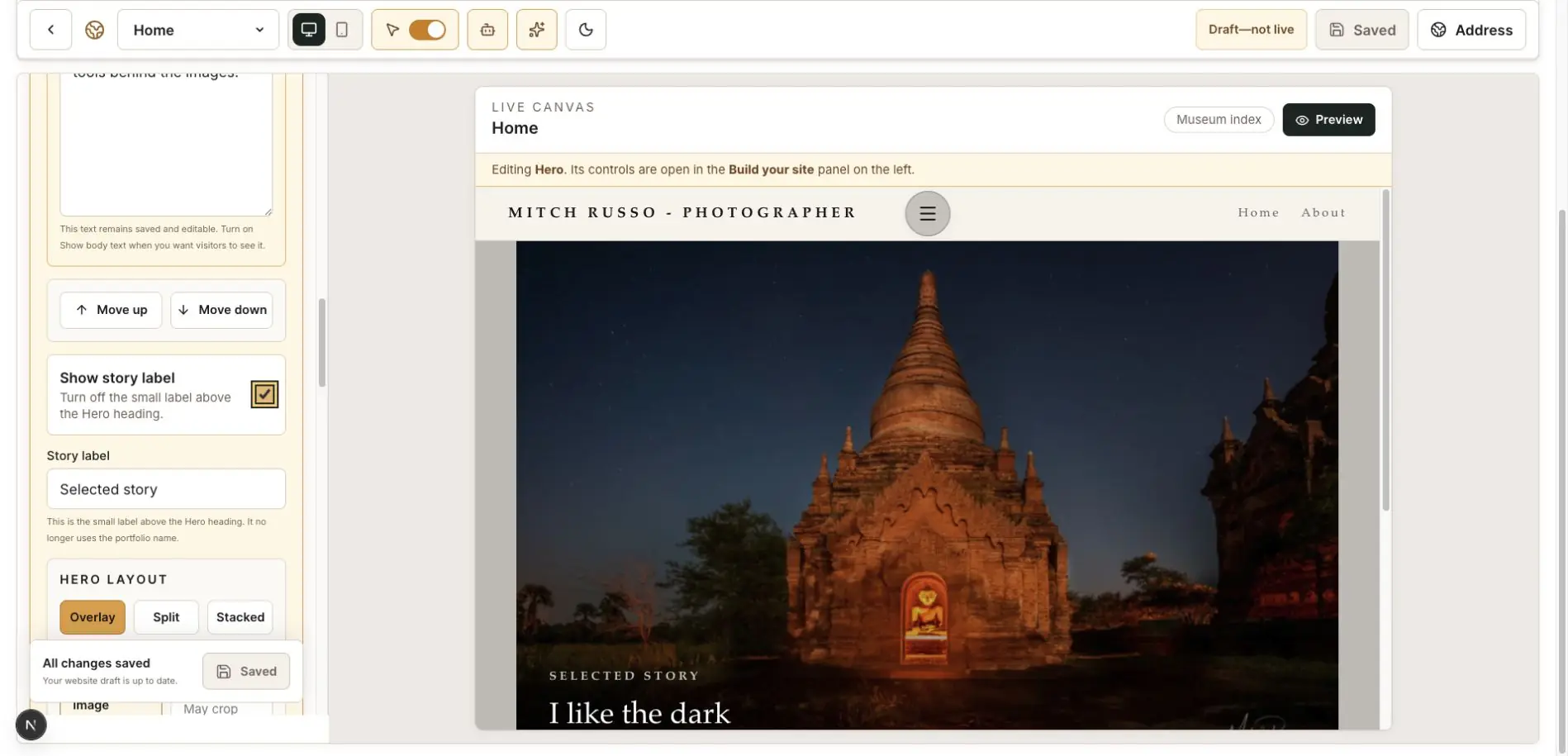
Open the Hero block
In My Website, open Home and expand Hero. Select the image, video, or portfolio source you want visitors to see first.
Choose how the image fits
Choose Fill frame when edge-to-edge impact matters and some cropping is acceptable. Choose Show full image when the entire composition must remain visible.
When Show full image leaves space around the photograph, PhotoView uses the current website background color or background image instead of black.
Set the heading and supporting text
Edit the website-only Hero heading in the Hero controls. This text is independent from the portfolio title.
Keep overlay copy short, choose its alignment, and check that it remains readable over both bright and dark areas.
Templates with a moving headline add controls for size, color, font, scroll speed, center slowdown, and vertical position. Use one circulating copy of the headline; PhotoView repeats it only as needed to keep the motion continuous without leaving an empty screen.
Show or hide the story label
Use Show story label to control the small label above the headline. Turn it off when the photograph and main heading need a quieter presentation.
Use Image frame in Template controls to choose None, Thin, Gold, Shadow, or Print. Frame thickness applies only when the selected frame supports it; choose None to remove an unwanted gold or decorative box.
Check several screens
Preview desktop and mobile. Look for cropped faces, cut-off architecture, text near the image edge, and low contrast.
Save once the Hero works at both sizes.
Finish with this checklist
- The important part of the image remains visible on desktop and mobile.
- Optional story-label text appears only when you intentionally enable it.
- Headline size, alignment, vertical position, color, and font remain readable.
- Any image frame is intentional; choose None when you do not want a thin, gold, shadow, or print treatment.
- Full-image space reveals the selected website background instead of an accidental gray or black box.