
Display Your Best Work on the Homepage
Choose the right portfolio source, image order, covers, and display style for the Featured Work section.
What you’ll accomplish
You will present a concise selection in an arrangement that respects each photograph’s natural shape.
Before you begin
- Complete the source portfolio’s image order, visibility, title, and cover.
- Decide whether the section should display photographs directly or act as a set of portfolio destinations.
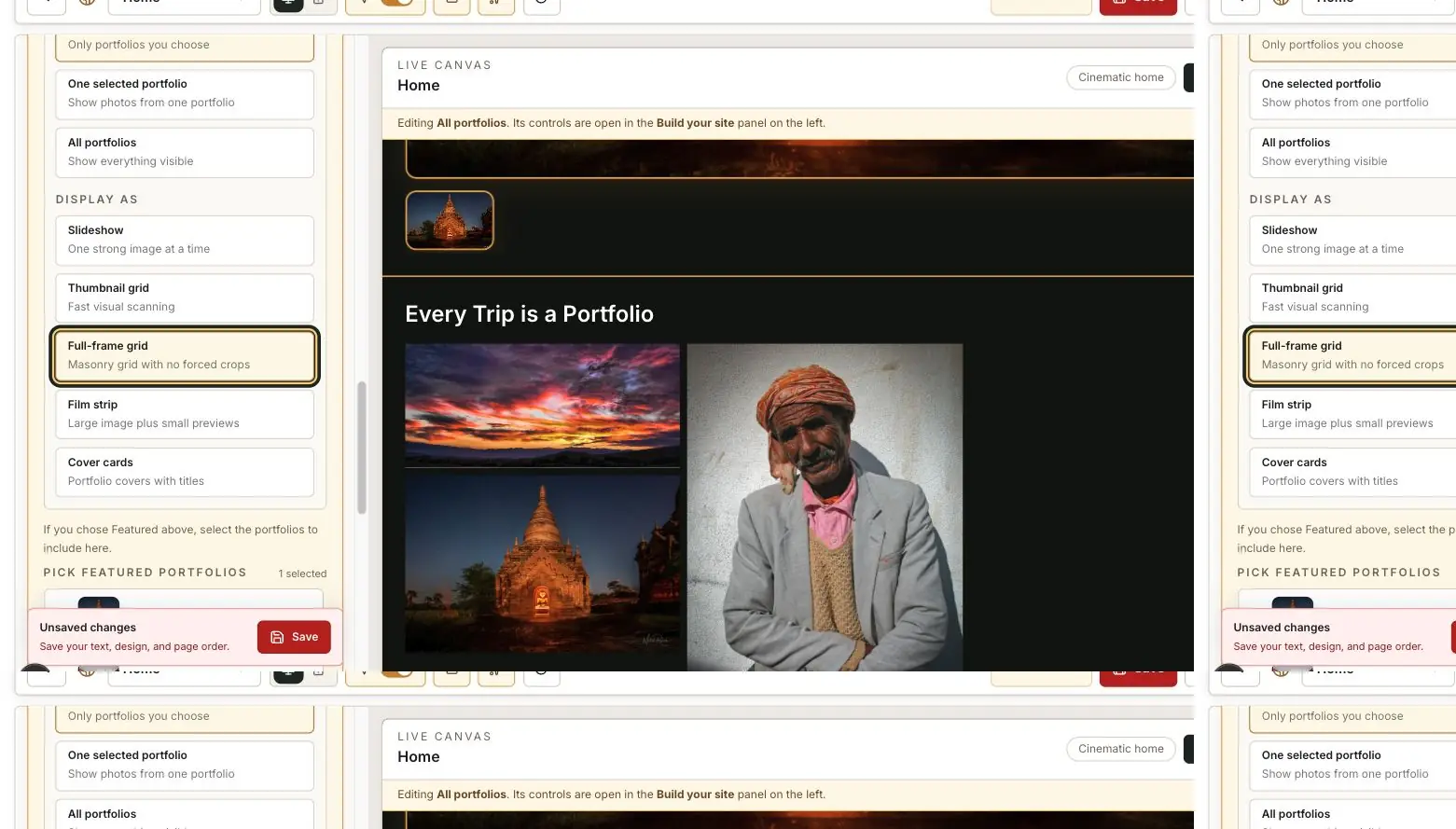
Prepare the source portfolio
Choose a portfolio with a deliberate sequence and no unfinished work. Set strong titles, captions, and a cover where the selected presentation uses them.
Open Featured Work
In Home page blocks, expand Featured Work and select the portfolio or selection to feature.
Showing or hiding Featured Work does not change the separate All portfolios block.
Choose a presentation
Use a slideshow for a slow, focused sequence; thumbnail grid for quick scanning; film strip for a compact horizontal edit; cover cards for portfolio destinations; or Full-frame grid for mixed orientations without cropping.
Edit for pace
Begin with one of the strongest photographs, vary distance and orientation, and avoid several near-duplicates in a row.
A shorter selection usually creates a stronger first impression than showing every good photograph.
Test interaction and save
Click through the presentation in Live Canvas and Preview. Check hover text, captions, lightbox behavior, and mobile spacing before saving.
Finish with this checklist
- Only finished, visible photographs appear.
- The opening images are strong and near-duplicates are separated or removed.
- Full-frame presentations preserve natural image proportions; only thumbnail treatments crop.
- Captions and portfolio titles come from subscriber content rather than unexplained starter labels.
- Controls, links, and horizontal movement remain understandable on mobile.