
Lightroom to WordPress Gallery: Publish and Keep It Current
Get Lightroom photos into a WordPress gallery: export settings, upload steps, fixes for common errors, and a way to update once and stay current everywhere.

Lightroom to WordPress Gallery: Publish and Keep It Current
The cleanest way to get a Lightroom gallery onto WordPress is to stop treating the two as separate jobs. Publish from Lightroom to one place, embed that gallery in your WordPress page, and update it once when your work changes. We built PhotoView around that idea: Lightroom publishing, live website embeds and 30+ responsive templates, all managed from one dashboard. If you only need a handful of photos in a single post, the manual export route below works too, and we walk through it step by step.
PhotoViewphotoview.ioKeep Your WordPress Gallery CurrentPublish from Lightroom, embed your gallery on WordPress, and manage updates alongside responsive portfolio templates from one dashboard.VisitTL;DR
- WordPress does not read Lightroom galleries. Lightroom’s own web galleries and WordPress galleries use different formats, so you either move files across or embed a gallery hosted elsewhere.
- For a one-off post, export JPEGs from Lightroom Classic, upload them through Media > Add New, then add alt text and captions.
- For a portfolio you change often, publish once from Lightroom and embed the live gallery, so edits do not mean re-uploading and rebuilding.
- Most upload errors come from file size, server limits or the wrong color profile, and each has a quick fix.
Table of Contents
- Why Lightroom and WordPress do not talk to each other by default
- The route we recommend: publish once, embed everywhere
- How to export from Lightroom and add photos to WordPress yourself
- Publishing straight from Lightroom to a WordPress blog
- Keeping a WordPress gallery up to date when photos change
- Fixing common upload and display problems
- Image metadata, alt text and search
- Which route fits you
- Start with a gallery that updates itself
- Our perspective
- FAQ
- Sources
Why Lightroom and WordPress do not talk to each other by default
Lightroom Classic has a Web module. It builds a folder of HTML, image files and supporting files, saves gallery photos and thumbnails as JPEGs with an embedded sRGB profile, and uploads the result to a web server over FTP. That is a standalone mini-site. WordPress themes and gallery plugins have their own gallery structure, so a folder from the Web module does not become a WordPress gallery.
That leaves three practical routes:
- Publish from Lightroom to a portfolio platform and embed the gallery in WordPress. One source, live updates.
- Export JPEGs and upload them to the WordPress Media Library. Simple, manual, best for occasional posts.
- Use a WordPress-side plugin or the WordPress.com Lightroom app to push photos straight into a blog.
Which one fits depends on how often your work changes and how many places it needs to appear.
The route we recommend: publish once, embed everywhere
WordPress is excellent as a blog or business site. It is less comfortable as a place to manage finished photography: every gallery is a set of Media Library files, every layout depends on a theme or plugin, and every change to an edit means finding the file and replacing it.
PhotoView separates the two jobs. You keep finished photos and videos in PhotoView, publish them from Lightroom, and present them through responsive portfolio templates, mobile-ready presentations or live embeds on an outside website. When you update the gallery, the embed stays current without rebuilding your content. All templates are included in every plan, so you can pick a look that suits your style without paying more for it.
This suits the readers who usually land on this keyword:
- Freelancers who send a client to a portfolio page and need it to match the latest work.
- Travel photographers whose audience is on phones and who add new trips constantly.
- Commercial and product photographers who show several galleries, sometimes mixing stills and video.
- Fine art photographers who want a quiet, sophisticated layout rather than a blog grid.
For the Lightroom side of the workflow, our guide to publishing a portfolio from catalog to live website covers the sequence in detail, and the Preview, Publish, and Update Your Website help page explains how changes go live.
How to export from Lightroom and add photos to WordPress yourself
When you want a few images in a blog post, the manual route is perfectly workable. Here is the routine with the places it tends to go wrong.
1. Choose export settings that match the page
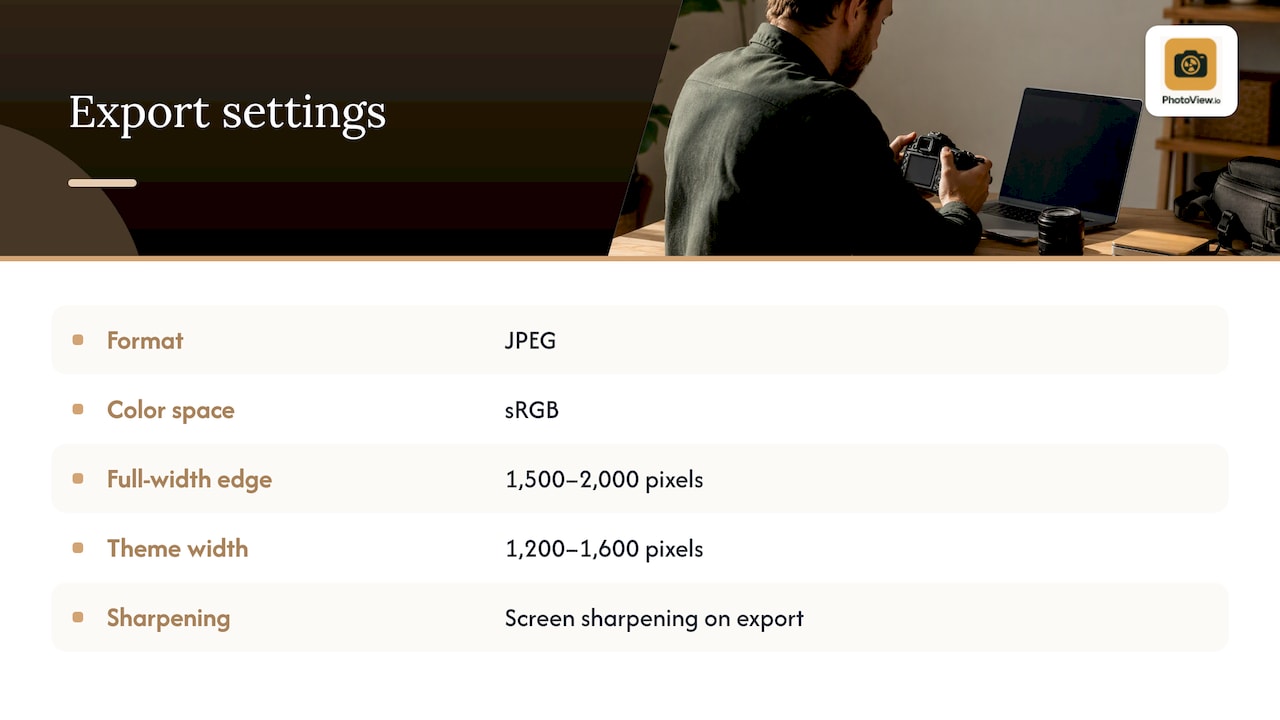
In Lightroom Classic, select your edited photos and choose File > Export. Set the format to JPEG and the color space to sRGB, which is what browsers display most predictably. Exporting in Adobe RGB is the usual cause of colors looking flat or shifted on the web.
Set the long edge to the largest size the image will actually appear on your site. There is no universal WordPress pixel size. A common range for full-width images is 1,500 to 2,000 pixels on the long edge, and many themes display content at 1,200 to 1,600 pixels wide, so anything larger only slows the page. Add screen sharpening on export, because a missing sharpening step is a frequent reason web images look soft.
2. Save an export preset
Once the settings look right, save them as an export preset in Lightroom Classic. Next time it is one click, and every gallery you publish has the same size, quality and profile.
3. Name files before you upload
Rename on export with something descriptive, such as a location and subject, instead of a camera number. WordPress uses the file name as the starting point for the media title and URL, so this small step helps you find the file later and gives search engines a clue about the picture.
4. Upload to the Media Library or a post
In WordPress, open Media > Add New and drag your files in, or add an Image or Gallery block to a post or page and upload from there. Then fill in alt text and a caption for each image. Alt text describes the picture for people using screen readers and for search engines, and it is worth writing properly, one image at a time.
5. Build the gallery
In the block editor, a Gallery block lets you set columns and crop behavior. A theme or plugin can add a lightbox and filtering. Keep in mind that WordPress’s built-in galleries do not import the keyword tags you added in Lightroom, so any organization you did there has to be recreated by hand.
This works well. Its weak point is repetition: replace a photo in Lightroom and you must re-export, find the old file in the Media Library, swap it, and check every page where it appears.
Publishing straight from Lightroom to a WordPress blog
If your site is a blog and you want to skip the export dialog, WordPress.com offers a Lightroom export app for macOS and Windows. You log in with a WordPress.com account, select photos in Lightroom, click the export button and choose your blog. It works with WordPress.com sites and with self-hosted WordPress sites that run Jetpack.
It gets photos into the Media Library quickly. It does not manage galleries as a portfolio, keep them in sync when you re-edit, or give you templates built for presenting photography. For that, the embed route above is the better fit.
Keeping a WordPress gallery up to date when photos change
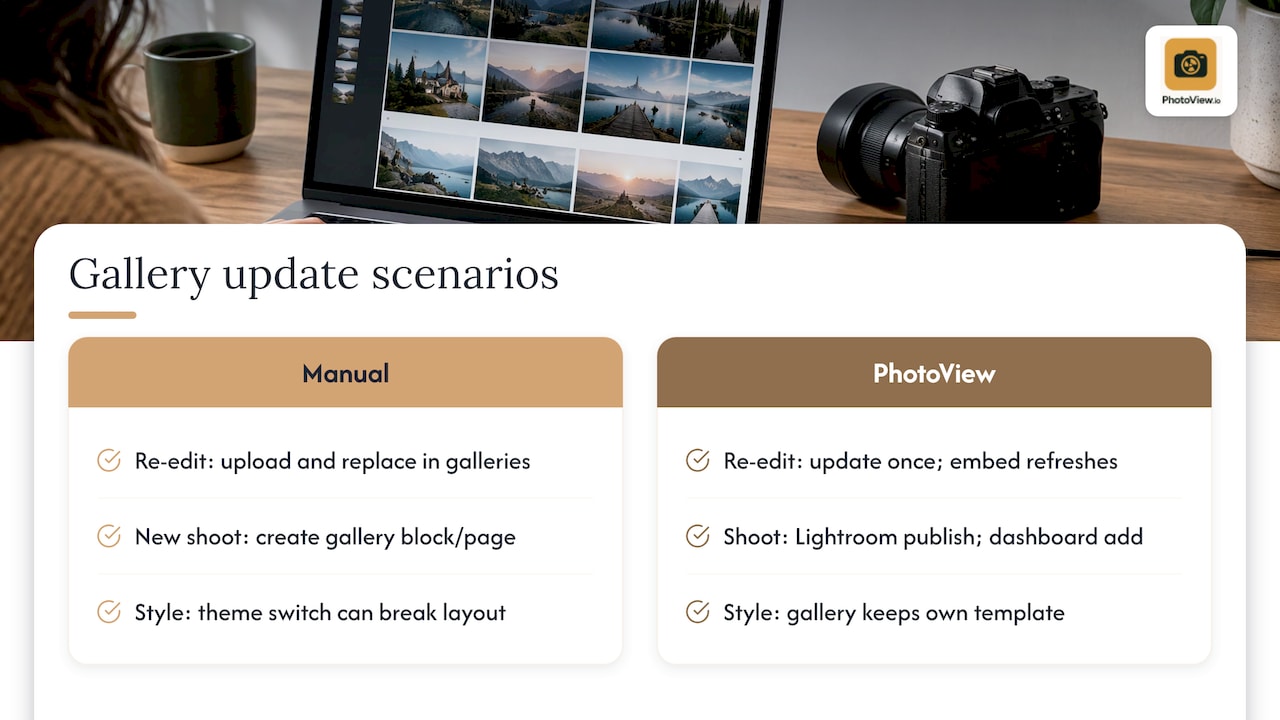
This is the question that separates a one-time project from a portfolio that stays alive. Think of it as three scenarios.
You re-edit a photo. With the manual route, re-export it, upload the new file, and replace the old one in every gallery that uses it. With a live embed, you update the photo once in your PhotoView gallery and the embedded gallery shows the new version.
You add a new shoot. Manually, you create a new gallery block or page. With PhotoView, you publish the new collection from Lightroom and add it to your site from the dashboard. Smart Folders and update-in-place publishing mean you are not rebuilding galleries by hand.
You change your look. A theme switch in WordPress can break gallery layouts, because the layout lives in the theme or plugin. A gallery embedded from PhotoView keeps its own template, so your visual style travels with it.
If you want the workflow laid out end to end, read our piece on a better Lightroom to online portfolio workflow.
Fixing common upload and display problems
Most failures fall into a short list.
| Symptom | Likely cause | Fix |
|---|---|---|
| “Exceeds the upload_max_filesize directive” | Server file size limit is lower than your export | Export smaller, or raise upload_max_filesize and post_max_size together in your host settings |
| “HTTP error” on upload | Image processing or memory limit on the server | Reduce pixel dimensions, upload fewer files at once, or ask your host to raise the memory limit |
| “Sorry, this file type is not permitted” | Wrong format, often RAW, HEIC or PSD | Export as JPEG from Lightroom |
| Colors look dull | Exported as Adobe RGB or ProPhoto | Re-export in sRGB |
| Soft or blurry images | Resized by the theme or no output sharpening | Match export size to display size and turn on screen sharpening |
| Slow pages | Files too large | Aim for a few hundred KB per image by cutting dimensions first |
The upload errors above are documented in this troubleshooting reference on WordPress Media Library errors, which also notes that you can read your site’s current upload ceiling at Media > Add New. When you hit that limit, reducing pixel dimensions usually shrinks a file far more than lowering JPEG quality a notch.
A gallery that looks fine on a laptop but clumsy on a phone is a theme problem, not a Lightroom one. Our responsive templates are built for mobile viewing, which is one reason travel and wedding photographers who share links on social platforms tend to prefer a hosted gallery over a theme-dependent one.
Image metadata, alt text and search
Whichever route you take, WordPress needs good text around your photos to be found: descriptive file names, alt text, captions and sensible page titles. Because WordPress ignores Lightroom keywords on import, this text is yours to write. If you publish many galleries, WordPress SEO automation can help you manage tags and metadata across pages instead of typing each one.
Which route fits you
| Your situation | Best fit |
|---|---|
| Portfolio that changes monthly, shown on a site, phone and social links | Publish from Lightroom to PhotoView and embed |
| Client presentations and private galleries | PhotoView, with private sharing |
| A few photos in one blog post | Manual export and Media Library upload |
| A blog on WordPress.com or Jetpack with quick exports | WordPress.com Lightroom app |
Start with a gallery that updates itself
PhotoView is a subscription with a free trial, tiered by storage, with every portfolio and website feature included in each tier. Plans are Starter at $3.99 per month or $39.99 per year, Growth at $5.99 per month or $59.99 per year, Studio at $7.99 per month or $79.99 per year, and Premier at $11.99 per month or $119.99 per year. A Custom plan exists for high-volume storage needs.
You can look at the plans on the PhotoView home page, browse the photography website templates, or see how publishing directly from Lightroom works before you embed anything in WordPress.
Our perspective
Photographers do not lose time to shooting or editing. They lose it to everything after the edit: exporting again, uploading again, fixing a layout the theme broke, and discovering that last year’s gallery still shows the old crop.
We think the finished work should live in one place, organized the way you already think about it in Lightroom, and be presented from there. Publish once, and let your website, your mobile presentation and your embeds all draw from the same source. WordPress can stay what it is good at, which is your pages, posts and business site, while your photography keeps its own consistent look.
That is why every template is included in every plan, and why we focus on updating work in place. The goal is more time shooting and less time managing websites.
Mitch Russo
FAQ
What is the best export size from Lightroom for WordPress?
Export for the largest area the image will appear in. A long edge of 1,500 to 2,000 pixels in sRGB covers most full-width uses, and many themes show content at 1,200 to 1,600 pixels. Larger files add weight without visible gain.
Can I connect Lightroom to WordPress without a plugin?
Yes. Export JPEGs from Lightroom Classic and upload them via Media > Add New or an Image block, then add alt text and captions. WordPress.com’s Lightroom app is another direct option for WordPress.com and Jetpack sites. For galleries you update often, a live embed saves repeating the process.
Why can’t I upload my Lightroom photos to WordPress?
Usually the file is bigger than your server’s upload limit, or it is not a web format such as RAW or HEIC. Export as a JPEG in sRGB at a smaller pixel size and try again. If the error names the upload limit, your host can raise it.
Does WordPress keep my Lightroom keywords?
No. The built-in galleries do not import keyword tags, so you add alt text, captions and any categories in WordPress yourself.
Sources
- Preview, export, and upload web photo galleries in Lightroom Classic (Adobe)
- WordPress.com Apps: Export direct from Lightroom
- Troubleshooting the WordPress Media Library error