
Lightroom Portfolio Publishing: From Catalog to Live Website
Learn how to publish a portfolio from Lightroom: sync collections, keep photo order, set privacy, fix common problems, and know when to move to a dedicated host.

Lightroom Portfolio Publishing: From Catalog to Live Website
The fastest way to publish a portfolio from Lightroom is to sync a collection (Lightroom Classic) or an album (Lightroom) to the cloud, share it as a web gallery, and then decide whether that gallery is enough or whether you need a real portfolio site. A shared gallery is fine for a quick link. A portfolio that represents your business needs your own domain, a consistent layout, and edits that flow through without rebuilding anything.
This guide walks through both Lightroom workflows, how to keep your sequence intact, what to check for mobile and privacy, the problems that trip people up, and what to do when Lightroom’s built-in options run out.
PhotoViewphotoview.ioTurn Lightroom Collections Into PortfoliosPhotoView helps photographers publish curated work with Lightroom publishing, responsive portfolio templates, and live website embeds managed from one dashboard.Explore PhotoViewTL;DR
- Lightroom Classic publishes through synced collections. Lightroom (cloud-based) publishes through albums. Both end in a shareable web gallery.
- Classic uploads Smart Previews, not originals, so viewers can’t download full-size files from the gallery.
- Set sort order, downloads, metadata and location visibility before you send the link, and check the gallery on a phone.
- When you need your own domain, templates and a curated site, publish to a dedicated portfolio platform instead of relying on a shared link.
- Keep portfolios tight: a small set of your best images beats a dump of a whole catalog.
Table of Contents
- How Lightroom Classic and Lightroom differ for web publishing
- Publishing from Lightroom Classic step by step
- Publishing from Lightroom (cloud-based)
- Keeping your photos in the intended order
- Privacy and mobile checks before you send the link
- Common problems and how to fix them
- What to do when Lightroom’s gallery isn’t enough
- Curate before you publish
- Publish your Lightroom portfolio with PhotoView
- FAQ
- Sources
How Lightroom Classic and Lightroom differ for web publishing
The two apps share a name but not a workflow, and mixing them up is the first source of confusion.
Lightroom Classic keeps your master files on your computer. When you turn on syncing, it sends copies of collection images to Adobe’s cloud so they are reachable from mobile and web clients, while the originals stay in their local location. What goes up are Smart Previews, not full-resolution files.
Lightroom (cloud-based) stores originals in the cloud from the start. You build an album, add photos, set the sort order, and share it.
| Lightroom Classic | Lightroom (cloud-based) | |
|---|---|---|
| Unit you publish | Synced collection | Album |
| Where originals live | Your computer | Adobe cloud |
| What the web gallery receives | Smart Previews | Cloud originals |
| Best for | Large local catalogs | Mobile-first, cloud-first workflows |
That table decides most of what follows. If you shoot on a desktop with a large catalog, you are almost certainly in the Classic column.
Publishing from Lightroom Classic step by step
The steps below follow Victoria Bampton’s walkthrough for sharing a web gallery from Lightroom Classic.
- Turn on sync. Click the cloud icon to open Sync Activity, then choose Start Syncing. Only one catalog can sync.
- Pick a standard collection. Toggle the sync checkbox next to it in the Collections panel, or tick Sync with Lightroom when you create a new collection. Smart collections and collection sets can’t be synced, only standard collections.
- Make it public by link. Right-click the synced collection, choose Lightroom Links, then Make Collection Public. Anyone with the secret link can view the photos.
- Copy the link. Use Copy Public Link from the same menu.
- Refine in the browser. The Lightroom web interface is where the fuller options live, such as download permissions, extra metadata and a personalized page with descriptive text.
For a deeper look at the sync mechanics, the same sequence appears in a short guide to sharing collections and albums from both apps: enable syncing, create a collection, arrange the photos, and tick the sync box.
What viewers can do
Visitors with the link can browse in grid or loupe view. If they sign in with an Adobe ID or a Google, Facebook or Apple login, they can also leave likes and comments. That is useful for client feedback, and less ideal for a public portfolio where you want a clean presentation.
Publishing from Lightroom (cloud-based)
The cloud-based app is simpler. Create an album, add photos, choose your sort order, and use Share & Invite. The Share & Invite interface is consistent across desktop, mobile and web, so you can do the job from whichever device is in your hand. Because originals are already in the cloud, a viewer who is allowed to download can get the full file, though that uses your Adobe storage allowance.

Keeping your photos in the intended order
Sequence is the quiet craft of a portfolio. The first image sets the tone, the last one is what people remember. Lightroom lets you set a custom sort order on a collection, and it syncs to the cloud, but it may not always apply automatically without manual confirmation, depending on your version and platform.
A reliable routine:
- Arrange the final order in the app you publish from, and only then share.
- Open the web gallery in a private browser window and read the sequence from the first image.
- If you change the order later, recheck the live gallery rather than assuming the change carried over.
- Keep a written note of your hero image and closing image so you can spot a drift quickly.
This matters more when you pull a Lightroom collection into a separate website builder. Photographers regularly report order changes after importing albums, so always compare the finished page against your source collection.
Privacy and mobile checks before you send the link
Lightroom web galleries give you real control, and it pays to use it deliberately. Permissions can be public view-only, invite-only, or open to contributions and comments, and you can toggle visibility of metadata and location information and enable or disable downloads.
One caution: many of these settings are only available in the web interface, so don’t assume the desktop menu shows everything.
Before a gallery goes to a client or a prospect, run this checklist:
- Location data: if you shot at a client’s home or a private venue, hide location.
- Metadata: decide whether camera and lens details help or distract.
- Downloads: off for a portfolio, on only when you mean to deliver files.
- Comments: on for proofing, off for presentation.
- Phone test: open the link on a real phone, on cellular data. Check that the first image loads fast, the order holds, and captions are readable.
- Link hygiene: a public link works for anyone who has it. Treat it as unlisted, not secret, and don’t use it for sensitive work.
Page weight also affects how a portfolio feels on mobile. If you embed galleries on your own pages, optimizing images for website performance keeps load times in check.
Common problems and how to fix them
The gallery is missing photos. Confirm that the collection is a standard collection with sync checked, and that Sync Activity shows no pending uploads. Smart collections will never sync.
Viewers can’t download full-size files. That is expected from Classic. It uploads smaller Smart Previews (2560px according to Lightroom Queen), not originals. If you need to deliver full resolution, send files another way or use the cloud-based app.
The order looks wrong. Reapply the sort order, confirm it if the app asks, and reload the web gallery.
Edits don’t show. Give sync time to finish, then check Sync Activity. If you removed a photo from the collection, it should disappear from the gallery after sync, so verify rather than assume.
The link looks unprofessional. A shared Lightroom gallery lives on an Adobe address with Adobe’s interface around it. For a portfolio you want to put on a business card, that is the signal to move beyond the shared link.

What to do when Lightroom’s gallery isn’t enough
Lightroom’s shared galleries are made for sharing, not for presenting a body of work under your name. Adobe’s plan also includes Adobe Portfolio, a more configurable website builder with page navigation, as one photographer’s Lightroom workflow notes describe it. It is a step up, but you still have to move images across and maintain two places.
The real question is how many places your work lives. Each separate copy is another thing to update, and another chance for an old version to stay online. Look for these in any option:
- Your own domain, with your branding and not someone else’s.
- Publishing that reads from Lightroom, so you update once.
- Layouts that adapt to phones without per-device work.
- Private galleries separate from the public portfolio.
- Video support, if you shoot it.
- Embeds that update when the source changes.
We compare options in more depth in our guides to Adobe Portfolio alternatives and portfolio platforms for Lightroom photographers.
Curate before you publish
Publishing is easy. Choosing is hard. A portfolio of 15 to 30 strong images reads better than 300 good ones, and it loads faster too. Build a dedicated collection for the portfolio rather than publishing from a working folder, and treat it as a curated set you revisit a few times a year. Our walkthrough on curating 15 to 30 images from Lightroom to the web covers the selection process, and a better Lightroom to online portfolio workflow shows how to keep that set current.
Our perspective
We built PhotoView around one idea: you should finish your photos once and present them everywhere without rebuilding anything. Lightroom is where your work is edited and organized, so it should also be the source of truth for your portfolio.
In our experience, photographers lose time not on shooting or editing but on the handoff: exporting, uploading, reordering, and fixing a layout that broke on a phone. We designed PhotoView so you publish from Lightroom, keep your sequence, and let the same work appear on your website, on mobile and in embeds on other sites.
That is also why every template is included in every plan. Your visual style should be a choice, not a pricing tier. A shared gallery link is a good first step. A portfolio-first site, on your own domain, is where the work earns its keep.
Mitch Russo
Publish your Lightroom portfolio with PhotoView
PhotoView is built for photographers who want to spend more time shooting and less time managing websites. You can publish a portfolio directly from Lightroom, choose from 30+ responsive templates, use custom domains, keep private galleries separate, and keep live embeds current from one dashboard.
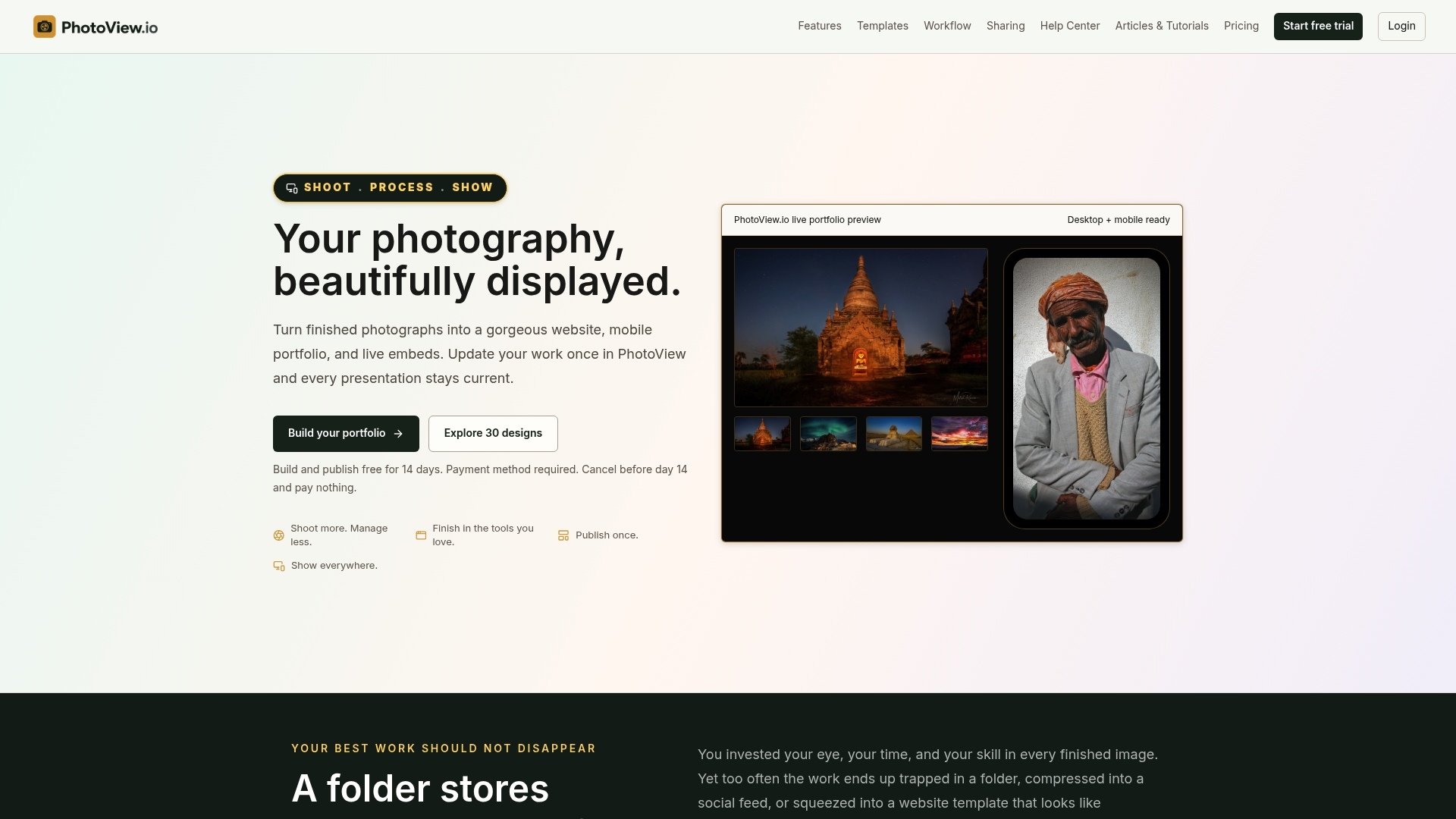
Plans are storage-based, and all portfolio and website features are included. Starter costs $3.99 per month or $39.99 per year, Growth $5.99 per month or $59.99 per year, Studio $7.99 per month or $79.99 per year, and Premier $11.99 per month or $119.99 per year. A Custom plan is available for high-volume libraries. See the current plans on photoview.io and start with the free trial.
If you shoot video too, see how to build a photography portfolio with video, and for client work, look at private photo sharing for photographers.
FAQ
Can I publish a portfolio from Lightroom without a website?
Yes. Sync a collection or album, make it public, and share the link. Visitors can view it in grid or loupe view without an account. It works as a quick showcase, though it won’t carry your own domain or branding.
Does Lightroom Classic upload my original files?
No. Classic keeps your masters on your computer and uploads Smart Previews to Adobe’s cloud. That is why web viewers can’t download full-size originals from a Classic-published gallery.
Why can’t I sync a smart collection?
Lightroom Classic only syncs standard collections, not smart collections or collection sets. Create a standard collection, add your final selects to it, and tick its sync box.
How do I hide location data on a shared gallery?
Open the gallery’s settings in the Lightroom web interface and turn off the location and metadata options. Do this before you share the link, especially for private venues or client homes.
Is a shared Lightroom gallery enough for a professional portfolio?
It can work for a first link or for proofing. Most professionals want their own domain, a consistent layout across devices, and a site that updates when their work does, which is where a dedicated portfolio platform comes in.
Sources
- Adobe Photoshop Lightroom Classic CC Help
- How do I share a web gallery from Lightroom Classic?
- How do I set the web gallery permissions and settings?
- How do I share a web gallery from the Lightroom cloud ecosystem?
- Share Collections or Albums from Lightroom Classic and Lightroom CC
- LR020: Sharing LrC images with others
- How to Optimize Images for Better Website Performance