
Automated Website Updates for Photographers: A Practical Setup
Learn how photographers can automate portfolio updates, from Lightroom publishing to live embeds, plus the checks and fixes that keep every change clean.

Automated Website Updates for Photographers: A Practical Setup
Automated website updates for a photographer mean one thing: you change your work in one place, and every page, embed and mobile presentation that shows it changes too. You do it by publishing from Lightroom or a central gallery library instead of re-uploading images page by page, and by checking each batch before it goes live.
This guide covers what can be automated, how to set up a publish workflow, where tools stop syncing, and what to check so a bad crop or a private gallery never reaches your public site.
PhotoViewKeep Portfolio Updates in One PlacePhotoView lets you publish from Lightroom, manage galleries in one dashboard, and keep live website embeds updated as your work changes.Explore PhotoViewTL;DR
- Automate the repeatable parts: gallery contents, image resizing, embeds and mobile views. Keep the editorial decisions (what is good enough to publish) with you.
- Lightroom publish collections track new and modified photos for you, so republishing is a click instead of a re-export.
- Not every tool syncs after the first import. Adobe Portfolio, for example, needs a manual reset to pick up later edits.
- Run a short pre-publish check for privacy, color, metadata and mobile display, then a post-publish check in a private browser window.
- If an update does not show up, work through the layers in order: browser cache, CDN cache, application cache, then file path.
Table of Contents
- What parts of a portfolio can be updated automatically
- Build the workflow around one source of truth
- Set up a Lightroom publish workflow
- Where tools stop syncing
- Check before an update goes live
- Check after an update goes live
- When an update does not show up
- Our perspective
- Put it into practice with PhotoView
- FAQ
- Sources
What parts of a portfolio can be updated automatically
Most of a photography site is repetitive structure around a small amount of creative choice. The structure is what you automate.
Gallery contents. Add a photo to a collection and it appears in the matching gallery. Remove it and it disappears. This is the core of any automated workflow.
Image versions. Good platforms create several sizes of each image and serve the one that suits the visitor’s screen. Adobe Portfolio, for instance, stores the original upload and generates versions at different widths, so you do not export every size by hand.
Presentations on other surfaces. The same gallery can feed a full website, a mobile-ready presentation and an embed on another site. When the source changes, each surface should follow.
Order, titles and captions. If your tool reads them from Lightroom or from the gallery itself, edits carry through with the images.
What stays manual, and should: culling, retouching, deciding which galleries are public, and the final look at the page. Automation distributes whatever you give it, so your judgment goes in before the publish button, not after.

Build the workflow around one source of truth
The most common cause of stale portfolios is copies. One version on the site, one in Lightroom, another in a Squarespace block, another in a social post. Every copy is a place where an update can be missed.
Pick one place where finished work lives, and let everything else read from it. For many photographers that place is a Lightroom catalog feeding a gallery platform. For others it is a cloud library. The choice matters less than the rule: you edit in one place only.
That is the idea behind PhotoView. You update your work once, and it is presented across your website, mobile and embeds without rebuilding the content. Our Lightroom portfolio publishing guide walks through the catalog-to-website path in detail.

Set up a Lightroom publish workflow
Lightroom Classic already has the machinery for this. Publish Services keep two queues: New Photos To Publish and Modified Photos To Republish, and Lightroom uploads everything in both when you publish a collection or folder. That is what makes update-in-place possible.
Here is a workable routine:
- Create one publish collection per public gallery. Name it the way you want the gallery named online, so you are not renaming in two places.
- Add only finished images. Treat the collection as a shortlist for delivery, not a dumping ground.
- Publish. New photos upload and the gallery is created or extended.
- Edit later, then republish. If you re-crop or re-grade an image, it moves to the Modified queue. Publish again and the live version is replaced.
- Review the live gallery. Open it on a phone, not just your desktop.
If you want the longer version of this routine, see a better Lightroom to online portfolio workflow and our roundup of Lightroom plugins that update in place.
Use Smart Folders for work that arrives constantly
If you shoot weekly, hand-picking every image gets old. Smart Folders in PhotoView let a gallery follow rules rather than manual drag and drop, so new work that meets your criteria shows up in the right place. Keep the rule tight, though. A loose rule publishes weak frames just as efficiently as strong ones.
Where tools stop syncing
The word “sync” covers very different behavior. Before you commit to a tool, find out which of these it does.
| Behavior | What it means for you |
|---|---|
| One-time import | Photos are copied once. Later edits in Lightroom do not reach the site. |
| Manual refresh | You trigger the update, and it replaces the web version with the current one. |
| Republish tracking | The tool knows which photos changed and sends only those. |
| Live reference | The site or embed reads from a library, so changes appear without a publish step. |
Adobe Portfolio is a useful example of the second row. According to a review that cites Adobe’s own album guide, later photo edits and album changes do not sync to an already imported album. To update, you open Pages, click the gear beside the page, and choose Reset from Lightroom, which replaces the album with the current Lightroom version.
None of this is a flaw so long as you know it. It simply means your routine needs a reset step, and that someone has to remember it. The more pages you maintain, the more that reminder costs.
When you compare platforms, ask four things:
- Does it track modified photos, or only new ones?
- Do embeds on other sites update on their own?
- Are mobile presentations generated from the same gallery?
- Are all templates available on every plan, or do you pay more to change the look?
In PhotoView, all templates (30+ responsive options) are included in every plan, and live website embeds stay current from the same dashboard. You can browse the photography website templates before deciding.
Check before an update goes live
Automation is fast. That is its value and its risk. A mistake that used to sit on your hard drive can now be public within minutes. A short checklist before publishing pays for itself.
Privacy and permissions
Publish and automate only galleries you have permission to show. One guide on portfolio automation puts it plainly: automation distributes whatever is published, so privacy and usage rights should be settled before a gallery goes live, not at the distribution stage.
For client work, that means checking releases and contract terms first, then keeping client galleries private by default. Our guides on gallery permissions for clients and the risk of public links cover the options. PhotoView supports private sharing, and you can see how it is built on the private photo sharing page.
Quality and consistency
A pre-delivery pass catches what batch processes miss. Coursiv’s August 2026 workflow suggests checking color consistency across adjacent frames, retouch realism, metadata and backups, and rereading contracts and releases before delivery. Its advice to strip location or sensitive metadata from exports is worth adopting if you shoot at private homes or sensitive locations.
A series should also feel like a series. GetWebP notes that a compression setting that treats each file differently can make one image look soft next to another. Use one export preset for each gallery.
File preparation
Resizing on the platform does not replace good source files. Expert Photography’s review points out that you still need to prepare files with sRGB, sensible compression and suitable dimensions. Image weight affects how quickly a gallery feels ready, and this guide to optimizing images for web performance is a good companion for the technical side. For a view focused on photography, read about fast mobile portfolios with srcset and AVIF.
One more point on protection. The same review notes that resizing does not make an image impossible to copy, and that a watermark is a presentation and attribution choice, not a guarantee against reuse. Decide on watermarking and download settings per gallery.
Check after an update goes live
Open the live page, not the editor preview. A good post-publish pass takes about five minutes.
- Open it in a private window. Coursiv recommends opening the finished gallery in an incognito window to confirm that links and permissions work as a stranger would see them.
- Walk the page. GetWebP’s list covers the homepage hero crop, gallery grid thumbnails, lightbox behavior and client proofing links, plus whether captions and alt text stayed attached to the right image.
- Test on real devices. Canon Outside of Auto advises opening your site on a smartphone and tablet and scrolling through every gallery rather than only resizing a desktop browser, since responsive design can serve different image files on mobile.
- Check more than one browser. The same source recommends Chrome, Firefox, Safari and Edge, and throttling the connection in developer tools to see how a gallery loads on a slow network.
If you run a lot of pages, write this down as a one-page checklist and keep it next to your publish routine. Documented routines get done; remembered ones get skipped.
When an update does not show up
Most missing updates are caching, not broken automation. UnderHost’s documentation says that when changes do not appear, the cause is usually cache or an upload path mismatch. Work through the layers in order:
- Browser cache. Open a private window, or hard refresh with Ctrl+F5 on Windows or Cmd+Shift+R on Mac.
- CDN cache. If your site sits behind a CDN such as Cloudflare, purge the affected URL or the whole cache.
- Application cache. On a WordPress site, clear the page cache plugin, object cache and theme cache.
- File location. Confirm the updated file is in the domain’s active document root.
If you see gray placeholders or missing images instead of stale ones, look at file paths. Canon Outside of Auto lists moved or renamed files after linking, oversized uploads, timeouts and unsupported formats among the common causes of placeholder images.
The practical lesson: do not rename or move files after publishing. Rename them in your source before the first publish, and let the tool carry the change after that.
Our perspective
Photographers do not lose time on shooting. They lose it on the second, third and fourth place their work has to live. A site here, a mobile page there, an embed on a partner’s blog, each one a copy that drifts out of date.
We built PhotoView around the opposite idea. Keep finished photos and videos in one place, curate them there, and present them everywhere from that same place. Templates are included in every plan, so changing your look never means rebuilding your content or paying extra to try a different layout.
Our advice is to automate the delivery and protect the decisions. Decide what is public, decide what is finished, and let the platform handle resizing, layout and updates. That is how you stay portfolio-first without becoming your own web administrator.
Mitch Russo
Put it into practice with PhotoView
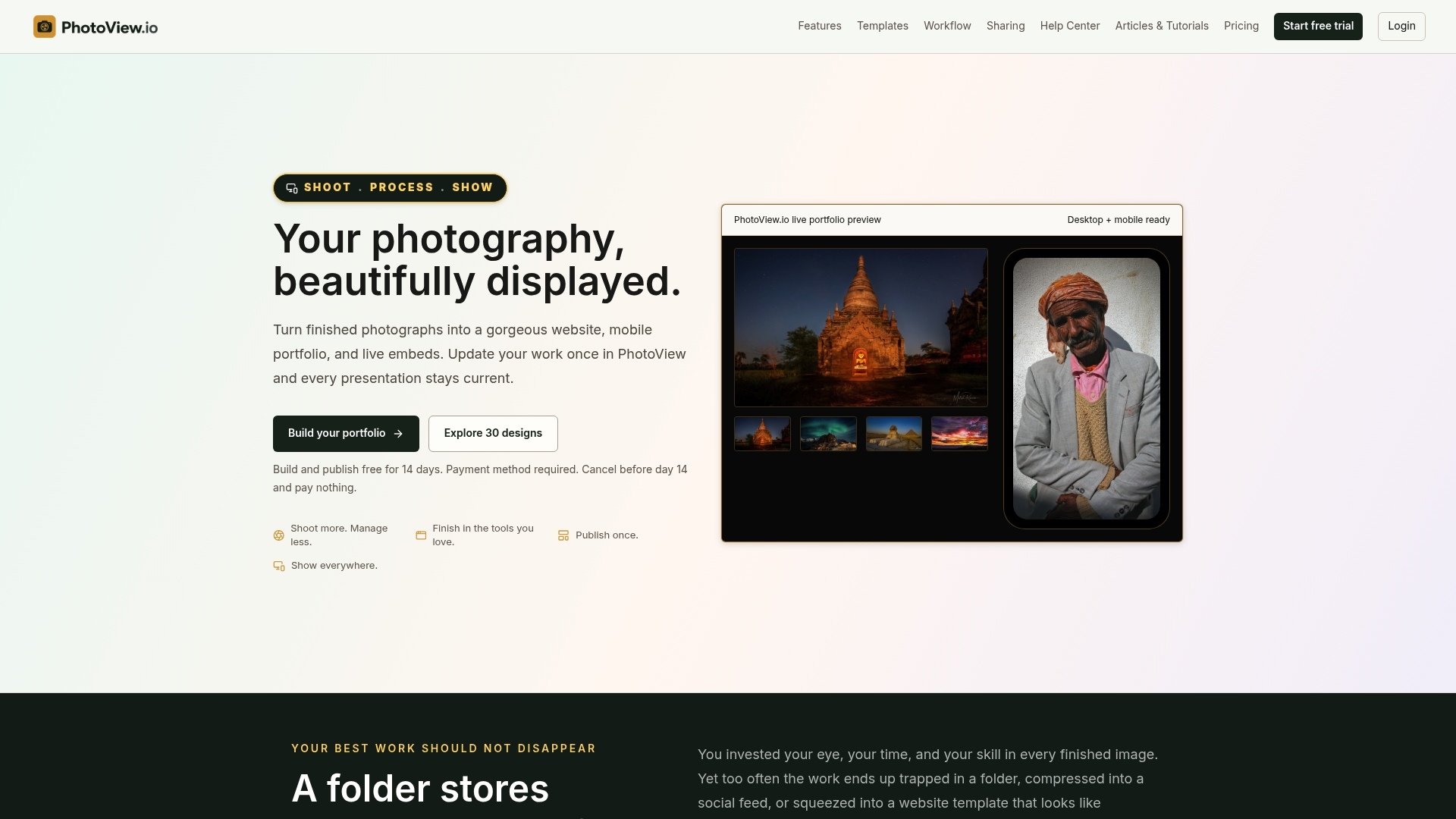
If you want this workflow without stitching tools together, PhotoView gives you secure storage for finished photos and videos, Lightroom publishing, Smart Folders, private sharing, custom domains, mobile-ready presentations and live embeds from one dashboard. You pay after a free trial, and plans are tiered by storage.
Published plans are Starter at $3.99 per month or $39.99 per year, Growth at $5.99 per month or $59.99 per year, Studio at $7.99 per month or $79.99 per year, and Premier at $11.99 per month or $119.99 per year. A Custom plan is available for high-volume libraries. Every plan includes the portfolio and website features. See the plans on photoview.io or read how to publish a portfolio directly from Lightroom.
FAQ
Can a photography website really update itself?
Yes, within limits you set. When you publish from Lightroom or a gallery library, the platform tracks changed photos and updates the live galleries, embeds and mobile views. You still choose what goes in and review the result.
Why did my edited photo not change on my website?
The tool may not sync edits after the first import, or a cache may be serving the old version. Republish or reset the album if your tool needs it, then check a private window, your CDN and any site cache plugin in that order.
How often should I update my portfolio?
Update when you have finished work that improves the set, not on a fixed calendar. A small, regular publish routine works well because each batch is easy to check. Remove weaker images as often as you add new ones.
Is it safe to automate client galleries?
Only when permissions are clear. Keep client galleries private by default, confirm releases and contract terms before anything goes public, and test the live link in a private browser window to see what a stranger would see.
Sources
- Adobe: Export to hard drive using publish services
- Expert Photography: Adobe Portfolio Review
- PostRSS: How Photographers and Creative Studios Automate Portfolio Updates
- Coursiv: AI for Photographers 2026
- GetWebP: Image Workflows for Portfolio and Photography Sites
- Canon Outside of Auto: FPO Images in Your Portfolio
- UnderHost: Website changes not showing
- Ibrandmedia: Optimizing Images for Web
Recommended
- Photographers: 3 Setup Paths to Launch a Live Updating Gallery Today
- Sync Galleries From Lightroom in Under an Hour With Plugins That Update in Place
- How to Use Smart Folders to Update Photo Portfolios and Website Embeds Automatically
- Live Galleries in Minutes: Website Hosting for Lightroom Photographers