
How to Publish Lightroom Collections, Step by Step
Learn how to publish Lightroom Classic collections: set up a publish service, add photos, publish, update after edits, and keep a live portfolio in sync.

How to Publish Lightroom Collections, Step by Step
In Lightroom Classic, you publish a collection by creating a publish service, dragging photos into a publish collection under it, and clicking Publish. Lightroom then tracks every edit, so a later click sends only what is new or changed. The method is simple. The hard part is choosing a destination that keeps your portfolio current without a second round of work. PhotoView is built for that: you publish finished work from Lightroom and present it across a website, mobile and embeds from one dashboard.
This guide covers the full routine, where it goes wrong, and how to turn a published collection into a portfolio people can actually browse.
PhotoViewKeep Lightroom Work Current EverywherePublish Lightroom work and keep your portfolio, mobile presentations, and website embeds updated from one dashboard.VisitTL;DR
- A regular collection only organizes photos inside your catalog. A publish collection sits under a publish service and sends photos to a destination.
- Set up the service once, drag photos into a publish collection, and click Publish. Lightroom sorts photos into New, Modified, Published and Deleted queues.
- After edits, republish and click Replace when prompted. If you only changed a keyword, use Mark as Up-To-Date.
- Rename files before publishing so clients and you can match gallery images to originals.
- For a portfolio that stays live and branded, PhotoView publishes from Lightroom and keeps your site and embeds updated from one dashboard.
Table of Contents
- Collections and publish collections are not the same thing
- Before you publish: prepare the collection
- Set up a publish service in Lightroom Classic
- Create a publish collection and add photos
- Publish, then keep it current
- Publish versus export
- Where the published photos should go
- Collections that match how photographers work
- Troubleshooting a publish that will not behave
- Publish straight to a portfolio with PhotoView
- Our view on collections and publishing
- FAQ
- Sources
Collections and publish collections are not the same thing
A regular collection is a way to group photos. Adobe’s Lightroom Classic tutorial compares it to a music playlist: dragging an image in only remembers where the image is, it does not move the file, and the same photo can sit in several collections.
A folder is different. The Folders panel mirrors the real folder structure on your drive. Adobe’s folder help notes that you can right-click a folder and choose Create Collection to turn all its photos into a new collection in one step.
Photographer Julieanne Kost describes the usual split: a folder holds one shoot, client or date, while a collection pulls together, say, the favorites from twenty landscape folders. Changes to an image update everywhere it appears.
There are three tools in the Collections panel, as Rob Sylvan’s KelbyOne material lays out:
- Collection Sets give structure. They hold collections, not photos.
- Collections are manual groupings you build by hand.
- Smart Collections are saved searches that fill themselves with photos matching your rules.
A publish collection is the one that connects to the outside world. It lives in the Publish Services panel in the Library module, and it remembers what has been sent and what has changed since.
Before you publish: prepare the collection
A little prep saves a lot of cleanup later.
- Finish your selects. Publish only images you would show a client or the public. Flag or rate your picks and build a regular collection or Smart Collection first.
- Rename files. Dustin Lucas, writing in Shutter Magazine, recommends renaming before publishing, using the Metadata panel’s File Name edit and a saved preset with a pattern like Brussatti_Family_2021-001. Many publish services do not rename for you, and without it a client who quotes a file name forces you to match images by eye.
- Check your metadata. Titles, captions and keywords travel with the export in most setups, so fix them now rather than after publishing.
- Back up the catalog. Collections exist only in the catalog. As Tim Grey explains, if the catalog is lost, the collections are lost with it. He adds special keywords to preserve collection membership in the photo metadata.
Set up a publish service in Lightroom Classic
The Publish Services panel starts with a hard drive connection. Other destinations, such as Flickr, Facebook or Adobe Stock, appear as their own connections. You can also add more through Find More Services Online, as Julieanne Kost’s shortcuts guide notes.
For the hard drive service, follow Adobe’s publish-to-hard-drive instructions:
- In the Publish Services panel, click Set Up next to Hard Drive.
- In the Publishing Manager, type a Publish Services Description. Use a name you will recognize, such as the portfolio or client it feeds.
- Set your export options: Export Location, File Naming, File Settings and Image Sizing.
- Save. To change settings later, click the plus sign and choose Hard Drive, then Edit Settings.
The common mistake is setting image size once and forgetting it. A web portfolio wants a long edge and quality that suit screens, while a client delivery may want more. Make one service per purpose rather than editing one service back and forth, because changing settings on a service with published photos can flag a lot of them as needing republishing.
Online destinations follow a similar pattern. Adobe’s Flickr instructions have you create the connection, make a photoset, then upload. For Facebook, Adobe’s social tutorial has you click Set Up, authorize Lightroom in your browser, choose the album and image sizing, then click Save.
Create a publish collection and add photos
A publish collection is the container under the service. Right-click (Windows) or Control-click (Mac) the hard drive connection and pick one of three options, per Adobe’s guide:
- Create Published Folder: a manual group. Drag photos in from Grid view.
- Create Published Smart Folder: matching photos appear on their own, based on rules you set.
- Create Published Folder Set: a container to organize several published folders.
The smart option is the one to use for a living portfolio. Set a rule such as a rating of four stars or more plus a keyword like “portfolio,” and every new keeper lands in the publish queue without you dragging anything.
Rob Sylvan also suggests a time-saver: right-click a published folder and set it as the Target Collection. Then the quick-add shortcut sends photos there from any other collection or folder.
Publish, then keep it current
Select the published folder and click Publish, or right-click it and choose Publish Now. Adobe describes four queues inside every publish collection:
| Queue | What it holds | What happens on Publish |
|---|---|---|
| New Photos To Publish | Photos added but never sent | Uploaded or exported |
| Modified Photos To Republish | Photos edited since publishing | Sent again; click Replace if prompted |
| Published Photos | Photos already live | Left alone |
| Deleted Photos To Remove | Photos you took out of the collection | Removed from the folder on the next Publish |
That last row has a catch. Removal is not the same everywhere. For Adobe Stock, Adobe says deleted photos are not automatically removed from the Contributor portal and must be taken out manually. Before you assume a deletion reached the destination, look at the destination.
When a small edit triggers a republish
Every edit, even a keyword, moves a photo to the Modified queue. If you do not want it re-sent, Adobe’s tutorial says to right-click (Windows) or Control-click (Mac) the image and choose Mark as Up-To-Date. Kost’s guide uses the same example: adding a keyword does not need a new upload.
You can select every photo in a published collection and apply the same command at once. This is also the fix when you finish a big metadata pass and do not want hundreds of images flagged for re-export.
Publish versus export
Export is a one-time render. You pick settings, Lightroom writes files, and the connection ends there. Publish is a managed export: Lightroom remembers which photos belong to the destination, which are current, and which changed. Rob Sylvan frames publish services this way, and shows pointing a hard drive service at a Dropbox folder to share photos with family and friends.
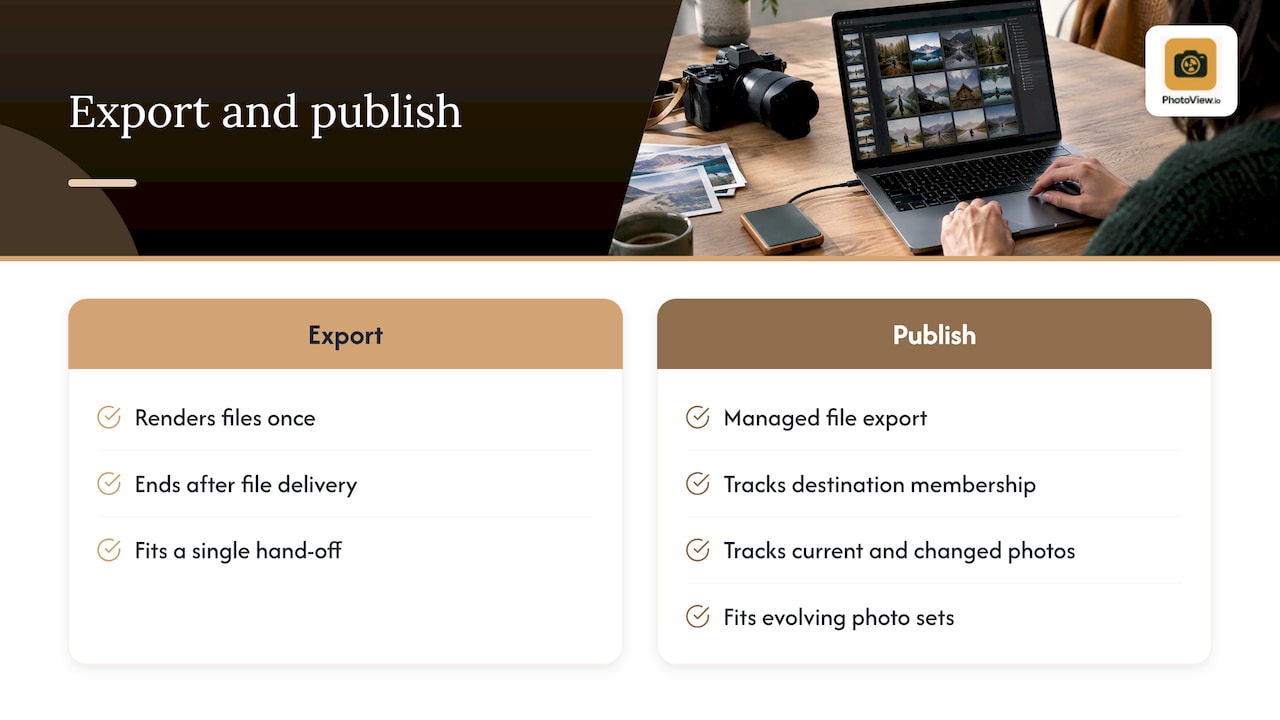
Use export for a single hand-off. Use publish whenever the same set of photos will change over weeks or months: a portfolio, a client gallery that grows during a wedding week, a travel series you keep adding to.
Where the published photos should go
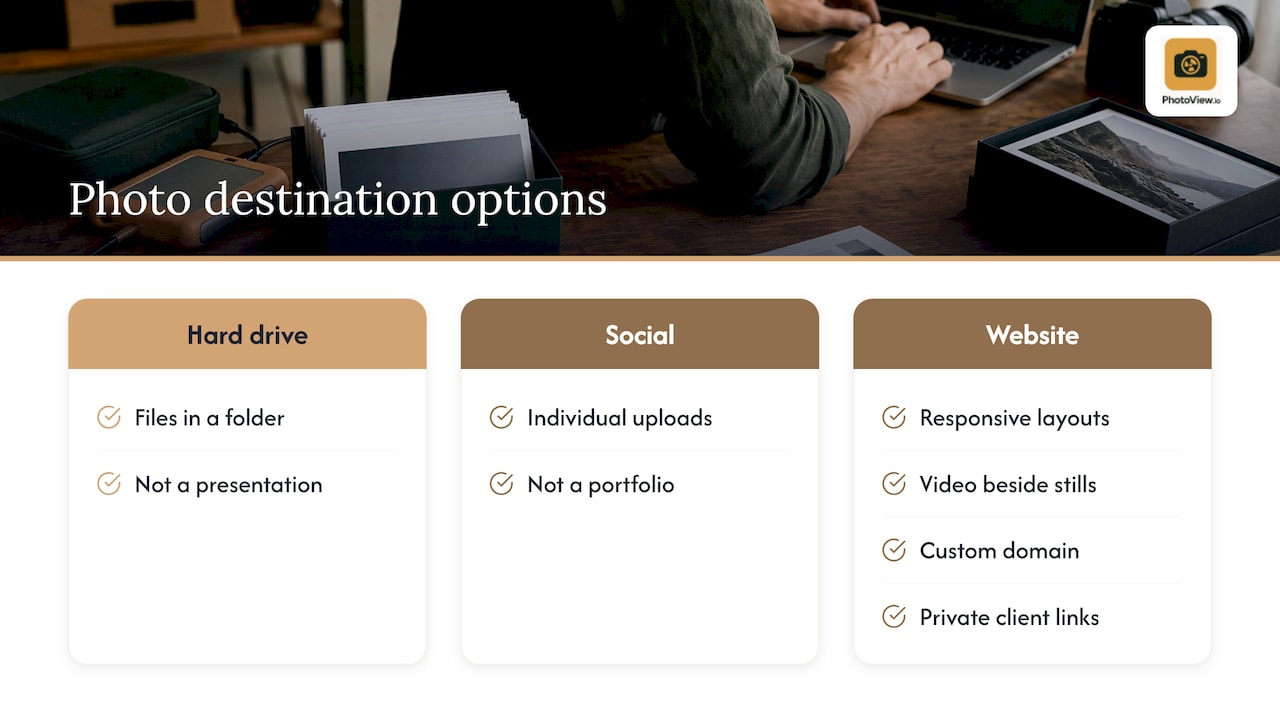
The hard drive connection gets files out of Lightroom, but files in a folder are not a presentation. For that you need a destination built for viewing: responsive layouts, video next to stills, a custom domain, and private links for clients. The built-in social services are fine for posting, but they treat your work as individual uploads, not a portfolio.
This is where the routine pays off. If your destination is a photography website, each publish click should be the only step between a finished edit and a live page. Our walkthrough from catalog to live website covers the whole path, and the comparison of Lightroom publish services shows the options side by side.
If you shoot for beauty and fashion clients, the same discipline applies to how you structure the finished set. This guide to a makeup artist portfolio book shows how a tight selection tells a story, which is exactly what a well-built publish collection should do.
Collections that match how photographers work
Different kinds of work call for different collection logic.
- Travel: One collection per trip, plus a “best of” Smart Collection across all trips. You need mobile viewing most, since people open travel work on phones.
- Wedding and portrait freelancers: One collection per client, kept separate from your public portfolio. Private links matter more than public layouts here.
- Commercial and product: Collections by client or product line, with consistent naming so art directors can reference an exact file.
- Fine art: Small, heavily curated collections of a few images per series, with video or process stills mixed in where they belong.
In every case, keep the public portfolio collections separate from delivery collections. Mixing them is how a client’s proofs end up on your homepage.
Troubleshooting a publish that will not behave
- Everything shows as modified right after publishing. Select all photos in the published collection and choose Mark as Up-To-Date. Building 1:1 previews under Library, Previews can also help.
- A deleted photo is still live. Check the destination. Some destinations, as with Adobe Stock, need manual removal.
- The destination has the wrong size. Edit the service settings, then republish. Expect many photos to move into the Modified queue.
- You lost a collection. Restore the catalog from backup. Collections live in the catalog, not on the drive with your photos.
Publish straight to a portfolio with PhotoView
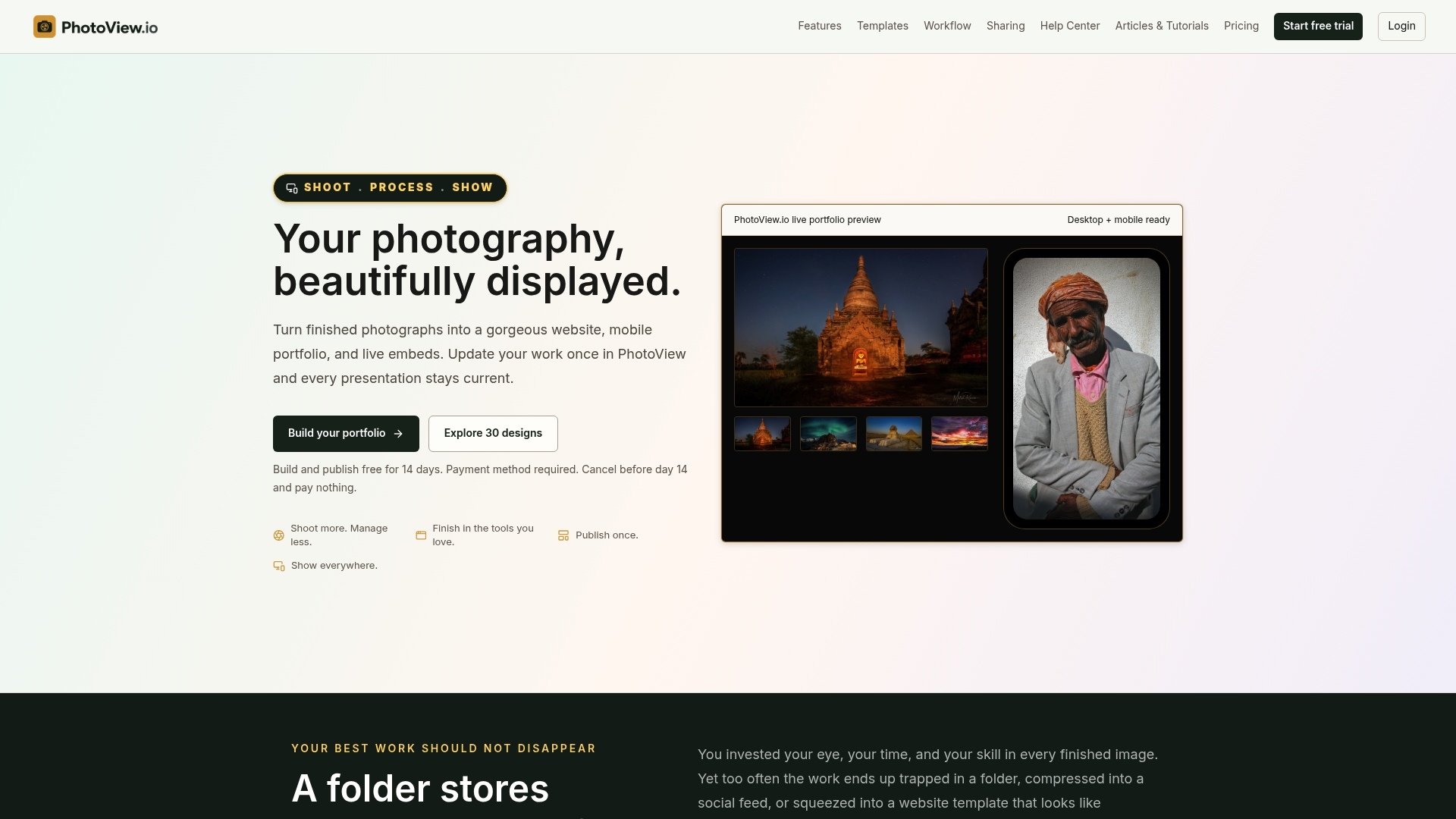
PhotoView is a subscription platform for storing, curating and presenting finished photos and videos. It supports Lightroom publishing and Smart Folders, so the rule-based approach above carries over to your portfolio. You choose from more than 30 responsive templates, all included in every plan, and you can keep live website embeds updated from one dashboard.
Plans are tiered by storage, and every plan includes the portfolio and website features after a free trial:
| Plan | Monthly | Annual |
|---|---|---|
| Starter | $3.99 | $39.99 |
| Growth | $5.99 | $59.99 |
| Studio | $7.99 | $79.99 |
| Premier | $11.99 | $119.99 |
A Custom plan is available for high-volume libraries. See the plans on the PhotoView site or read how to publish a portfolio directly from Lightroom.
Once your collections are in, the Help Center page on how to preview, publish and update your website walks through the last mile. For client work, private photo sharing keeps deliveries off your public pages.
Our view on collections and publishing
Photographers lose hours not in editing but in re-presenting finished work. You fix a crop, and then you rebuild a gallery, re-export, re-upload, and update the embed on another site.
We built PhotoView around the opposite idea: update your work once, and let it appear everywhere it is shown. Your Lightroom collection is already the best statement of what belongs together. A portfolio platform should respect that structure instead of asking you to recreate it.
That is why every template is included in every plan, and why storage, not features, sets the price. Your visual style should not depend on which tier you can afford. Choose the layout that suits a wedding, a travel series or a fine art body of work, and keep shooting.
Treat each publish collection as a promise: what goes in is finished, named, and ready for a stranger to see. Keep that promise and the rest of the workflow gets quiet.
Mitch Russo
FAQ
Do I need a Lightroom Classic publish service to publish a collection?
Yes. Regular collections only organize photos inside the catalog. Publishing happens through a publish collection under a service in the Publish Services panel, whether that is a hard drive folder or an online connection.
Can I publish a Smart Collection?
A regular Smart Collection cannot be published directly, but a Published Smart Folder works the same way. You set rules, and matching photos appear in the publish queue automatically, ready for the next click on Publish.
Why does Lightroom ask me to click Replace?
Replace appears when you republish photos you edited after the first upload. It swaps the older published version for the new one, as Adobe’s documentation describes. If the change was only a keyword, use Mark as Up-To-Date instead.
Is a publish collection the same as exporting?
No. Export is a single render with no memory. A publish collection tracks which photos are new, changed, published or removed, so each later Publish sends only the difference.
Sources
- Adobe: Export to hard drive using publish services
- Adobe: How to publish photos from Lightroom Classic to Flickr and Adobe Stock
- Adobe: Create and manage folders in Lightroom Classic
- Adobe Learn: Organize photos in collections
- Adobe Learn: Share your photos on all devices
- Rob Sylvan, KelbyOne: Mastering Folders and Collections
- Julieanne Kost: Working with Collections in Lightroom Classic
- Julieanne Kost: Lightroom Classic shortcuts
- Tim Grey: Folders or Collections?
- Lightroom Killer Tips: Use Lightroom Classic Publish Services
- Shutter Magazine: Deliver your images faster with publish services