
How to Migrate a Photography Portfolio Without Losing Traffic
Moving your photography portfolio to a new platform? Follow five steps to back up, rebuild galleries, protect your URLs and search visibility, and test before launch.

How to Migrate a Photography Portfolio Without Losing Traffic
To migrate a photography portfolio safely, back up your originals, rebuild only your best work on the new platform, map every old URL to its new address, and keep the old site live until the new one passes testing on desktop and mobile. Do it in that order and you keep your images, your client galleries and the search visibility you spent years building.
A move is also the best chance you will get to cut a bloated site down to the work you want to be hired for. The steps below cover both: the technical safeguards and the editing.
PhotoViewKeep Your Portfolio In SyncPhotoView brings curated photos, responsive portfolio templates, mobile-ready presentations, and live website embeds together in one dashboard.VisitTL;DR
- Make complete backups of your originals, your text and your client access details before you touch anything, and keep the old site running until the new one is tested.
- Move finished, curated work from your own master files rather than copying whatever is on the old site.
- If your web address changes, map each old URL to its matching new page with a permanent redirect, and keep those redirects for at least a year.
- Test the new site separately on desktop and mobile, then check it again after launch.
- With PhotoView you publish once from Lightroom or import from phone and desktop, and the same work appears on your site, on mobile and in embeds.
Table of Contents
- Decide what moves before you move anything
- Step 1: Back up everything, in more than one place
- Step 2: Record what search engines already know about your site
- Step 3: Gather finished work and metadata
- Step 4: Rebuild galleries, private client pages and mobile views
- Step 5: Protect your URLs and search visibility
- Step 6: Test on desktop and mobile before you switch
- Common migration problems and how to avoid them
- Move to a portfolio you only update once
- Our view: migrate once, then stop migrating
- FAQ
- Sources
Decide what moves before you move anything
Most portfolio migrations go wrong because people treat them as a copy job. They drag every gallery from the old site to the new one, including the 2014 test shoots and the three near-identical versions of the same wedding.

Start with a list instead. Open your current site and write down every gallery, page, video and project. Next to each, mark one of three things: keep, rework or retire. A portfolio that shows 15 to 30 strong images reads as more confident than one that shows 300. Our guide to curating 15 to 30 images from Lightroom to web walks through how to pick them.
Then sort what you keep by audience:
- Public portfolio work: the images that should get you hired, grouped by genre such as travel, fine art, commercial or weddings.
- Client galleries: private deliveries that need passwords or restricted access.
- Supporting content: your bio, testimonials, pricing notes, contact page and any blog posts that bring in search traffic.
This inventory is the spine of the whole migration. Every later step refers back to it.
Step 1: Back up everything, in more than one place
A migration is the moment you are most likely to lose files, because you are deleting, exporting and re-uploading in a short window. Treat the backup as part of the move, not an afterthought.
What to save:
- High-resolution originals. Your master files, not the compressed copies your old site displays. Website exports are usually resized and cannot be enlarged again without losing quality.
- Client access details. Export gallery passwords, share links and a list of who has access to what, so you can rebuild private galleries and tell clients if a link changes.
- Written content. Copy your bio, testimonials, captions, project descriptions and page text into a plain document.
- Your site’s own data. If your current site runs on WordPress or a similar system, download a full export of its database and files as well.
Keep at least one copy on a local drive and one in cloud storage, and open a few files from each to confirm they are readable. A backup you have never restored is a guess.
If your old site has heavy, unoptimized images, this is also the time to decide on sizes before you upload again. A guide on how to optimize images for website performance explains how file size and format affect load speed.
Finally, keep the old site online. Do not cancel the old hosting or subscription until the new site is live, tested and redirecting properly.
Step 2: Record what search engines already know about your site
If people find you through Google, your current pages carry value you can lose in a move. Before you change anything, capture a baseline:
- A list of every URL on the old site, including gallery pages, blog posts and image pages.
- Your top pages by search traffic and clicks, from Google Search Console if you have it set up.
- The page titles and meta descriptions (the short text that appears in search results) for your most important pages.
Search Engine Land’s website migration guide advises carrying over existing title tags, meta descriptions, text, images and alt text exactly as they are on the current site, and adding 301 redirects so the old pages point to the new ones. A 301 is a permanent redirect: it tells browsers and search engines that a page has moved for good.
For a small portfolio of a dozen pages, a spreadsheet is enough. For a larger site, a crawler can list every URL and image for you. Either way, you want a complete list before launch, not after traffic drops.
Step 3: Gather finished work and metadata
Now collect what you will upload. The cleanest source is your own catalog, not the old website.
If you work in Lightroom, your edited picks already live there with your keywords, captions and ratings. PhotoView is built around that workflow: you can publish a photography portfolio directly from Lightroom, so the finished images go from your catalog to your site without a manual export and upload cycle. Smart Folders help you keep the selection organized as you add or retire images.
If part of your recent work sits on your phone, PhotoView also supports import from mobile and desktop. Our piece on mobile photo import for photographers shows how to move a phone camera roll into a clean portfolio instead of a pile.
Whatever route you use, check these before upload:
- File naming and order. Decide the sequence of each gallery now. The first and last images carry the most weight.
- Captions and alt text. Alt text is the short description that screen readers and search engines use. Paste it from your saved content rather than rewriting from memory.
- Video. Gather finished clips alongside stills if you show motion work. PhotoView handles mixed media, so a gallery can combine both.
- Dimensions. Upload the best version you have and let the platform handle display sizes.
One warning that applies to any import tool: if a tool matches items to files that are not there yet, it may skip them. Upload your files first, then attach the details.
Step 4: Rebuild galleries, private client pages and mobile views
This is where a migration becomes a redesign, and where choosing the right platform saves you the most time.
Public portfolio galleries
Create one gallery per body of work from your keep list. PhotoView offers multiple galleries and 30+ responsive portfolio templates, and every template is included in every plan, so you can try a different look without paying more. Responsive means the layout adapts to phones and tablets automatically, which matters when a travel photographer’s work is mostly viewed on a phone.
Set your website name, logo and brand identity once; the PhotoView Help Center tutorial shows where. Then use the preview before you publish, following the preview, publish and update tutorial.
Private client galleries
Rebuild client deliveries separately from your public work, using the access list you saved in Step 1. PhotoView supports private sharing, so you can set up each client’s gallery and send fresh links. Private photo sharing built for photographers explains how it works. If old share links will stop working, email those clients before the switch with the new link, so no one hits a dead page.
Existing website embeds
If you keep a website you already like, or a blog or shop, you do not have to rebuild it. You can embed a live photography portfolio on your existing website. When you update work in PhotoView, the embed stays current, so you are not re-uploading to two places.
Several sites from one account
Photographers who run more than one brand, such as a wedding site and a fine art site, can build multiple websites from the same dashboard and keep each visual identity separate.
Step 5: Protect your URLs and search visibility
If your web address and page paths stay the same, this step is light. If either changes, it is the most important step in the migration.
Google’s site move guidance is the reference here. The main points:
- Make a URL map. A spreadsheet with the old URL in one column and the new URL in the next.
- Redirect each old URL to its closest new equivalent. Use permanent server-side redirects (301 or 308) set up on the old host.
- Avoid chains and blanket redirects. Do not send every old URL to your homepage, and do not stack redirects on top of redirects.
- Update canonical tags. A canonical tag tells search engines which version of a page is the main one.
- Keep redirects for at least a year.
If you are moving from one domain to another, Google also has a Change of Address tool in Search Console. It applies only to moves between domains or subdomains, works for all verified variants of the old domain (www and non-www), requires 301 redirects to be in place first, and forwards signals for 180 days. Google recommends continuing to pay for the old domain for at least a year, so keep it registered.
The simplest way to avoid all of this is to keep your domain. PhotoView supports custom domains, so a photographer who already owns a name can keep presenting work under it while the content behind it changes. Where page paths do change, such as a gallery that was once at one address and is now at another, redirect them as above.
Step 6: Test on desktop and mobile before you switch
Publish nothing until you have looked at the new site the way a client would. Sitepager’s migration testing guide recommends scanning desktop and mobile separately, reviewing screenshots for fonts, colors, spacing and clipped or overflowing elements, checking internal and external links, and confirming that metadata and social preview images carried over. It also recommends re-scanning after go-live to confirm that pages render and redirects land on the right destinations.
Here is a practical checklist for a photographer:
- Open every gallery on a phone and a laptop. Swipe through the whole set.
- Click your contact form and send yourself a message.
- Open a private gallery link in a private browser window to confirm it asks for access.
- Click every old URL on your map and confirm it lands on the right new page.
- Share one page on social media and check the preview image and title.
- Look for broken images. AIRA’s guide to fixing broken images after a WordPress migration lists failed imports, old hard-coded URLs and missing thumbnail sizes among the usual causes.
Only when this list is clean should you point your domain at the new site and retire the old one, still keeping redirects in place.
Common migration problems and how to avoid them
| Problem | Why it happens | How to avoid it |
|---|---|---|
| Images missing or skipped | Files were not uploaded before details were attached | Upload originals first, then add captions and metadata |
| Soft, small images | Copied from the old site’s display versions | Always import from your master files |
| Lost search traffic | Old URLs now return errors or point to the homepage | Map each old URL to its closest new page with a permanent redirect |
| Clients hit dead links | Private gallery links changed | Rebuild access and send new links before the switch |
| Layout broken on phones | Only checked on desktop | Test desktop and mobile separately |
| Content lost for good | Old site cancelled too early | Keep the old site running until the new one is tested |
Move to a portfolio you only update once
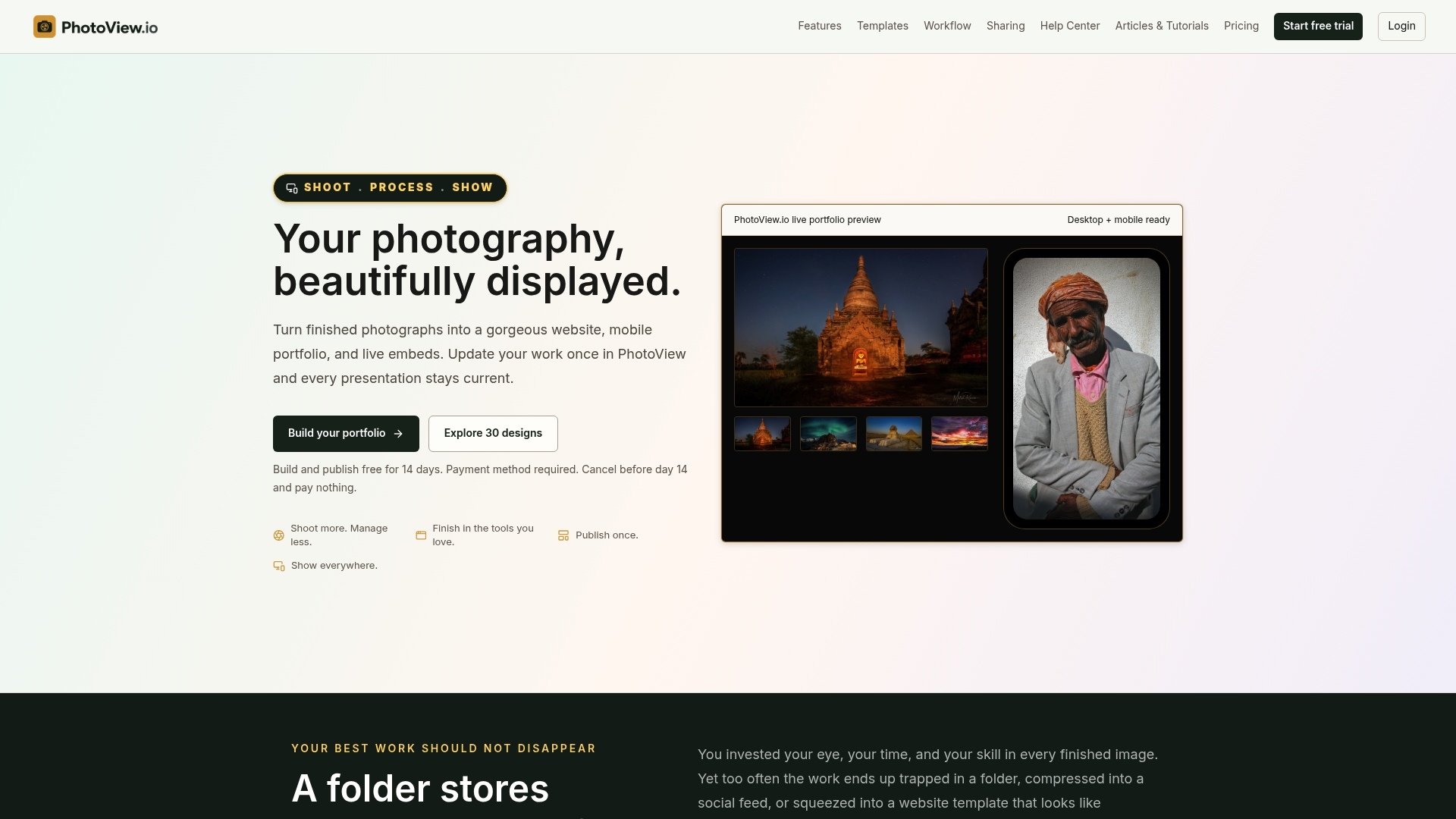
The reason a migration feels heavy is that most setups make you maintain the same work in several places: a website, a mobile view, a client gallery, an embed on another page. PhotoView is designed so you update your work once and present it across your website, mobile and embeds, with live site updates staying current without rebuilding your content.
Plans are tiered by storage, and every plan includes all portfolio and website features and all templates. Published prices are $3.99 per month or $39.99 per year for Starter, $5.99 per month or $59.99 per year for Growth, $7.99 per month or $79.99 per year for Studio, and $11.99 per month or $119.99 per year for Premier. High-volume photographers can ask about a Custom plan. A free trial comes first, so you can build your first gallery before you pay.
See the plans and start a trial at PhotoView, or see how the portfolio and website builder fits your genre.
Our view: migrate once, then stop migrating
Every photographer we talk to has moved a portfolio at least once, and most dread the next time. The cost is not the afternoon of uploading. It is the weeks afterward spent fixing a gallery here, an embed there, a mobile view that no longer matches.
We built PhotoView so the finished work lives in one place. You publish from Lightroom or import from your phone and desktop, choose from 30+ templates that are all included in every plan, and the website, the mobile presentation and the live embeds draw from the same dashboard. When you add a new set, you add it once.
That changes what a migration is. Instead of rebuilding a site every few years because a template aged or a platform changed, you curate your best work, present it with your own branding and domain, and keep your visual style intact wherever the work appears. Your portfolio should be a reference frame for clients, not a maintenance project.
If you are about to move, use the move to edit hard. Keep what you want to be hired for, and let the platform handle the rest.
Mitch Russo
FAQ
How long does it take to migrate a photography portfolio?
For a curated portfolio of a few galleries, many photographers can rebuild in a weekend once their originals are organized. The time depends mostly on how much you need to edit and how many client galleries you must recreate. Allow extra days for testing and redirects if your web address is changing.
Will I lose my Google rankings if I change platforms?
Not necessarily. If your domain and page paths stay the same, little changes. If URLs change, Google advises mapping each old URL to its new equivalent with permanent redirects and keeping them for at least a year, so search engines can follow the move.
Can I keep my own domain name?
Yes. PhotoView supports custom domains, so you can present your work under the name you already use. Keep your old domain registered while you switch, and keep redirects in place afterward.
What should I back up before moving?
Save your high-resolution originals, client gallery passwords and access details, and all written content such as your bio, captions and testimonials. Store copies in at least two places, and keep the old site live until the new one is fully tested.
Do I have to rebuild my existing website to use PhotoView?
No. You can embed a live PhotoView gallery on a site you already have, and the embed updates when you update your work in PhotoView.
Sources
- Site Moves and Migrations, Google Search Central
- Change of Address tool, Search Console Help
- Website migrations: a plan to keep your traffic and SEO safe, Search Engine Land
- How to Test a Website Migration, Sitepager Docs
- Fix Broken Images After WordPress Migration, AIRA