
Client Access Photo Galleries: Set Up Private Delivery That Works
How to set up client access photo galleries: prepare selects, control who can view, share links safely, and deliver a polished, mobile-ready experience.

Client Access Photo Galleries: Set Up Private Delivery That Works
A client access photo gallery is a private, branded page where one client, or one group of people, views and receives the finished images from a shoot. The best setup is one organized gallery per job, with access you control, a link that is easy to share and a layout that looks right on a phone. You keep your portfolio and your client deliveries in one place, so nothing gets rebuilt or re-uploaded twice. This guide walks you through each step, from preparing selects to managing dozens of galleries at once.
PhotoViewphotoview.ioPresent Client Galleries BeautifullyPhotoView helps photographers organize finished photos and videos, share private presentations, and keep galleries ready for clients across devices.VisitTL;DR
- A client gallery is a private, presentation-ready page for one job, not a public portfolio and not a loose folder of files.
- Prepare first: back up, cull to a target number of selects and export in logical sections.
- Control access with a private link or password, and give family and collaborators the same single link instead of new logins.
- Most clients open the gallery on a phone, so check every gallery on a small screen before you send it.
- Keep one gallery per job with consistent naming so you never send the wrong link to the wrong person.
Table of Contents
- What a client access gallery is, and what it is not
- Prepare the images before you create the gallery
- Set up private, secure access
- Share the link and manage who gets in
- Features clients actually use
- Make the gallery easy on phones
- Manage many galleries without mistakes
- Our perspective
- Deliver client galleries with PhotoView
- FAQ
- Sources
What a client access gallery is, and what it is not
A client gallery has one job: to deliver finished work to the people who paid for it, in a way that feels like part of your brand. It is private by default. Only people with the link, or the password, can see it.
That separates it from two things photographers often confuse it with.
A portfolio page is public. Its purpose is to win new clients, so it shows 15 to 30 of your strongest images and is meant to be found. A client gallery holds the full set from one session and is meant to be found by nobody else. If you want help curating the public side, our guide on building a photography portfolio from Lightroom covers it.
A shared folder is a storage location. A client opens it and sees file names, thumbnails in whatever order the system chooses, and no sense of the story you shot. Delivery is a presentation problem as much as a storage one: the client’s first look at your work should feel designed.
In practice, a good client access gallery gives you:
- Private access that you control per gallery
- A layout that shows the images in your order, in your style
- Your branding, ideally on your own domain
- A clean experience on phones, tablets and desktops
- A single link you can send, resend and, when needed, close
Prepare the images before you create the gallery
Most delivery problems start before upload. A gallery with 1,400 near-duplicate frames overwhelms a client, and a gallery with inconsistent edits makes you look careless.
Back up and structure the shoot
Back up memory cards as soon as you get home. Narrative’s culling checklist recommends the 3-2-1 backup rule: three copies, on two kinds of storage, with one off-site. The same checklist suggests a date-first folder structure, for example 2026-05-15_Smith-Wedding, with separate RAW, Selects and Exports subfolders. The exact names matter less than using them every time.

Cull to a target number
Decide before you start how many images you will deliver. Narrative’s suggested ranges are 30 to 60 selects for a one-hour portrait session, 60 to 100 for a two-hour engagement and 400 to 800 for an 8 to 10 hour wedding. Treat them as starting points and adjust to what you promised in your contract.
When you cull, judge each frame on four things: technical quality, composition, expression and redundancy. Redundancy is where most photographers keep too much. If three frames say the same thing, deliver the best one.
Review the set as a story, then export in sections
Before export, look at the whole gallery in sequence. AAAPresets’ Lightroom export guide recommends a final pass for exposure shifts, skin-tone consistency, crop consistency, black levels and preset style. For large events, it suggests exporting in logical sections such as preparation, ceremony, portraits, reception and dancing, and checking the first and last file of each section before you upload.
Sections are worth the effort. A client who wants the first-dance photos can find them in seconds instead of scrolling through 600 images.
File weight matters too, because heavy files make a gallery slow to open on a phone. The principles in this guide to optimizing images for web performance apply to gallery exports as well: size to the display, not to the camera.
Set up private, secure access
Privacy is the point of a client gallery. Think about it on three levels.
1. Who can open it. The common options are an unlisted link that only people you send it to know, a password on top of the link, or both. A password adds a second barrier if a link is forwarded. Our article on password-protected galleries explains how links leak and how to stop it.
2. What they can do once inside. Decide up front whether the client can only view, or also download. Our guide to gallery permissions for clients walks through the choices.
3. What stays public. A client gallery should never appear in search results or on your public site by accident. Keep client work separate from your portfolio, and publish to the public side only what you chose to show.
Security features photographers commonly use include watermarking, low-resolution samples, password protection, encrypted links and small file sizes, as one Minneapolis wedding photographer’s overview lists them. She also notes that stating your security practices in the client agreement reassures clients who are sensitive about their images, such as boudoir and family clients. That is good practice: tell clients in writing how their gallery is protected and who can see it.
For the bigger picture on keeping work out of the wrong hands, see our overview of the risk of public links.
Share the link and manage who gets in
The cleanest rule: one gallery, one link, one message.
When a gallery needs a separate login for each person, clients forget passwords, forward the wrong email and write back asking for help. A single link that works for the couple, the planner and the family removes most of that friction.
A simple sharing routine:
- Send the link in your own email, from your own address, with the password in a separate message if you use one.
- Say what is inside: how many images, whether they are all edited and what to do next.
- Name a date. Tell the client how long the gallery will stay available so nobody is surprised later.
- Let them forward it, if that fits the job. Family members who see the images are your best referral source.
- Close or change access when a gallery has served its purpose, or when a link has gone somewhere it should not.
Collaborators such as a planner, a second photographer or an art director need their own clear arrangement. Decide whether they get the same link as the client or a separate gallery with only the images relevant to them. Separate galleries are safer for commercial work where one party should not see the other’s selects.
If you are comparing workflows end to end, our piece on private photo sharing workflows that speed up delivery shows three ways to organize this.
Features clients actually use
Clients do not care how your gallery is built. They care that they can find their favorites and get the files they need. When you plan a gallery, think through what the client will do in it:
| Client need | What a good gallery gives them |
|---|---|
| See everything in order | Sections or sets that follow the shoot |
| Show it to family | One link that works without an account |
| Get the files | Clear download rules, and the right size for the use |
| Find the best images fast | A tight selection, not every frame |
| Look at it anywhere | A layout that adapts to phone, tablet and desktop |
The last row matters more than photographers expect. Many clients first open a gallery from a text message or email on a phone, often while showing it to someone else. A grid that works only on a large monitor loses that moment.
It also helps to think about the delivery format. For a wedding, clients usually want the whole story in sections. For a commercial shoot, they want a clean set organized by product or campaign. For a fine art client, they may want a small, carefully sequenced presentation, and the pacing and whitespace around each image matter as much as the image itself.
Video belongs in the same gallery when you shoot it. A highlight clip next to the stills makes delivery feel like one finished package, and mixed-media galleries let you keep it together.
Make the gallery easy on phones
Before sending any gallery, open it on your own phone and run through a short check:
- Does the first screen show your best image, not a blank space or a spinning loader?
- Can you move through the images without pinching, zooming or hunting for buttons?
- Do vertical and horizontal images both fill the screen sensibly?
- Does the gallery load quickly on a mobile connection?
- Does your name or logo appear, so the client knows whose work it is?
Professional presentation is mostly restraint. Use one consistent layout, keep captions short, and avoid a cluttered interface that competes with the pictures. The aim is for clients to move through images without fighting the interface.
Branding also counts. A gallery on your own domain looks like your studio. A generic link looks like a transfer. If you want your delivery pages and your public portfolio to feel like the same business, using a custom domain across both is the simplest way.
Manage many galleries without mistakes
The first five galleries are easy. By fifty, you need a system, or you will eventually send a client someone else’s link.
Name galleries the way you name folders. A date-first pattern such as 2026-05-15_Smith-Wedding sorts chronologically and is unmistakable. Use the same name for the shoot folder, the export and the gallery.
Keep one source of truth. Edit in one place, export from one place, and publish from one place. If you publish straight from Lightroom, the gallery follows your catalog instead of needing a second round of uploads.
Separate private from public. Client galleries and portfolio galleries should never share a folder. A mistake here is how a private wedding ends up on a public page.
Write a delivery checklist. Before sending, confirm that the set is final, the order is right, the access setting is correct, the link opens in a private browser window and the message names the right client.
Review access on a schedule. Once a quarter, look through old galleries and close those that no longer need to be open.
Track what you promised. Note how many images, what size and what deadline you gave each client, so the gallery matches the contract.

The same discipline applies to storage. Finished photos and videos need a home that is organized and backed up. Our overview of photo and video storage for photographers explains how to keep it tidy as the archive grows.
Our perspective
We built PhotoView around a simple idea: you should update your work once and have it appear everywhere it needs to. That includes your client galleries.
Photographers do not lose time to shooting. They lose it to managing websites, re-uploading files and rebuilding pages for each new job. When your portfolio, your private sharing and your embeds all come from one dashboard, delivery stops being a separate project.
That is why every plan includes all of our templates and features, and why plans differ only by storage. You choose the space you need, and the full toolset comes with it. Private sharing, multiple galleries, mixed media, Lightroom publishing, Smart Folders and custom domains all work together, so a client gallery looks like your studio and not like a file transfer.
The goal is to give you more time behind the camera, and a presentation you are proud to put your name on.
Mitch Russo
Deliver client galleries with PhotoView
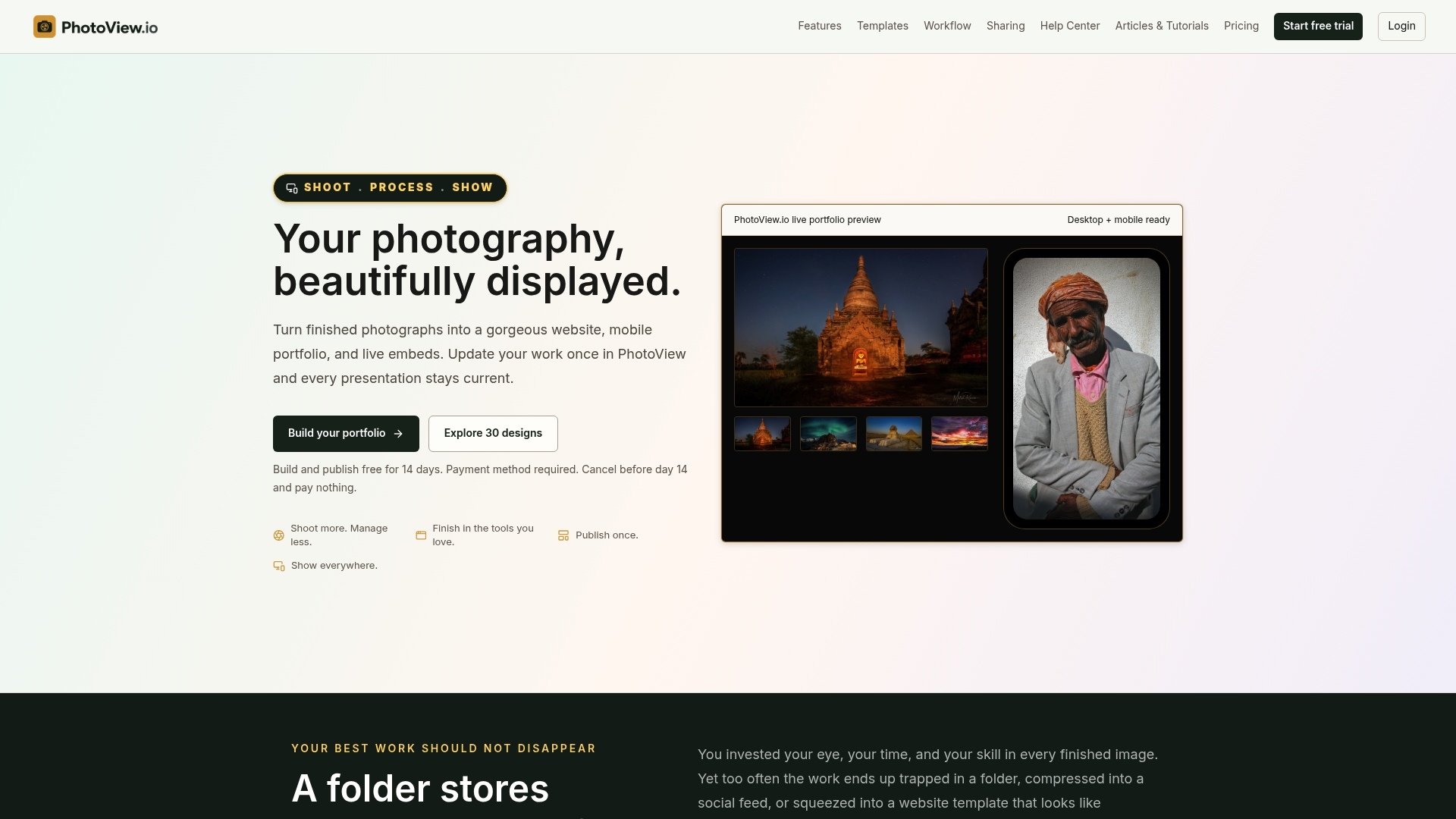
If you want private client delivery, a portfolio and your website in one place, PhotoView is built for that. You store your finished photos and videos once, share them privately with clients, publish from Lightroom and keep your public portfolio and embeds current from the same dashboard. All 30+ responsive templates are included in every plan.
Plans are tiered by storage and start with a free trial. Starter is $3.99 per month or $39.99 per year, Growth is $5.99 per month or $59.99 per year, Studio is $7.99 per month or $79.99 per year, and Premier is $11.99 per month or $119.99 per year. A custom plan is available for high-volume archives. See the plans on our homepage to pick the storage that matches your volume.
If you already have a site you like, you can also embed a live portfolio on your existing website, and it updates when you update PhotoView.
FAQ
What is the difference between a client gallery and a portfolio?
A portfolio is public and shows your best 15 to 30 images to attract new clients. A client gallery is private and holds the full set from one job for the people who hired you. Many photographers run both from the same account so they look consistent.
How many photos should I put in a client gallery?
That depends on the shoot and your contract. Narrative’s culling checklist suggests 30 to 60 for a one-hour portrait session and 400 to 800 for a full-day wedding. Whatever the number, deliver the best frames only, and organize them in sections.
Should clients need an account to view their gallery?
Usually no. A private link, with an optional password, is easier for clients and for the family members they share it with. Accounts add forgotten passwords and extra emails. Use stricter access only when a job requires it, such as separate galleries for separate parties.
How do I keep a client gallery secure?
Use a private link, add a password when the images are sensitive, decide whether downloads are allowed and keep client work apart from your public portfolio. Tell the client in your agreement how the gallery is protected. Our guide to password-protected galleries compares ways to do it.
Can I use the same gallery on my phone and desktop?
Yes, if your gallery uses a responsive layout. Always open each gallery on your own phone before you send it, because that is where many clients will see it first.
Sources
- Photo Culling Checklist for Beginners | Narrative
- Master Lightroom Client Gallery Exports: 2026 Edition | AAAPresets
- Secure Photo Sharing for Photographers | Heather Hanson
- How to Optimize Images for Better Website Performance