
How to Create Multiple Photo Galleries for Your Portfolio
Plan, build and update multiple photo galleries: how many to make, how to group them, how to keep client work private, and what to check on mobile.

How to Create Multiple Photo Galleries for Your Portfolio
Create multiple photo galleries by deciding on your groupings first, then building one gallery per group and linking them from a single portfolio page. Most photographers do best with three levels: collections, galleries, then images. Build that structure once, add each photo to the galleries where it belongs, and keep every gallery working on a phone. This guide walks through the planning, the build, the private-sharing setup and the mobile checks.
PhotoViewKeep Every Gallery OrganizedPhotoView lets you curate finished photos, publish them in multiple galleries, and keep website embeds updated from one dashboard.Explore PhotoViewTL;DR
- Plan before you build: pick your groupings (type of work, place, year or theme) and cap the depth at three levels.
- Keep each gallery focused. A gallery is a argument for one kind of work, not a folder for everything.
- Put client proofing and delivery in private galleries, and keep the public portfolio curated.
- Test every gallery on a phone: image size, touch navigation, tap targets and alt text.
- In PhotoView, you update your work once and it carries through to your website, mobile presentations and embeds.
Table of Contents
- Why one gallery is rarely enough
- Plan your structure before you upload
- Build the galleries, step by step
- Add the same photo to more than one gallery
- Rearranging and updating over time
- Keep client galleries private and your portfolio public
- Show galleries on your existing website
- Check your galleries on mobile
- Common mistakes to avoid
- Perspective
- Start building your galleries in PhotoView
- FAQ
- Sources
Why one gallery is rarely enough
A single gallery forces every visitor through every image. A wedding planner does not want to scroll past your alpine landscapes. An art buyer does not need your product shots. Separate galleries let each visitor reach the work that matches their reason for coming.
It also makes your editing easier. When each gallery has a clear job, it is obvious which images belong and which do not. If you are still deciding what makes the cut, our guide to curating 15 to 30 images from Lightroom to web covers the selection step.
Plan your structure before you upload
The common mistake is to start uploading and let the structure appear by accident. Spend twenty minutes on paper first.
Choose a grouping logic
There are four common ways to group galleries: by type of work, by place, by year, or by your own themes. Mixing them is normal, according to Foreground’s guide to organizing galleries and collections. The same guide suggests matching the logic to your kind of work:
| Kind of work | Natural grouping | Example galleries |
|---|---|---|
| Travel | By place | Iceland, Morocco, Patagonia |
| Commercial | By type of work | Food, Products, Architecture |
| Fine art | By style or your own themes | Quiet Water, Night Studies |
| Wedding and portrait | By type of session | Weddings, Seniors, Families |
You can also add year as a second layer, especially for long-running projects or large archives.
Keep the depth to three levels

The same source recommends a maximum depth of three levels for most portfolios: collections, then galleries, then images. Go deeper and visitors hit navigation friction. If you do nest, add breadcrumbs so people can see where they are and step back up.
Here is what that looks like for a travel and commercial photographer:
- Collection: Travel
- Gallery: Iceland (24 images)
- Gallery: Morocco (18 images)
- Collection: Commercial
- Gallery: Food (20 images)
- Gallery: Architecture (16 images)
A collection is a doorway. A gallery is a room. Images are the work on the walls. If a collection holds only one gallery, skip the collection.
Give visitors a front door
PhotoBiz recommends a portfolio page that points visitors to targeted galleries for specialties such as seniors, weddings, fine art and portraits, and Iris NPM recommends dividing galleries by theme and using hierarchy in navigation. Both are summarized in Iris NPM’s guide to photography website navigation. In practice: one landing page, a handful of clearly named entries, and no more than seven or eight top-level choices.
The layout logic is the same one editors use in print. Strong pages lead the eye from the most important thing to the least, and a visual hierarchy layout guide shows how that thinking applies when you decide what a visitor sees first among many images.
Build the galleries, step by step
The mechanics differ by platform, but the order of work does not.
- Name the galleries. Use plain, specific names. “Iceland” beats “Wanderings 2.”
- Add a lead image to each. This is the cover visitors see on your portfolio page. Choose your strongest frame, not the first one in the sequence.
- Upload or publish the finished images. Only finished work belongs here. Your raw archive is a different job.
- Sequence each gallery. Open strong, close strong, and group similar light or color together so the gallery reads like a set.
- Set titles, captions and alt text as you go. It is much slower to retrofit later.
- Set visibility. Decide which galleries are public and which are private before anyone sees a link.
A workable size for a public gallery is somewhere between 15 and 30 images. Smaller galleries feel focused. Larger ones can work for archives, but then they should probably be split.
How it works in PhotoView
PhotoView is built around the idea that you manage your finished work in one dashboard and present it everywhere. You can run multiple galleries, mix photos and video in the same portfolio, and choose from 30+ responsive portfolio templates, all included in every plan. If you shoot in Lightroom, you can publish a portfolio directly from Lightroom instead of exporting and uploading by hand. Smart Folders help keep sets organized as your library grows.
If you shoot on a phone too, the mobile photo import workflow shows how to move images from your camera roll into a clean portfolio. For galleries that combine stills and motion, see how to build a portfolio with photos and video.

Add the same photo to more than one gallery
Some images earn a place in two galleries: a Morocco street portrait might also belong in a “Portraits” gallery. That is fine, with two guardrails.
- Use it sparingly. If a third of your galleries share the same images, visitors feel they are seeing repeats.
- Update from one source. When you retouch or replace an image, you want the change to show up everywhere it appears. This is the reason to work from one organized library and not scattered copies on different sites.
That single-source idea is what our platform is designed around: you update your work once in PhotoView and it is presented across your website, mobile and embeds without rebuilding the content.
Rearranging and updating over time
Galleries are not finished on launch day. A simple maintenance routine keeps them sharp:
- After each project: pick your best three to five frames and decide which gallery they strengthen.
- Each quarter: reread each gallery and remove the weakest image. Adding one without removing one slowly dilutes the set.
- Each year: check the gallery names and cover images still match how you want to be hired.
When you reorder images, test the gallery’s opening three frames again. Those carry most of the first impression.
Keep client galleries private and your portfolio public
A public portfolio and private client delivery are two different jobs, and mixing them is how a proof set ends up on a search engine.
A clean setup looks like this:
- Public galleries: your curated best work, organized by the structure above.
- Private galleries: one per client or project, shared by a link you control, never linked from the public navigation.
- Separate naming: keep client names out of public gallery titles.
PhotoView supports private sharing and custom branding alongside public galleries, so a client sees your branding and not a generic file-transfer page. See private photo sharing built for photographers for the details. Before sending a link, confirm your client agreement covers whether work can appear in your portfolio at all.
Show galleries on your existing website
You do not have to move your whole site to have multiple galleries. If you already have a site you like, you can embed a live portfolio into it so the galleries stay current when you change them in your dashboard. The walkthrough on embedding a photography portfolio on your existing website covers the steps. Embedding works well when your site handles your blog and booking pages and you want the gallery experience handled elsewhere.
Check your galleries on mobile
Most first visits to a portfolio happen on a phone. A gallery that looks excellent at desktop width can feel clumsy at 390 pixels. Run through this checklist for each gallery.
Image and loading checks
The independent ImageGuide portfolio optimization checklist lists appropriately sized images, lazy loading for below-the-fold work, responsive image variants, descriptive alt text, and a lightbox that supports touch navigation as core checks. If you want to go deeper on the technical side, a guide to optimizing images for website performance explains how file size and format affect load time, and our article on fast mobile portfolios with srcset and AVIF shows the photographer’s version.
Touch checks
OneWebCare points out that designing for touch needs a different mindset than desktop, because fingers are less precise than cursors, which calls for larger tap targets and intuitive swipe gestures. On your own phone, check that you can:
- open a gallery from the portfolio page with one tap
- swipe between images without accidentally closing the viewer
- get back to the portfolio page in one obvious move
- read captions without zooming
For viewing galleries at full size without cropping, see our guide to a full screen photo gallery that keeps ratios and meets WCAG 2.2.
Common mistakes to avoid
- Too many galleries. Ten galleries of six images each read as thin. Merge them.
- Vague names. “Misc” and “Other” tell a visitor nothing.
- Inconsistent covers. Mix of crops, tones and orientations makes the portfolio page look unplanned.
- No path back. Every gallery needs a clear route to the portfolio page and to your contact details.
- Everything public. Proofs, family sessions and work under embargo belong in private galleries.
Perspective
Photographers rarely struggle to make good images. They struggle to keep those images presented well in more than one place. A gallery on your website, a mobile presentation, an embed on a friend’s blog: each becomes a separate chore, and the older ones quietly go stale.
We built PhotoView so you update your work once and it shows up everywhere it is discovered. Every plan includes all the templates, so you choose a look that suits your style and not the price tier. Multiple galleries, mixed media, private sharing and Lightroom publishing sit in one dashboard, which means more time shooting.
My advice is to start with a small, clear structure, three levels at most, and let the work earn new galleries. A portfolio-first approach keeps your best images in front of the right visitor.
Mitch Russo
Start building your galleries in PhotoView
If you want one place to store, organize and present your finished work, PhotoView gives you multiple galleries, 30+ responsive templates, private sharing, custom domains and live embeds. Plans are tiered by storage and every plan includes all portfolio and website features: Starter is $3.99 per month or $39.99 per year, Growth is $5.99 per month or $59.99 per year, Studio is $7.99 per month or $79.99 per year, and Premier is $11.99 per month or $119.99 per year. A Custom plan is available for high-volume libraries.
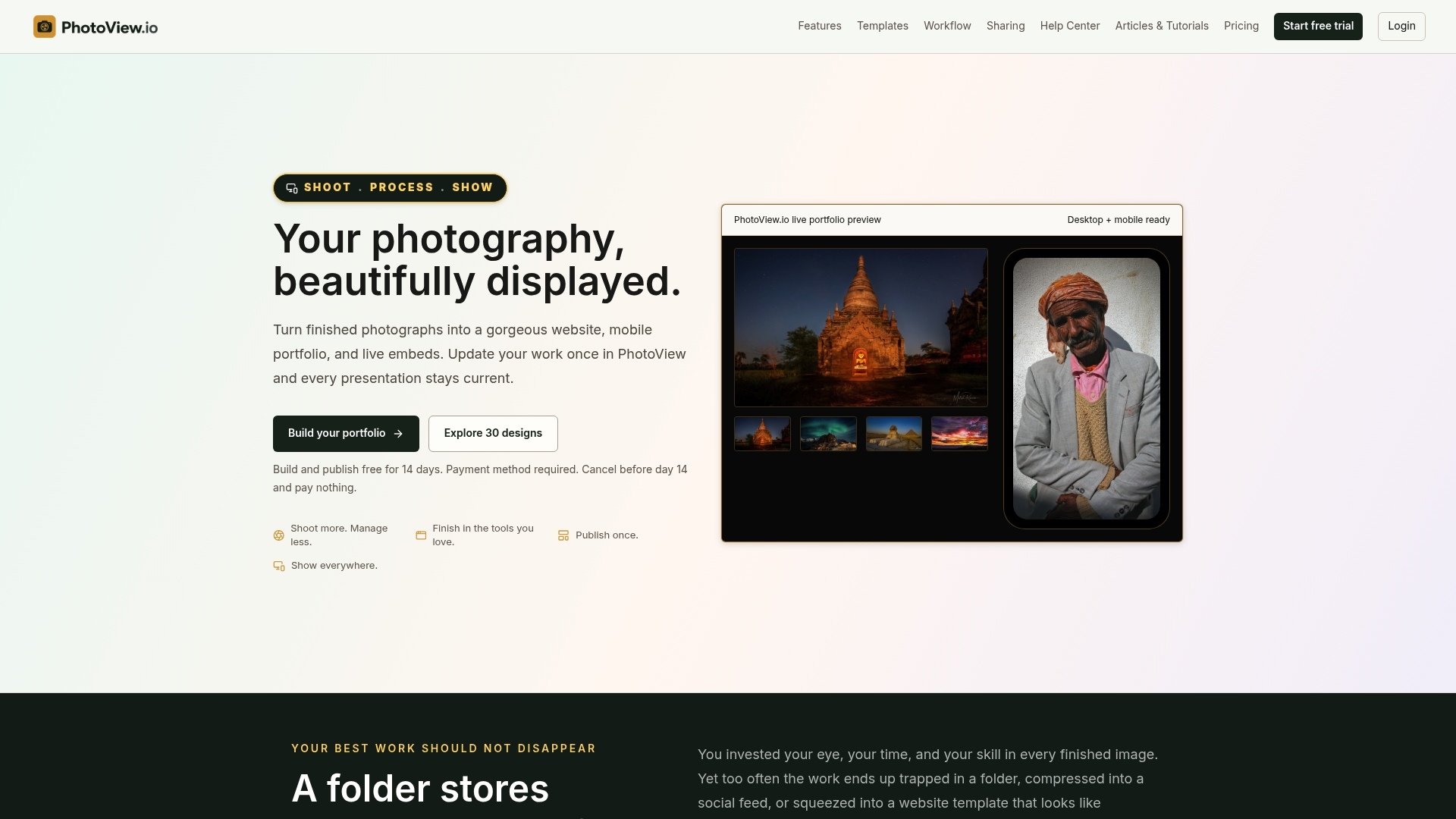
To see how a finished set of galleries looks, browse Mitch Russo’s portfolio, or compare plans on the PhotoView homepage. If you are weighing platforms first, read our take on the best photo gallery platform for portfolio-first photographers. For a look at what to check in a template, the gallery template checklist is a good start.
FAQ
How many galleries should a photography portfolio have?
There is no fixed number, but most photographers do well with three to eight public galleries, each holding roughly 15 to 30 images. If you have more than that, group them into collections. Add a gallery only when you have enough strong, distinct work to fill it.
Can I put the same photo in multiple galleries?
Yes. Do it for images that genuinely serve two themes, such as a portrait taken on a trip. Avoid repeating many images across galleries, because visitors notice. Working from one organized library makes sure an edit shows everywhere the image appears.
How deep should nested galleries go?
Keep it to three levels: collections, galleries, then images. Foreground’s organizing guide recommends this limit to avoid navigation friction. If you nest, add breadcrumbs so visitors can always step back up.
How do I share client galleries without making them public?
Create a separate private gallery for each client and share it by a link you control. Keep it out of your public navigation and leave client names out of public titles. PhotoView supports private sharing with your own branding.
Do I need a new website to add more galleries?
Not necessarily. You can embed live galleries into a site you already have, and they stay current when you update them in your dashboard. If you want a full photography site, you can publish one with a custom domain.
Sources
- How to organize your photos into galleries and collections
- Mastering Photography Website Navigation: Best Practices
- Photography Portfolio Optimization Guide
- Mobile Photography Portfolios 2026
- Yearbook Visual Hierarchy: A Layout Guide
- How to Optimize Images for Better Website Performance