
Photography Website Sitemap: Pages, Structure and XML
Plan a photography website sitemap that works for visitors and search engines: which pages to include, how to nest galleries, and when to add an XML sitemap.

Photography Website Sitemap: Pages, Structure and XML
A photography website sitemap is a plan for your pages: what exists, what sits under what, and how a visitor gets from the homepage to your best work in one or two clicks. It also has a second meaning. An XML sitemap is a file that tells search engines which URLs and images to crawl. You need both, and this guide shows you how to build each one without overcomplicating your site.
PhotoViewPresent Your Photography ClearlyPhotoView helps photographers organize finished photos and videos, publish portfolio galleries, and keep website embeds updated from one dashboard.Explore PhotoViewTL;DR
- Start with a short list of pages: Home, Portfolio (or a few main galleries), About, Contact, and Services or Pricing if you sell sessions.
- Give every page one obvious parent, keep the main menu to seven items or fewer, and keep key galleries within two clicks of the homepage.
- Group galleries by what clients hire you for, not by shoot date.
- Plan the mobile menu at the same time: Work, About and Contact should each be one tap away.
- Add an XML sitemap (with image entries if your images are loaded by script) so search engines can find everything. Most site platforms can generate one for you.
Table of Contents
- Two kinds of sitemap, two different jobs
- Which pages belong in a photography website sitemap
- Keep the structure shallow
- Navigation: short, plain, consistent
- Organize galleries by what clients hire you for
- Build the homepage as the top of the sitemap
- Services, pricing, About and Contact
- Make the sitemap work on a phone
- The XML sitemap: what search engines need
- Common mistakes to fix
- Our perspective
- Put your sitemap into practice with PhotoView
- FAQ
- Sources
Two kinds of sitemap, two different jobs
Photographers searching for this term usually mean one of two things, so it helps to separate them.
The first is a visual sitemap, sometimes called a site structure or information architecture diagram. It is a sketch of your pages and how they connect. You make it before you design anything, and it guides your menu. ForegroundWeb’s guide to information architecture for photographers frames it this way: a sitemap is structure, not decoration, and each page needs one clear parent.
The second is an XML sitemap, a machine-readable file for search engines. HubSpot’s sitemap guide separates the visible HTML sitemap, which helps people find pages, from the XML version, which is meant mainly to help search engines crawl and index your URLs.
Do the visual sitemap first. A clear structure makes the XML file almost automatic, because the file simply lists the pages you already decided matter.
Which pages belong in a photography website sitemap
The most useful exercise is to list every page you might need, then cut. ForegroundWeb suggests starting with the full list, deciding what stays, and sketching the sitemap before design. Its list of candidates includes About, Contact, Portfolio, Services, Products, Blog, personal projects, pricing, client guides, testimonials, clients, FAQ and a newsletter signup.
You will not need all of those. Here is a sensible core and what each page should do.
| Page | Job it does | Keep it if |
|---|---|---|
| Home | Says what you shoot, for whom, and what to do next | Always |
| Portfolio / galleries | Shows your strongest work, grouped by client need | Always |
| About | Gives the person behind the camera a face and a story | Always |
| Contact | One clear way to reach you or start an inquiry | Always |
| Services or pricing | Explains what you offer and the starting point for budget | You take commissions or bookings |
| FAQ | Answers the questions you get in every inquiry | Buyers ask the same things repeatedly |
| Blog or journal | Gives search engines and returning visitors fresh material | You will update it |
| Testimonials / clients | Adds proof | You have named clients or publications |
| Client gallery | Private delivery or proofing | You deliver to clients online |
That last row deserves its own thought. A portfolio is public and curated. A client gallery is private and complete. They have different audiences and should not share a menu slot. If you are unsure which you need, our comparison of a photo portfolio website versus a client proofing gallery walks through it, and client gallery vs. portfolio covers what each one does.
A sample sitemap for a working photographer
Here is a simple structure for a photographer who shoots weddings and portraits:
- Home
- Weddings (gallery)
- Portraits (gallery)
- Travel or personal projects (gallery)
- About
- Investment (pricing)
- Contact
Seven items, plain labels, Contact last. Every gallery is a top-level choice, so nobody has to dig.
Keep the structure shallow
Depth is the most common structural problem. ForegroundWeb says your main galleries, About and Contact should be reachable within one or two clicks of the homepage. Its example: Home, then Portfolio, then Galleries, then Weddings is three clicks, which is too deep. A Weddings item in the menu, or a Portfolio dropdown that lists it, fixes that.
A few rules follow from this:
- One parent per page. If a page could live in two places, pick one and link to it from the other.
- No duplicate services. Listing the same service under two menu locations splits attention and confuses visitors.
- A real Portfolio overview. The Portfolio menu item should lead to your galleries, not to a service page.
- No endless galleries. An unstructured scroll of 200 images is not a portfolio.
The same ForegroundWeb guide names these as common failures: key pages buried several levels deep, duplicated services, endless unstructured galleries, and a Portfolio link that points to a service page.
Navigation: short, plain, consistent
Your sitemap becomes your menu, so the two should match. According to ForegroundWeb’s navigation guidance, keep the top level to no more than seven items, use plain labels like About and Contact, put Contact last, and place important galleries or services directly in the menu or in a Portfolio dropdown. It also recommends keeping the menu at the top or left, in the same position with the same items on every page, including a blog or externally hosted sections.
Plain labels matter more than clever ones. A visitor who sees Journeys or Stories has to guess. A visitor who sees Weddings knows.
Organize galleries by what clients hire you for
The structure inside your Portfolio is where most photographers lose a booking. A chronological archive is easy for you to maintain and hard for a buyer to read.
A Fstoppers report on photographer Samuel Elkins shows the alternative. He replaced a folder-like site with about 15 projects grouped around food, hospitality, travel and personal portraits, organized by what clients hire him for rather than by every individual shoot. The portfolio becomes a pitch, not a filing cabinet.
Nakada Design’s photographer website examples make a similar point: organize by buyer use case or industry, not only by date, and let project pages carry the client or publication, the location and a few sentences about the assignment.
For gallery count, ForegroundWeb’s guide to successful photography websites recommends around five galleries. Put the work you most want to be hired for first, keep each photo’s aspect ratio in thumbnails, add a few lines of text to each gallery, and remove outdated work from the main menu.
To decide what goes inside each gallery, read our guides on how many photos belong in a photography portfolio and how to curate 15 to 30 images from Lightroom.

Label galleries for the buyer
A useful test: could a stranger guess what to hire you for from the gallery names alone? Compare these.
| Vague | Clear |
|---|---|
| Selected Work | Editorial Portraits |
| 2025 | Hotel and Hospitality |
| Wanderings | Travel Stories |
| Misc | Personal Projects |
Date-based labels tell a visitor when you shot something, not what you can do for them.
Build the homepage as the top of the sitemap
The homepage is the parent of everything else, so it should point the way. Emma Richmond of Nakada Design observes that strong homepages quickly answer three questions: what kind of photography, for whom, and what to do next. Weak ones dump every genre at equal weight or hide who you are behind abstract motion, and visitors arriving from a referral bounce after a glance.
In practice, that means:
- A headline or caption that names your specialty and audience.
- A small set of your strongest images, not your whole archive.
- Links to your main galleries and one clear call to action, such as Contact or Inquire.
Services, pricing, About and Contact
Should these be separate pages? For most working photographers, yes. Each answers a different question at a different moment.
Services and pricing. Photographer Ashley Ammons, in her page-by-page website guide, suggests phrasing such as investment begins at rather than listing every cost, keeping package details high-level (session length, number of images, ballpark cost), and ending the page with an inquiry call to action.
About. This page sits in nearly every photographer’s menu because buyers hire people. Keep it short and tie it back to the work.
Contact. Put it last in the menu and repeat the call to action at the bottom of key pages.
If you sell several services, a pillar approach helps. MaryBeth Bryant’s website structure roadmap recommends a homepage theme, pillar service pages (for example weddings, newborns and branding), an investment page, portfolio or gallery pages and FAQ pages, all connected through internal links so Google can understand how the content fits together.
Make the sitemap work on a phone
Most visitors will see your portfolio on a phone, so draw the mobile version of the sitemap too. Nakada Design’s guidance is that mobile navigation should reach Work, About and Contact in one tap, pinch-zoom should not break layouts, and forms should be easy to complete with a thumb.
For galleries, Imagely’s mobile gallery guide recommends one or two columns on mobile, swipe navigation in lightboxes, tap targets of at least 44 by 44 pixels, and testing on real phones rather than only browser previews. ForegroundWeb adds two menu points: use fewer items on phones, and open dropdowns on tap, since phones have no hover.
This is a structure decision, not only a design one. A seven-item desktop menu may need to collapse into a short list with Portfolio as a single tap target. For a hands-on method, try our 8-step phone test for mobile portfolio sites, and see how responsive photography portfolios load quickly on cellular connections.

The XML sitemap: what search engines need
Once your structure is set, the XML sitemap is a technical step. Google explains in its guide to building and submitting a sitemap that a single sitemap is limited to 50 MB uncompressed or 50,000 URLs, and that you submit it through Search Console, its API, or a reference in your robots.txt file. A photographer’s site rarely comes close to those limits.
For most photographers, the practical steps are:
- Generate the file from your site platform, or let it update itself.
- List only pages you want found: main galleries, About, Services, Contact, blog posts. Leave out thank-you pages and private client areas.
- Submit it in Google Search Console.
- Check it again after you add or retire a gallery.
A file that goes stale is worse than none, because it points crawlers at pages that no longer exist. If you manage a larger site, our partner-free summary is simple: automate it. For more on how dynamic sitemaps stay current as content changes, that guide goes deeper than most photographers need, but the principle holds for any site.
Image sitemaps
Images are your product, so image discovery matters. Google’s image sitemap documentation says image sitemaps tell Google about images it might not otherwise find, such as ones reached through JavaScript, and that you can use a separate file or add image tags to your existing sitemap. Either approach is equally fine for Google. HubSpot makes the same point for image-centric sites like photography.
Gallery pages that load images dynamically are exactly the case where this helps.
Common mistakes to fix
- Archive-style galleries. Replace a long date-ordered stream with a few themed projects.
- Too many menu items. If you pass seven, merge or move items to a dropdown.
- Outdated work in the main menu. Retire old galleries from the navigation.
- Different menus on different pages. Keep position and items identical everywhere.
- Portfolio link going to a service page. Send it to a real portfolio overview.
- A stale XML file. Regenerate it whenever your structure changes.
Our perspective
Most photographers do not struggle with the sitemap itself. They struggle with keeping it true. You build a clean structure, then you shoot a new series, retire an old one, and update a client gallery, and suddenly the site you planned is not the site visitors see.
We built PhotoView around that problem. You curate finished photos and videos once, in one dashboard, and present them across portfolio templates, mobile presentations and live embeds. When you change your work, the places it appears stay current, so your structure does not drift.
Our advice is to treat the sitemap as a business decision. Decide which work you want to be hired for, make that your first gallery, and give it a plain label. Then choose a platform that lets you reorganize without rebuilding.
Mitch Russo
Put your sitemap into practice with PhotoView
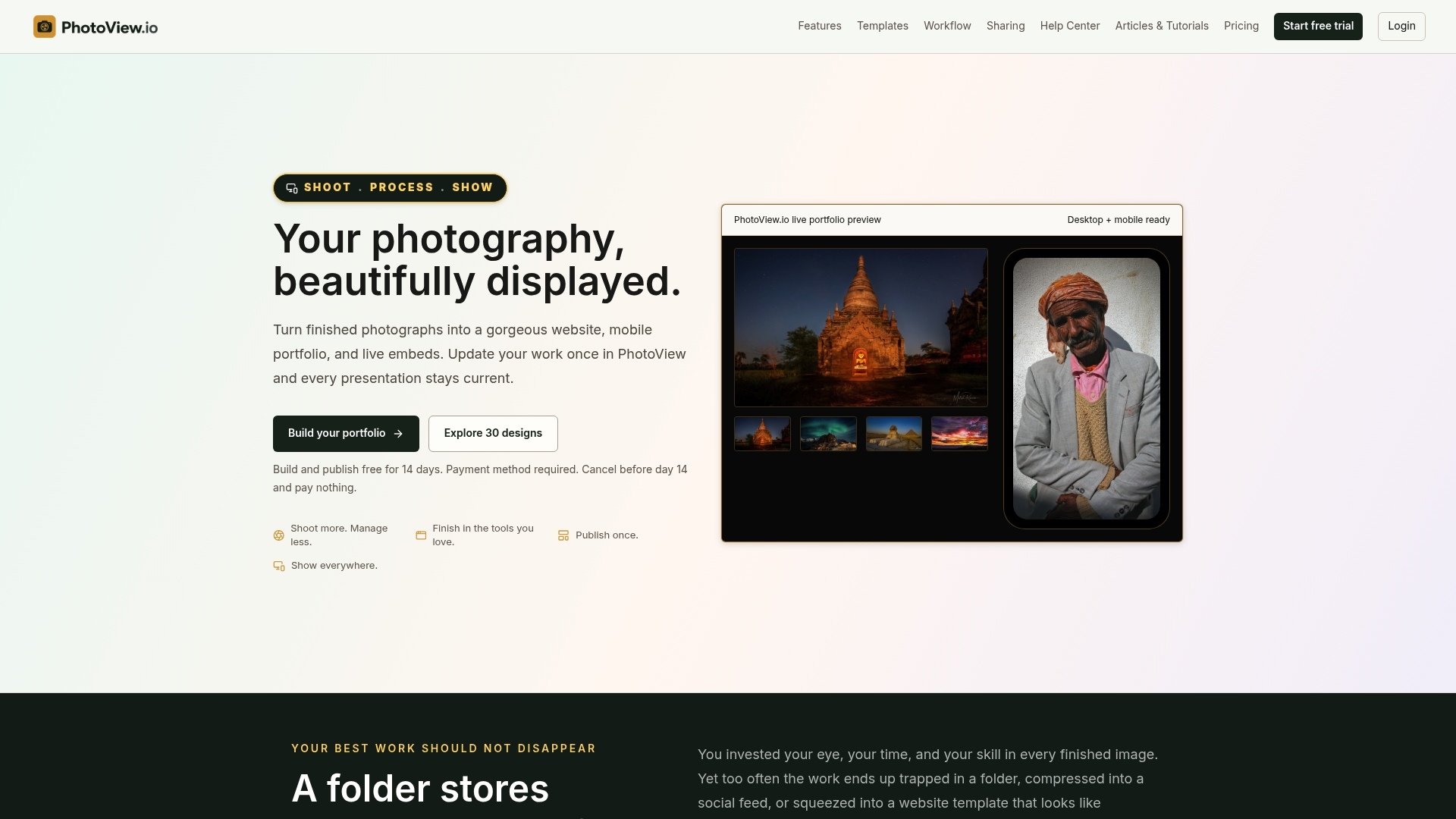
Once your structure is on paper, you can build it without a custom web project. PhotoView gives you 30+ responsive portfolio templates, multiple galleries, mixed photo and video, custom domains and private sharing, with all templates included in every plan. You can publish directly from Lightroom and keep embeds on other sites updated from the same place.
Plans are billed by storage. Starter is $3.99 per month or $39.99 per year, Growth is $5.99 per month or $59.99 per year, Studio is $7.99 per month or $79.99 per year, and Premier is $11.99 per month or $119.99 per year. A Custom plan is available for high-volume needs. You can see the plans on PhotoView and start with the free trial.
FAQ
Do I need an XML sitemap if my photography site is small?
It is worth having one. A small site is easy for search engines to crawl, but a sitemap costs little and helps new galleries and images get discovered. Most site platforms can generate it automatically, then you submit it once in Google Search Console.
How many pages should a photography website have?
There is no fixed number. A strong core is Home, a Portfolio with around five galleries, About and Contact, plus Services or pricing if you take bookings. Keep the main menu to seven items or fewer and add pages only when they answer a real visitor question.
Should my portfolio and client galleries share one sitemap?
Keep them separate in your navigation. The portfolio is public and curated, while client galleries are private delivery. Link to the client area from a small menu item or footer, and leave private pages out of your XML sitemap.
What is the difference between an HTML sitemap and an XML sitemap?
An HTML sitemap is a clickable page for visitors. An XML sitemap is a file for search engines that lists URLs to crawl. Many photography sites only need the XML version, because a clean menu already does the visitor’s job.
Sources
- Information architecture and sitemaps for photographers, ForegroundWeb
- Navigation menu best practices for photography websites, ForegroundWeb
- What features does a successful photography website need, ForegroundWeb
- Photographer website examples, Nakada Design
- Stop Building Your Website Like a Filing Cabinet, Fstoppers
- Your Page-by-Page Guide to a Website That Works, Ashley Ammons
- Photography Website Structure roadmap, MaryBeth Bryant
- How to Make Your WordPress Photo Gallery Mobile-Friendly, Imagely
- Sitemaps: What They Are and How to Create One, HubSpot
- Build and submit a sitemap, Google Search Central
- Image sitemaps, Google Search Central