
How to Sync Your Photography Portfolio Across Devices
Keep your photography portfolio current on desktop, tablet and phone: what syncs, what doesn't, a step-by-step setup, and how to avoid missing or duplicate images.

How to Sync Your Photography Portfolio Across Devices
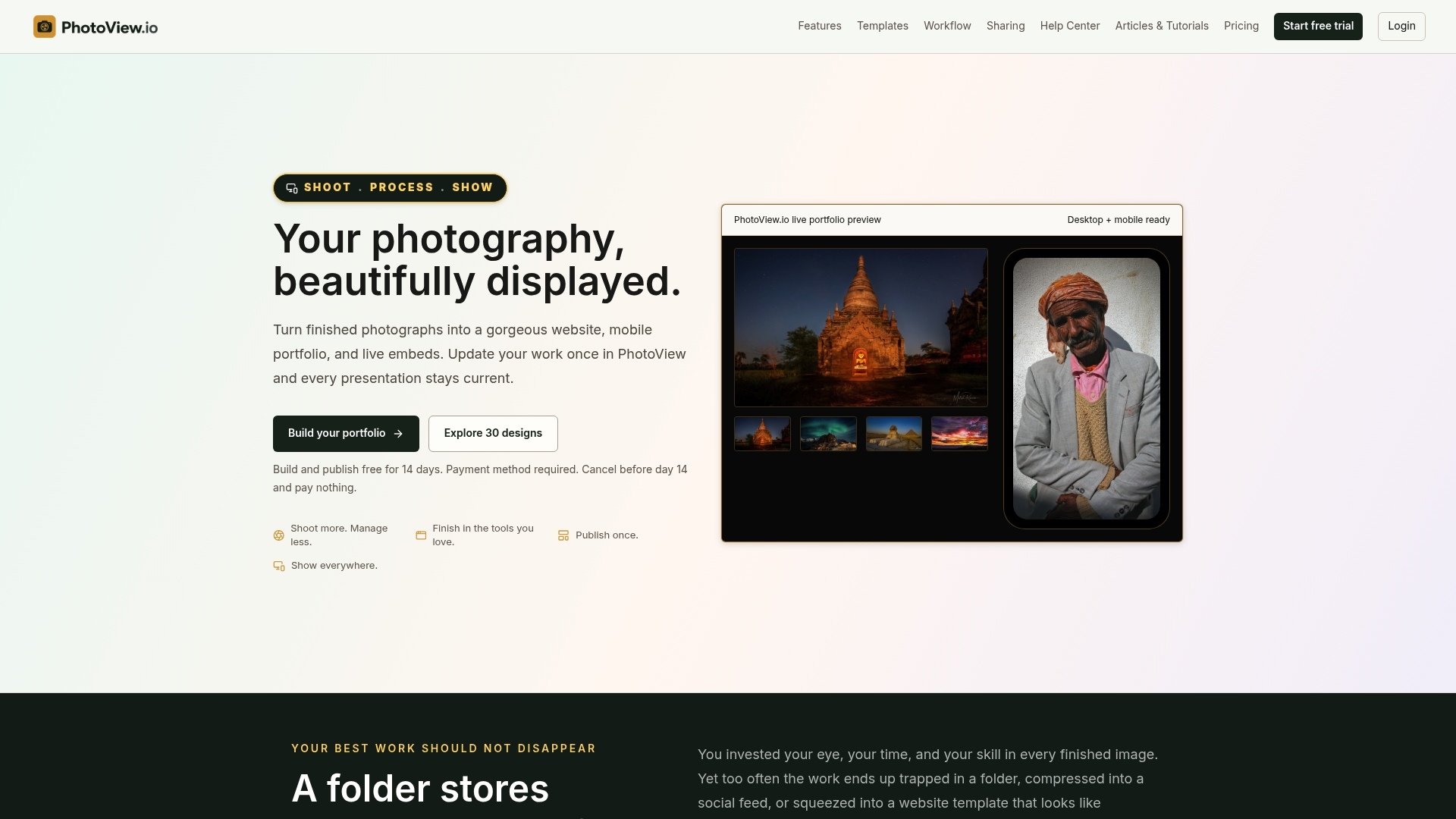
To sync a photography portfolio across devices, keep one curated set of finished images in one place and publish from it everywhere. Your catalog, your editing app and your public portfolio each need their own job. In PhotoView you update your work once and present it across your website, mobile and live embeds, so the portfolio a client opens on a phone is the one you finished on your desktop.
PhotoViewKeep Your Portfolio Current EverywhereKeep your finished portfolio consistent across devices with PhotoView’s publishing tools, responsive templates, and live website embeds.VisitTL;DR
- Syncing an editing catalog and syncing a portfolio are different jobs. The first moves working files, the second keeps your public, finished selection current.
- Curate 15 to 30 finished images per portfolio, then publish from Lightroom so every device shows the same selection.
- Use one account, consistent collection names and a single source of truth to prevent missing, duplicate or outdated images.
- Keep client galleries private and separate from the public portfolio.
- PhotoView plans start at $3.99 per month, with every template included in every plan.
Table of Contents
- What “syncing a portfolio” really means
- Why a synced catalog is not a synced portfolio
- Set up a portfolio that stays current on every screen
- Protect quality, privacy and client work
- Make galleries look right on mobile
- Prevent missing, duplicate and outdated images
- Where PhotoView fits
- Our perspective
- FAQ
- Sources
What “syncing a portfolio” really means
Photographers use the word “sync” for three different things, and mixing them up is where most trouble starts.
Catalog sync moves working files and edits between your own machines. In Lightroom, syncing a Classic collection to Lightroom Mobile sends smart previews rather than full-resolution files, so you can view, share and edit on a phone or tablet while edits flow back to Classic. A smart preview is a smaller stand-in file that lets you edit without the original.
Backup protects originals. It is not a presentation tool.
Portfolio sync is what a visitor sees. It answers a simple question: when you swap an image on your desktop, does the website, the mobile view and the gallery embedded on another page change too?
That last layer is the one this article is about. Your catalog can be messy, with rejects, near-duplicates and unfinished edits. Your portfolio should not be.
| Layer | What it moves | Who sees it | Typical tool |
|---|---|---|---|
| Catalog sync | Edits, ratings, flags, previews | Only you | Lightroom sync |
| Backup | Full originals | Only you | Drives and cloud backup |
| Portfolio sync | Finished, curated images and video | Clients and visitors | PhotoView |
Why a synced catalog is not a synced portfolio
Tim Grey suggests syncing a collection to the cloud instead of carrying a catalog around, because carrying a catalog invites confusion over which copy is the current one. That is sound advice for working files. But a synced collection still lives inside your Adobe account. It is not a website, a client presentation or an embed.
Creative Photographer’s Andrew Gibson makes a related point: a portfolio site works best as an intermediary between your catalog and finished outputs, because a gallery can leave out the developed-but-unpublished photos that would muddy the viewing experience. Your catalog structure and your portfolio structure should differ.
So the goal is not to mirror everything everywhere. It is to decide what is finished, send only that outward, and have every screen read from the same place.

Set up a portfolio that stays current on every screen
Step 1: Pick one source of truth
Decide where finished work lives. Everything else, whether website, mobile view or embed, should read from it. If you keep separate copies on a phone, a laptop and a website builder, you will eventually update one and forget the others.
With PhotoView, you store and curate finished photos and videos in one dashboard, and your website, mobile presentations and live embeds all draw from it. That is the point of the platform: you stop rebuilding the same gallery in three places.
Step 2: Use the same account on every device
For Lightroom, use the same Adobe ID on every device and enable syncing on the collections you want on mobile. Signing in with a different ID is the most common reason a collection “disappears” on a phone.
The same rule applies to your portfolio account. One login, one dashboard, no parallel copies.
Step 3: Name collections so they sort themselves
Presets.io recommends date-first, project-based names, such as the date followed by “NYC Street”, plus a few reusable working collections like “In Progress” and “Favorites”. It also suggests turning sync off on finished collections so they stop using sync resources.
Add one more habit: keep a collection called “Portfolio” that holds only final picks. That collection is what you publish.
Step 4: Curate before you publish
A portfolio that syncs everywhere is only as good as its selection. Aim for 15 to 30 images per gallery. Group by series, not by date: a travel set from one trip, a fine art series, a wedding highlight set. We cover the editing logic in curating 15 to 30 images from Lightroom to web.
Travel photographers, in particular, should lead with the strongest vertical and horizontal frames, because a phone crops a weak opener fast.
Step 5: Publish from Lightroom
Publishing directly from Lightroom means your finished selection goes out from the app where you already work. PhotoView supports publishing a portfolio directly from Lightroom, and Smart Folders help keep galleries organized as your work grows. The full walkthrough is in from catalog to live website.
Work from your phone or computer? You can import from mobile and desktop too, so a frame you finish on the road does not wait until you are back at your desk.
Step 6: Choose a template once
Pick from 30+ responsive portfolio templates, which are designed to adapt to desktop, tablet and phone. Every template is included in every plan, so you can change the look later without changing plans. Browse the photography website templates and set your name, logo and brand through the help center guide.
Step 7: Preview, publish and update
Before going live, view the site on a phone and a desktop. Then publish, and treat every later change as an update to the same portfolio, not a rebuild. The preview, publish and update tutorial walks through it.
Step 8: Embed instead of re-uploading
If you also show work on an existing site, embed the live gallery rather than uploading copies. A live embed stays current when you update the portfolio, which removes the biggest source of stale images: forgotten duplicates on other pages.
Protect quality, privacy and client work
A public portfolio and a client delivery are different audiences. Keep them apart.
- Quality: publish finished, export-ready images. Raw files from modern cameras are large, so portfolios work best with web-sized finals, not originals. A guide on optimizing images for website performance explains why file size affects load speed on phones.
- Privacy: use private sharing for client galleries and unreleased work, so nothing unfinished appears on your public pages. Our private photo sharing page covers the options.
- Client presentation: for weddings and portraits, a private, well-presented gallery matters to the couple. This piece on a private online wedding gallery shows what clients expect to see.
Custom domains let your public portfolio and private galleries carry your own name, which keeps the experience consistent from first inquiry to delivery.
Make galleries look right on mobile
The cross-device problem is old. When Scott Kelby rebuilt his portfolio, his requirements were that it work on iPads and iPhones, show images as large as possible, treat wide and tall frames equally and load fast. Those requirements still hold, even though the technology changed.
A practical mobile check:
- Open the gallery on a phone in portrait and landscape.
- Confirm vertical images are not shrunk to thumbnails.
- Scroll the full gallery with one thumb. If you have to pinch or hunt for navigation, the layout is wrong.
- Check that videos play inline alongside stills.
- Open an embedded gallery on the page where it lives, not just on the portfolio itself.
Responsive templates handle most of this, which is why choosing a mobile-ready layout matters more than hand-tuning each page.
Prevent missing, duplicate and outdated images
Most sync complaints trace back to a few causes.

Switching catalogs. Pixmellow notes that switching sync between catalogs can cause missing images or duplicates. Pick one Lightroom catalog as your sync source and stay with it.
Copying and re-importing photos. Victoria Bampton of The Lightroom Queen warns that copying photos and re-importing them misses earlier edits and metadata. She also cautions that network-drive workarounds for sharing a catalog can corrupt it if the connection drops, even though keeping the photo files themselves on a network drive is fine.
Publishing from many places. If three people or three apps can push to the same gallery, you will get conflicts. Choose one publishing path.
Stale copies elsewhere. Any image you uploaded by hand to another site will not update. Replace those with embeds.
A short weekly routine helps: clear screenshots and near-duplicates, update your “Portfolio” collection, publish, and glance at the site on your phone.
Where PhotoView fits
If you want the finished-work layer handled in one place, PhotoView is built for it. You store and curate finished photos and videos, publish through 30+ responsive templates, share privately, embed live galleries and run social campaign tools from one dashboard. Plans are tiered by storage and every portfolio and website feature is included.
| Plan | Monthly | Annual |
|---|---|---|
| Starter | $3.99 | $39.99 |
| Growth | $5.99 | $59.99 |
| Studio | $7.99 | $79.99 |
| Premier | $11.99 | $119.99 |
High-volume photographers can ask about a Custom storage plan. There is a free trial before you subscribe, so you can see your own work in the templates. Compare tiers on the PhotoView plans page.
Our perspective
Most photographers do not have a sync problem. They have a duplication problem. The same gallery exists on a website, in an app, in a client link and on a second site, and each copy ages at its own speed.
We built PhotoView around a different idea: finished work belongs in one place, and every way of showing it should read from there. Update it once, and your website, mobile presentations and live embeds follow. That is why we include every template in every plan. Your style should not depend on how much storage you need.
Keep the catalog for editing and the portfolio for showing. Publish from Lightroom, curate hard, and let the dashboard do the repetitive work, so you spend your time shooting.
Mitch Russo
FAQ
Can I sync my portfolio from my phone and my computer?
Yes. PhotoView lets you import from both mobile and desktop into one dashboard, so work from either device lands in the same portfolio. Use the same account everywhere to avoid separate copies.
Does Lightroom sync update my website automatically?
Lightroom sync keeps your collections and edits in step across your own devices, and it does not publish a website on its own. To show finished work publicly, publish from Lightroom to your portfolio, and later changes update the same site.
How many images should a synced portfolio hold?
Fifteen to thirty per gallery is a good range. A tighter selection loads faster on phones and gives visitors a clear sense of your style. Use separate galleries for separate series rather than one very long one.
How do I keep client galleries separate from my public portfolio?
Use private sharing for client work and keep it out of public galleries. That way unreleased or personal images never appear on the pages visitors browse, and you can share each set with only the people it is meant for.
Sources
- Take your portfolio with you using Lightroom Mobile (Photofacts)
- Workflow on the Go (Ask Tim Grey)
- How To Use Adobe Portfolio To Organize Your Photos (Creative Photographer)
- Lightroom Ecosystem: Mobile and Desktop Integration Guide (Presets.io)
- Updating My Online Portfolio (Scott Kelby)
- How to Sync Lightroom Mobile Step-by-Step (Pixmellow)
- How do I use my Lightroom catalog on multiple computers? (The Lightroom Queen)