
HTTPS for Your Photography Portfolio: What It Is and Why It Matters
HTTPS for a photography portfolio explained: what it does, why every portfolio site needs it, how to check it, and how to fix mixed content and redirects.

HTTPS for Your Photography Portfolio: What It Is and Why It Matters
Your portfolio should load over HTTPS, even if nobody ever types a password or a card number into it. HTTPS is the encrypted version of the web’s basic protocol, and it is what lets a browser show the padlock instead of a “Not secure” label next to your name. For a photographer, that label lands at the worst moment: when a client, an art director or a gallery curator opens your link for the first time. At PhotoView we build portfolio sites so you can spend your time shooting, and the address bar is part of how your work is first judged.
This guide explains what HTTPS does, why it applies to image-only sites, how to confirm yours is working, and how to fix the usual problems: mixed content, bad redirects and broken embeds.
PhotoViewPresent Your Photography with ConfidencePhotoView helps photographers publish responsive portfolios and keep live website embeds updated from one dashboard.VisitTL;DR
- HTTPS encrypts the connection between your visitor’s browser and your portfolio, and Chrome’s own documentation says all sites should use it, including ones that handle no sensitive data.
- A portfolio without HTTPS risks a “Not secure” warning in the browser, which undercuts a first impression you only get once.
- HTTPS is a small Google ranking signal, not a shortcut to page one. A clean setup matters more than the signal itself.
- After switching, check three things: the padlock on every page, a redirect from http:// to https://, and no mixed content (images or scripts still loaded over HTTP).
- If you use a custom domain, an embed or a second site, test each one separately.
Table of Contents
- What HTTPS actually does
- Does an image-only portfolio really need it?
- HTTPS and Google rankings
- How to get HTTPS on a portfolio
- How to check that HTTPS is working
- Mixed content: the most common problem
- Secure doesn’t mean private
- HTTPS and speed
- A short HTTPS checklist
- Where PhotoView fits
- FAQ
- Sources
What HTTPS actually does
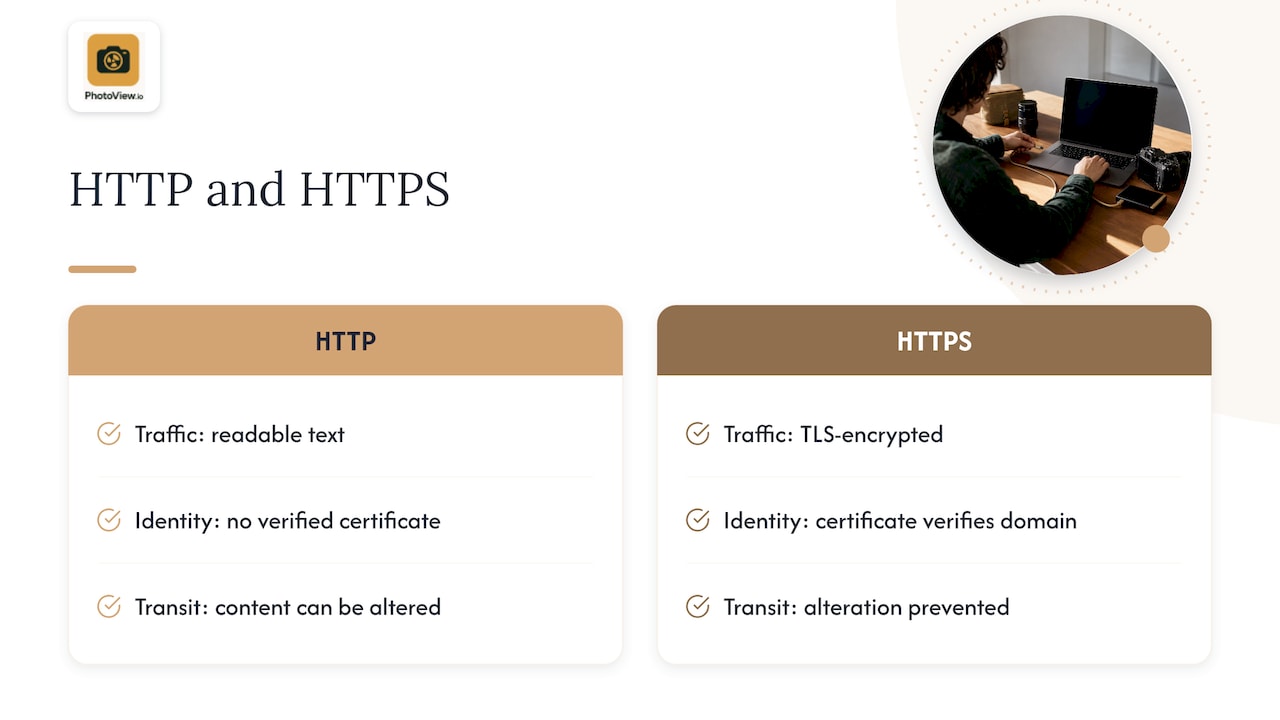
HTTP is the protocol browsers use to request pages from a server. HTTPS is the same thing wrapped in encryption. According to MDN’s glossary, it uses TLS (Transport Layer Security) to encrypt all communication between a client and a server.
The difference is easy to picture. Cloudflare’s learning center explains that plain HTTP traffic travels as readable text that free software can “sniff”, while with HTTPS an intercepted packet looks like nonsense characters.
The second job of HTTPS is identity. The US Cybersecurity and Infrastructure Security Agency (CISA) explains that HTTPS sites are vetted by certificate authorities, third parties that verify the site’s encryption. The site owner receives a certificate, and visitors can inspect it through the padlock icon. In practice the certificate tells your visitor that the site they reached is the one at that domain name, and that nobody altered it on the way.
You will see “SSL” and “TLS” used interchangeably. SSL is the older name. When someone says “SSL certificate”, they mean the certificate that enables HTTPS.
Does an image-only portfolio really need it?
The common objection is that a portfolio has no login, no checkout and no contact data, so there is nothing to protect. The browser vendors disagree.
Chrome’s developer documentation says all sites should use HTTPS, including those that do not handle sensitive data, and that HTTPS is a prerequisite for HTTP/2 and many newer web platform features. Google’s Transparency Report help center gives the same advice and adds that HTTPS protects the integrity of your site and the privacy of its users.
Integrity matters for photographers more than most. Over plain HTTP, anything between your server and the visitor, such as a hotel network or a café hotspot, can alter the page in transit. Your images, your prices and your contact link all pass through that path. HTTPS makes tampering visible and prevents it.
There is also a plain business reason. A portfolio often includes an inquiry form, a newsletter signup or a client login. Even if yours does not today, you may add one next year. Starting on HTTPS means you never have to think about it again.
What visitors see without it
Chrome has labeled HTTP pages as not secure since mid-2018, according to GlobalSign’s explainer on static sites, including pages that collect no login or payment details. Visitors do not need to understand TLS to react to a warning. They only need to feel a flicker of doubt.
For a wedding photographer sending a link to an engaged couple, or a commercial photographer sending a portfolio to a brand’s procurement team, that flicker is avoidable.
HTTPS and Google rankings
Google announced HTTPS as a ranking signal in August 2014. At launch it was described as lightweight, affecting fewer than 1% of global queries and carrying less weight than signals like high-quality content. Google also said it might strengthen the signal over time to encourage HTTPS everywhere.
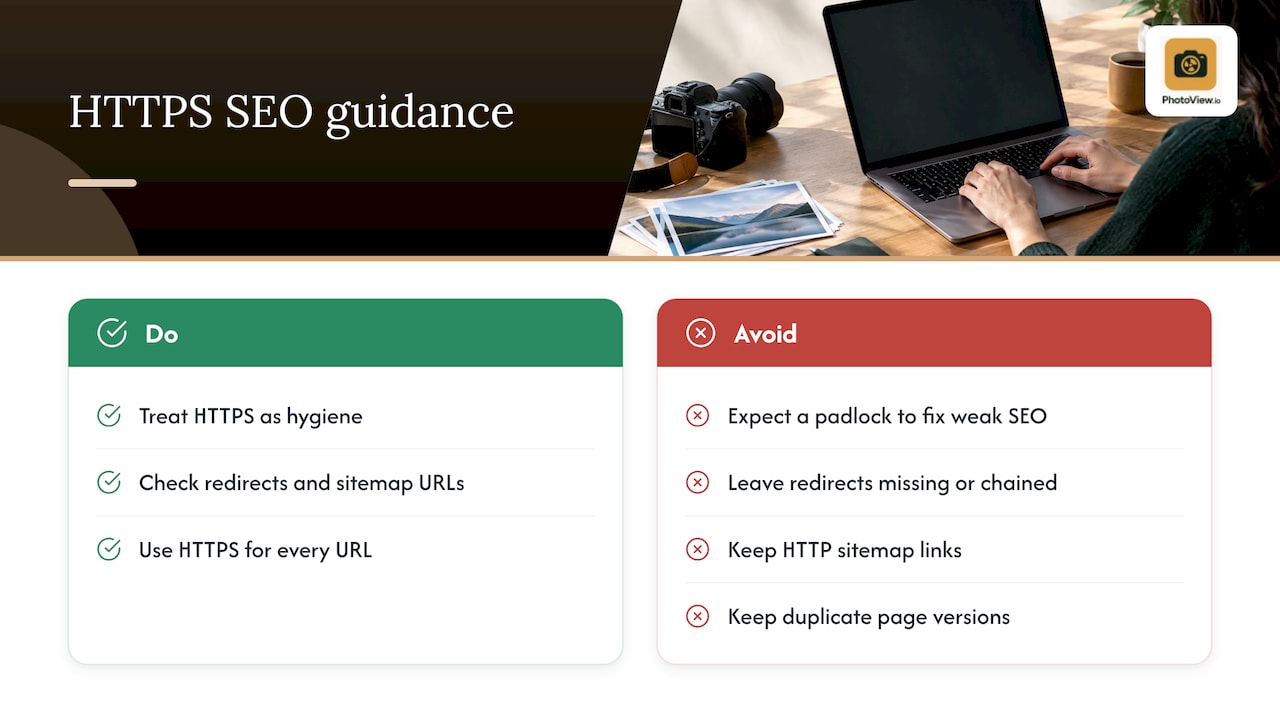
So treat HTTPS as hygiene rather than a ranking trick. A portfolio with weak images, no text and slow pages will not rank because of a padlock. What HTTPS does is remove a reason for Google, and for your visitors, to rank or trust you less.
The bigger SEO risk is the switch itself. One large study of search results, summarized by SEO Sherpa, found that the domains that moved to HTTPS initially lost rankings before slowly recovering. That pattern points to a messy migration, not to HTTPS itself. Redirects that are missing or chained, old http:// links in your sitemap and duplicate versions of the same page are the usual causes. If you are moving a site, our guide on migrating a photography portfolio without losing traffic walks through the sequence.
Once your HTTPS setup is stable, the rest of the technical checklist follows naturally: structured data, crawlable galleries and a clean sitemap. For the wider picture, this technical SEO checklist for content sites covers what to review next, and our piece on the photography website sitemap shows how to list your pages so every URL is the https:// version.
How to get HTTPS on a portfolio
The route depends on how your site is built. There are three common cases.
- A portfolio platform. You publish through the platform and, if you want your own address, connect a custom domain. This is the shortest path, because you manage the site from one dashboard instead of juggling a server, a certificate and a CMS.
- A website you host yourself. You (or your host) obtain a certificate, install it on the server, and then redirect all http:// traffic to https://. Many hosting providers include a certificate at no extra charge, but the redirect and the content cleanup are still yours to confirm.
- A site split across several services. A portfolio on one domain, a blog on a subdomain and a client gallery elsewhere. Each address needs to be secure, and each is checked on its own.
Whichever route you take, the end state is the same:
- A valid certificate covering your exact domain, with and without “www”.
- A permanent (301) redirect from every http:// URL to its https:// twin.
- Every image, video, font and script on the page loading over HTTPS.
- Internal links, canonical tags and your sitemap pointing at https:// addresses.
A certificate comes in several validation levels. For a portfolio, the basic domain-validated type, which proves you control the domain, is the normal choice. The extra identity checks of higher levels are aimed at banks and large retailers.
Your domain is the part you control
People remember your domain, put it on business cards and type it into the address bar. If you use a custom domain with PhotoView, it is the name visitors see, so decide it once and keep it consistent across your site, your social profiles and your email signature. A consistent address is also easier to secure and to redirect cleanly.
How to check that HTTPS is working
A padlock on your homepage is a start, not a finish. Run this five-minute check on your own site.
- Type the address with http://. Enter http://yourdomain.com and confirm the browser lands on https://yourdomain.com. Repeat with and without “www”.
- Open three different pages. Check the homepage, a gallery and your contact page. A padlock on one page does not guarantee the others.
- Click the padlock. Chrome lets you view the certificate details, including who issued it and when it expires.
- Open DevTools. In Chrome, press F12 and open the Security panel. Chrome DevTools can display non-secure origins, which shows you which resources are holding a page back.
- Check on your phone. Mobile browsers handle warnings differently, and travel and event photographers often share links from a phone.
Certificates expire and need to be renewed. If you manage your own certificate, put the expiry date in your calendar. An expired certificate produces a full-page browser warning that is worse than having no HTTPS at all.
Mixed content: the most common problem
Mixed content happens when a page loads over HTTPS but pulls some of its resources, usually images, over HTTP. Chrome’s documentation notes that such pages are only partially protected, since the HTTP content is exposed to sniffers and man-in-the-middle attacks.
For photographers this is a real risk, because a portfolio is mostly images. Typical causes:
- Old image URLs hard-coded with http:// in blog posts or captions.
- An embedded gallery or video player whose code still points to an HTTP address.
- A font or analytics script copied from an old template.
- A logo or banner stored on a different service.
MDN’s mixed content guide lists practical ways to find these: browse your site with the developer console open and watch for mixed content warnings, or use a crawler or an online mixed content checker to scan every page. Its recommended fix is to serve everything as HTTPS and replace http:// links with https:// or relative links.
Start with your most visited pages, then your oldest blog posts, which tend to hide the worst offenders.
Embeds deserve their own test
If you display a gallery on another site, such as a blog, a club page or a client’s website, that host page needs to be HTTPS too. An HTTPS embed on an HTTP page will not look secure to the visitor, and an HTTP embed on an HTTPS page triggers the mixed content problem above. PhotoView keeps live website embeds updated from one dashboard, so you change the work once and every embed shows it. Test each place the embed appears, since you control your own site but not always the page that hosts it.
Secure doesn’t mean private
A padlock means the connection is encrypted and the site is who it says it is. It does not mean your photos are restricted. Anyone with a public link can still open and share it.
If you send unreleased work, proofs or client galleries, you need access controls on top of HTTPS. Our articles on password-protected galleries and the public link risk cover how links leak and how to prevent it. PhotoView also supports private sharing, so a client gallery can stay separate from your public portfolio. For the storage side of the question, see our overview of secure photo hosting for photographers.
HTTPS and speed
Security and speed are not a trade-off. Chrome’s documentation notes that HTTPS is a prerequisite for HTTP/2, a newer version of the protocol that is designed to load pages more efficiently. For an image-heavy site that matters, though your biggest speed gains still come from image sizing and delivery. Our guide to portfolio site speed covers that in detail.
A short HTTPS checklist
| Check | What good looks like |
|---|---|
| Certificate | Valid, issued for your exact domain, not near expiry |
| Redirect | http:// and www variants all go to one https:// address |
| Mixed content | No warnings in the browser console on any page |
| Sitemap | Lists only https:// URLs |
| Internal links | Point to https:// or use relative paths |
| Embeds | Host pages and embedded galleries both load over HTTPS |
| Mobile | Padlock and no warnings on phone browsers |
Where PhotoView fits
PhotoView is a portfolio platform for photographers who want to publish finished photos and videos without managing a website’s moving parts. You store and curate your work in one place, publish through more than 30 responsive portfolio templates, connect a custom domain and keep live embeds current from one dashboard. Every template is included in every plan, so your choice of plan comes down to storage.
Plans are billed monthly or annually after a free trial:
- Starter: $3.99 per month or $39.99 per year
- Growth: $5.99 per month or $59.99 per year
- Studio: $7.99 per month or $79.99 per year
- Premier: $11.99 per month or $119.99 per year
- Custom storage plans for high-volume users
You can compare them on the PhotoView pricing page. If you want to see how the publishing flow works before you commit, the Help Center explains how to preview, publish and update your website.
If you are building from scratch, start with a homepage that shows your best work and let the platform carry the structure.
Our view: the address bar is part of the portfolio
We think of a portfolio as a presentation, and a presentation starts before the first image loads. Visitors read the address, the padlock and the speed of the page, and they form an opinion about you in those first seconds.
That is why we built PhotoView around a single idea: you update your work once, and it shows up everywhere it is discovered, on your website, on mobile and in embeds. The fewer places you maintain by hand, the fewer places a stray http:// link or a forgotten setting can hide.
Travel, wedding, fine art and commercial photographers all share the same goal: spend more time shooting and less time managing websites. Treat HTTPS as a one-time setup you verify carefully, then forget, and keep your attention on the work.
Mitch Russo
FAQ
Do I need HTTPS if my portfolio has no contact form or store?
Yes. Chrome’s documentation recommends HTTPS for all sites, including those without sensitive data. It also protects the integrity of your pages and removes the “Not secure” label visitors would otherwise see.
Will switching to HTTPS hurt my Google rankings?
Not when it is done cleanly. Google’s 2014 announcement described HTTPS as a lightweight ranking signal. Use permanent 301 redirects from every HTTP address, update your sitemap and internal links, and check that no old http:// URLs remain.
What is mixed content, and how do I find it?
Mixed content is an HTTP resource, usually an image or script, loaded on an HTTPS page. Open your browser’s developer console while you browse your pages, or run a mixed content scanner across the site. Then replace each http:// reference with its https:// version.
Does HTTPS keep my client galleries private?
No. HTTPS encrypts the connection, but anyone with a public link can still open the page. Use password protection or private sharing for client work and unreleased images.
How often should I check my certificate?
Certificates have an expiry date, so check yours whenever you review your site and set a reminder ahead of renewal. Click the padlock in the browser to see the validity dates.
Sources
- HTTPS, MDN Web Docs glossary
- What is HTTPS? Cloudflare Learning Center
- CISA: Tips to stay safe while surfing the web, part 2
- Chrome Lighthouse: Uses HTTPS
- Google Transparency Report Help Center: HTTPS FAQs
- GlobalSign: Do static websites need HTTPS?
- Google Search Central Blog: HTTPS as a ranking signal
- SEO Sherpa: SEO experiments and test results
- Chrome DevTools: Security panel
- MDN: Mixed content